
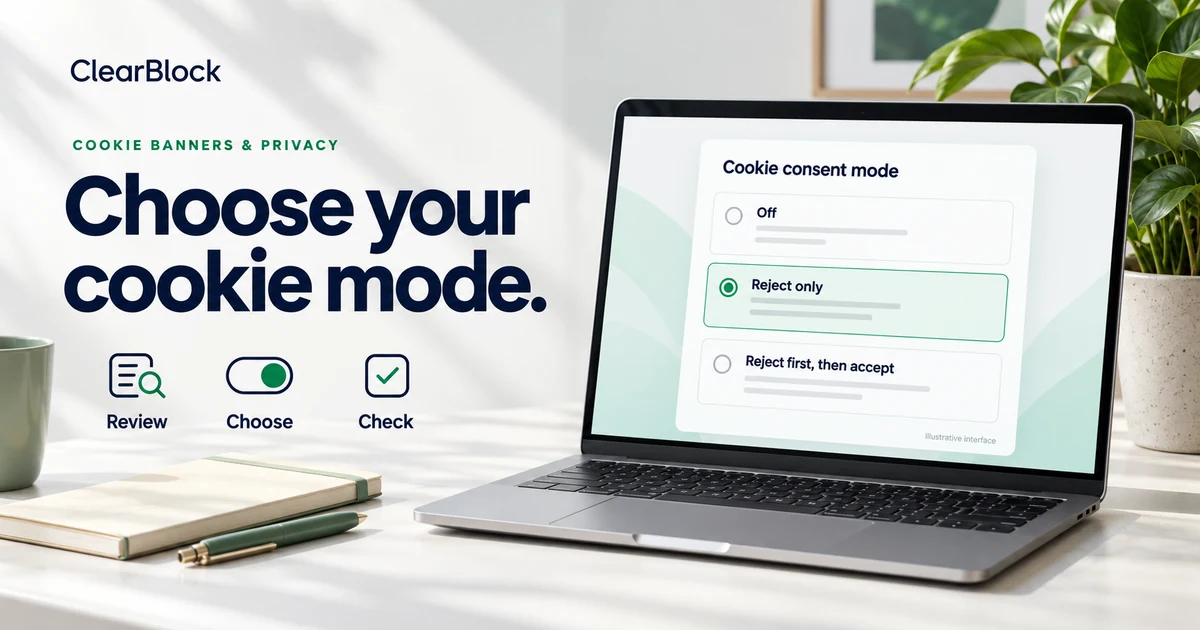
ClearBlock's cookie banner feature offers a choice about how supported consent requests are handled. You can leave the decision to yourself, permit automatic rejection without acceptance, or allow rejection first with acceptance as a fallback. Choosing between them matters more than simply making a banner disappear.
This guide focuses on selecting and checking your cookie consent mode. It explains what each option means, how to change it, and what to do if a website already remembers an earlier choice. If you want a broader introduction first, read how to manage cookie banners and consent with ClearBlock.
Start with the outcome you want
Decide whether your priority is handling each consent request personally, rejecting optional cookies where supported, or reducing banner interruptions even when that can involve acceptance. These are different preferences. A feature that dismisses a request is not necessarily making the privacy choice you would have made manually.
For example, you may be comfortable with supported automatic rejection but want to inspect any banner where rejection is unavailable. That points towards Reject only. If you want to review the website's choices yourself every time, Off is the appropriate starting point. Read the full label before selecting the more permissive fallback mode.
The three cookie consent modes
Off — leave consent choices to me
Off leaves cookie consent choices to you rather than asking this feature to make them automatically. It is suitable when you want to inspect the options on a website yourself. You may continue to see banners because you have chosen not to automate their handling.
Off does not mean the website has forgotten an existing decision. If consent was already saved, the site may continue using that stored choice. Disabling the feature is a change to future automated handling; it is not a command that withdraws or reverses consent on websites you previously visited.
Reject only — never accept automatically
Reject only is the mode to choose when you want supported automatic rejection without automatic acceptance. If ClearBlock cannot carry out a supported rejection, you may still need to deal with the banner yourself. A remaining banner is preferable to an automatic acceptance you explicitly chose not to allow.
This mode does not promise that every consent panel on every website will be handled. Websites use different interfaces, and unfamiliar preference panels can require manual attention. It also does not mean that all cookies, storage or tracking methods have been eliminated. The mode describes this feature's consent action.
Reject first, then accept if unavailable — allow tracking
This mode tries rejection first, then allows acceptance where rejection is unavailable in supported handling. The important consequence is in the label: acceptance can allow tracking. Choose it only if you are comfortable with that fallback, rather than assuming every dismissed banner represents a rejection.
It offers a different trade-off from Reject only. It can reduce interruptions in cases where rejecting is unavailable, but that convenience may involve a more permissive consent choice. If that does not match your preference, choose Reject only or Off instead.
Do not assume the initial setting matches your preference
In the reviewed ClearBlock version, enabling the feature for a new user defaults to rejection first, then acceptance if unavailable. Existing saved choices remain unchanged. That makes it worth opening the mode selector after enabling the feature rather than assuming it is set to reject-only behaviour.
Your installed version and saved settings determine what is currently selected. Read the visible mode in your own options page. If you previously experimented with the feature, treat that as another reason to verify the selection rather than relying on what you remember choosing earlier.
How to change the mode in ClearBlock
- Open ClearBlock's options page in the browser profile you use for browsing.
- Go to General Options.
- Find Block Cookie Banners (Premium).
- Open the mode selector and read all three labels.
- Select Off, Reject only, or the reject-first accept-fallback option according to your preference.
- Check that the displayed selection reflects the choice you intended.
- Save unfinished work before reloading a page you want to check.
The cookie banner tool is an optional Premium feature. Free core ad blocking is separate. If you need help reaching options, start with finding ClearBlock's controls. The features page explains the broader distinction between core blocking and additional tools.
Check a familiar website carefully
After changing the mode, use a familiar website and observe its consent interface. A website with an existing saved decision may not show a banner at all, so it cannot necessarily demonstrate what your new mode would do to a fresh request. Absence of a banner alone is not proof of rejection.
If the website provides a cookie settings or privacy choices link, use it to inspect the choices available for that site. Those controls may appear in the footer or another settings area. Their names and behaviour are controlled by the website, so follow its actual interface rather than expecting every site to look the same.
Do not repeatedly accept and reject merely to generate activity records. Check only what you need to understand your settings. Keep track of whether a change was made by ClearBlock, by you in the site's panel, or through browser data settings; mixing those actions makes the result harder to interpret.
Changing mode does not undo an earlier decision
A cookie mode governs future handling by this feature. If a website already stored acceptance, switching ClearBlock to Reject only does not automatically transform that old acceptance into rejection. Similarly, switching Off does not withdraw a decision that was previously saved.
To change an earlier choice, look for the website's own consent controls and review its current settings. If you need to manage stored site data, use the relevant browser controls with care. Deleting site data can remove more than consent preferences, including information used to keep you signed in.
Do not clear all browser data as your first step when your question concerns one website. A targeted review is easier to understand and less disruptive. For repeated banners and missing stored choices, see why cookie banners keep reappearing.
Understand necessary and optional choices
Cookie panels often present several categories or a mixture of buttons and preference settings. Read what the website says about the choices it offers. Rejecting optional categories is different from assuming that the website will store nothing at all or that every part of its service can work without storage.
ClearBlock's mode should not be interpreted as a complete description of a website's data practices. If you need to understand how a particular service handles information, review that service's privacy information and settings. Avoid treating a closed banner as a guarantee about every request, account setting or third-party interaction.
When manual handling is the better choice
Some panels contain unfamiliar switches, multiple steps or choices you want to read personally. ClearBlock leaves unknown preference panels for you rather than assuming their meaning. If you want full control of that interaction, choose Off and review the page's own consent options.
Manual handling can also help when you are trying to understand a site's settings before choosing your general preference. Record the final decision you intended, then return ClearBlock to the mode you want for future browsing. You do not need to leave a permissive fallback enabled simply because you used it during an earlier test.
Why a banner can remain in Reject only mode
A visible banner may mean there was no supported rejection action available, or that the panel was not recognised. It does not automatically mean the entire extension is disabled. Reject only deliberately excludes automatic acceptance, so the feature can leave a decision to you instead of taking that fallback.
Check whether the current website is allowed to bypass protection and whether global blocking is paused. These states are separate from your selected cookie mode. If needed, read how pause and resume work before changing additional controls.
If the panel still needs attention, handle it manually and keep your preferred mode. Avoid switching to accept-fallback solely to make a particular banner vanish unless you are comfortable with acceptance being an available outcome.
Read cookie activity separately from ad blocking
ClearBlock distinguishes cookie activity from recorded network ad blocking. A rising Ads Blocked total does not tell you whether a consent choice was rejected or accepted. Likewise, a cookie record should not be counted as an individual advertising request blocked.
The dashboard distinguishes verified stored-choice records from unverified or older attempts. Where the interface reports a verified rejection or acceptance, that is a different kind of evidence from simply observing that a banner is no longer on screen. Check which metric and time period you are viewing before comparing records.
Historical records describe earlier activity; they do not automatically establish the current choice on every website. A later manual change or a different browser profile can produce a different state. Read understanding ClearBlock's dashboard and counters for more detail.
Keep privacy controls separate in your thinking
Cookie consent handling, network filtering and site allowances serve different purposes. Changing the cookie mode does not require you to rewrite your custom blocked domains list. A broad site allowance can affect more protection than you intended if your only goal was to inspect one consent panel.
Use the smallest relevant change, then test the result. If a page stops working, undo the most recent change before making another. The website troubleshooting guide provides a more detailed comparison process.
A short mode review routine
- Read the currently selected mode in General Options.
- Decide whether automatic acceptance is acceptable to you.
- If it is not, select Reject only or Off.
- Review any important website where you previously saved a different consent choice.
- Use the site's own controls to change that choice where needed.
- Keep a note of unresolved panels if you plan to ask for help.
You do not need to inspect every website after every visit. Focus on confirming your general preference and reviewing specific sites when there is a reason to do so. A deliberate choice is more useful than repeatedly changing settings without checking what each option means.
Frequently asked questions
Which mode never accepts automatically?
Reject only is explicitly labelled never accept automatically. Off leaves the consent decision to you. The reject-first accept-fallback mode can accept when rejection is unavailable in supported handling, so it is a different choice.
Does Reject only guarantee that every banner disappears?
No. Unsupported panels or requests without an available supported rejection may remain for manual handling. The mode avoids automatic acceptance rather than promising universal banner removal.
Can I change an acceptance from yesterday by changing mode today?
Changing the mode does not undo previously stored consent. Review that website's consent controls to change an earlier choice. Browser data controls are another separate action and may affect sign-in or other saved preferences.
Does a disappeared banner prove that tracking was rejected?
No. The site may remember an earlier choice, the banner may have been handled manually, or an accept-fallback action may have occurred. Check the actual mode and available evidence instead of inferring a consent outcome from appearance alone.
What should I send support about an unexpected result?
Tell ClearBlock support the website hostname, browser and extension versions, selected mode and what you observed. Explain whether the site already had a saved choice. Avoid sending credentials or private account information with a screenshot.
Explore more Cookie Banners & Privacy guides to understand returning banners, stored choices and the limits of automated consent handling.
Ready to try it?
Understand the available controls before choosing your settings.
Explore cookie controls →