A video will not start
Turn off Stop Auto-Playing Videos while checking the page, reload, then click the player’s own play button. If the issue persists, test with that website allowed.

ClearBlock help for Chrome and Edge
A website looks broken, a video will not play or a popup keeps appearing? Follow these steps to check your ClearBlock settings and get the page working again.
Start by allowing the affected website and reloading it. This helps you check whether blocking is involved before changing other settings.
Fix a website problem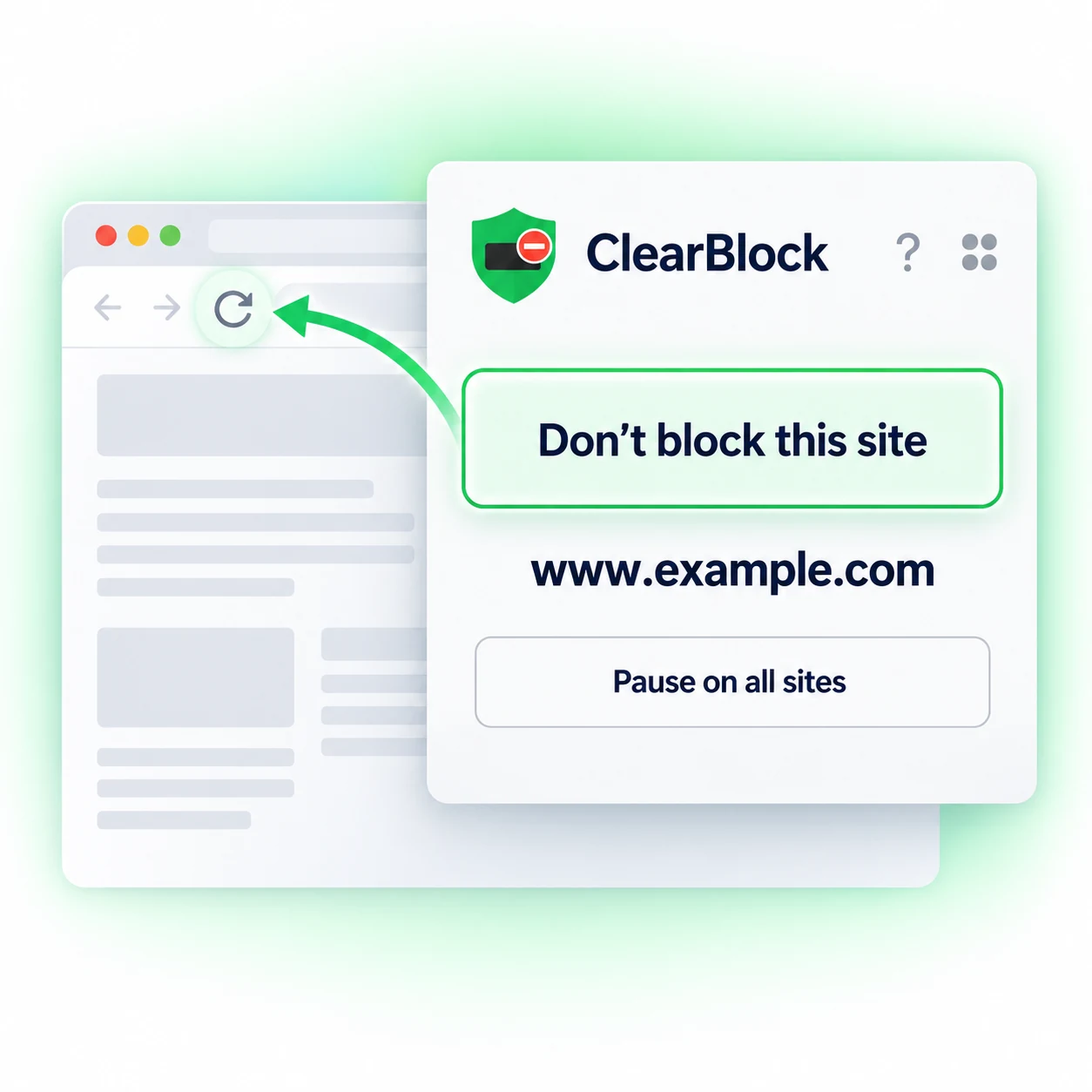
A page may depend on a resource that a filter or page-control setting affects. Check the individual website first.
If the problem disappears, leave that website allowed while you report it, or check whether one Premium feature is responsible. To restore blocking for an allowed website, choose Stop allowing this site and reload.
Don’t block this site applies to the current website. Pause on all sites pauses blocking across websites; choose Resume on all sites when you want it back on.
If the page still fails while blocking is paused, ClearBlock may not be the cause. Check your connection and whether the website works in another browser. Avoid repeatedly submitting a payment or form while investigating.
First, allow the website and reload. If you use Premium, also check Stop Auto-Playing Videos in the ClearBlock popup.
Turn off Stop Auto-Playing Videos while checking the page, reload, then click the player’s own play button. If the issue persists, test with that website allowed.
Check that Premium is active and Stop Auto-Playing Videos is enabled. Websites use different players, so report a page where unwanted playback continues. Include whether the video starts before or after you click.
If player buttons or surrounding page controls disappear, check Hide Page Distractions as well. Read about the individual Premium controls.
An overlay inside the current page is different from a new browser window. Hide Page Distractions may help with supported in-page interruptions. Popup counters record intercepted attempts; they do not measure every visible popup or overlay.
If a link you need stops opening, allow the website while checking it and include that detail in your report.
Premium’s Block Push Notifications helps stop supported websites from requesting notification permission. A permission you already granted needs a separate check in your browser.
This is different from an advertising overlay drawn inside a webpage. Include a screenshot when reporting an interruption so Support can distinguish the two.
Open your browser’s extensions menu and select ClearBlock. Pin the icon if you want it visible on the toolbar. If ClearBlock is listed as disabled in extension management, review the browser’s message before enabling it.
If paid toggles are unavailable, open Options and check the Premium activation section. Use the licence key from your receipt email when needed. For account assistance, contact Support.
ClearBlock cannot modify every kind of browser page, including protected browser interfaces and extension-store pages. Test on an ordinary website. See the setup and settings guide.
Send the following details to [email protected]:
Never include passwords, payment-card details or your licence key in a public screenshot. Open the Support page for more help.
No. Start with Don’t block this site, then reload. Pause on all sites is available when you need a broader check.
No. Allowing the current website is separate from Pause on all sites. Use Stop allowing this site to restore blocking for an allowed website.
The counter records blocked network requests, rather than individual visible ads removed. A page can make several blocked requests and still contain an unmatched advertisement.
Manage a paid subscription separately using Manage Subscription. Removing an extension and cancelling a subscription are separate actions.
ClearBlock is developed by Adwizz Ltd. Visit Support, explore ClearBlock features or follow the How It Works guide.