
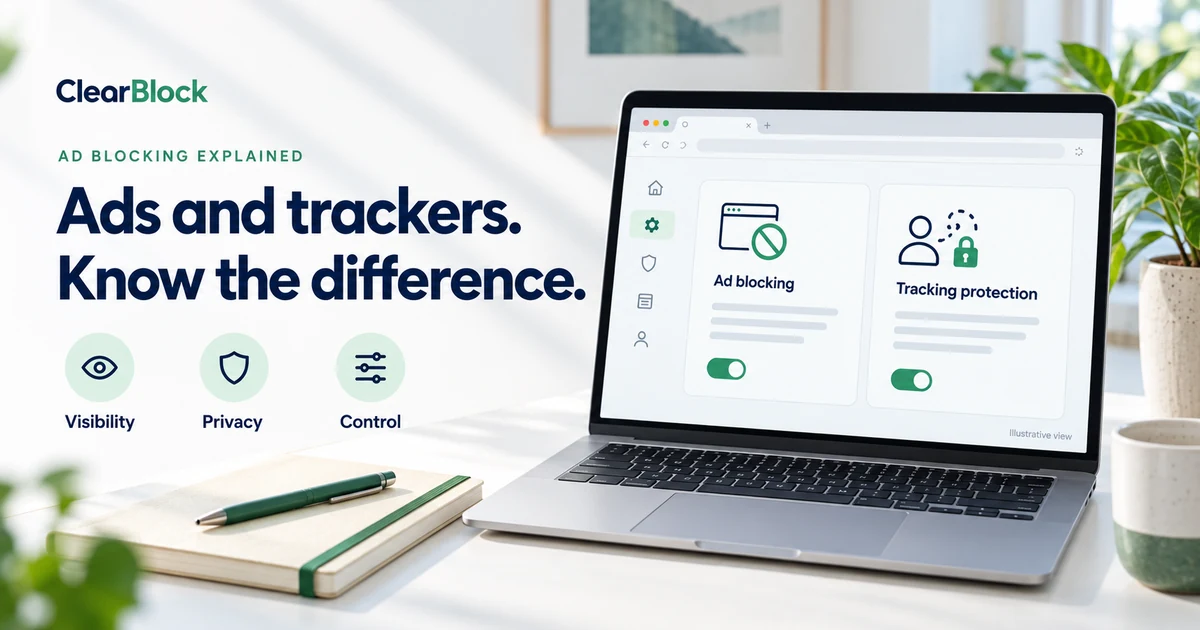
Ad blocking aims to reduce unwanted advertising, while tracker blocking aims to limit supported forms of monitoring or recognition. The two can overlap because advertising systems often use tracking, but they are not interchangeable. A page can show fewer adverts without becoming anonymous, and tracking protection can change what loads without removing every sponsored message.
Understanding the distinction helps you choose settings for the outcome you want. This guide explains the main differences, uses everyday examples, and shows how to assess results without treating an empty advertising slot or a large blocked-request count as proof of complete privacy.
Start with two different questions
For ad blocking, the question is often: can I read this page with fewer advertising interruptions? For tracker blocking, it is closer to: can I reduce the supported tracking mechanisms involved in this visit? Those questions can lead to some of the same rules, but their goals differ.
Imagine a news article with a banner above the headline and an embedded player further down. You may want the banner removed while keeping the player useful. You may also want to limit tracking resources associated with either area. The visible layout alone does not tell you which of those goals has been achieved.
Before changing settings, state the problem plainly. Fewer distracting banners, fewer cross-site tracking opportunities and a different cookie choice are more useful goals than a vague instruction to block everything. A specific goal makes the result easier to assess.
What ad blocking usually targets
An ad blocker can apply network rules to matching resource requests and cosmetic rules to supported page elements. Preventing an advertising resource from loading is different from hiding the space reserved for it. Products vary in which techniques they support and how their rules are delivered.
A page may therefore change in more than one way. An advert may not load, its container may disappear, or a blank area may remain because the website still reserves room. None of these visual outcomes describes every request associated with the visit.
Read how ad blockers work for a fuller introduction to network filtering, element hiding and exceptions. Knowing the difference is useful before interpreting privacy claims or attempting custom rules.
What tracker blocking usually targets
Tracker blocking can address resources or behaviours associated with tracking. Depending on the browser or product, that may include blocking known tracking requests, restricting storage or limiting the ability to connect activity across different sites. Exact coverage depends on the implementation and settings.
It does not necessarily mean every tracking technique is stopped. The label describes a set of protections rather than a guarantee that no organisation can learn anything about the visit. The website you are using can still receive information you deliberately submit, including an account login or a completed order.
Microsoft's tracking prevention guide explains its browser's selectable levels and site exceptions. Use the documentation for your actual browser instead of assuming that every product's privacy control has identical scope.
Where the two overlap
An advertising resource can also participate in tracking. Blocking that resource may affect both the visible advert and the related tracking activity. That overlap explains why some blockers combine advertising and privacy rules, or present several related controls in one interface.
However, overlap does not mean equivalence. Some tracking activity does not produce a visible advert. Some advertising is placed directly in content without depending on a separate resource that a blocker can distinguish cleanly. A sponsored passage and a third-party banner are not the same kind of target.
A useful comparison asks which resource or behaviour a rule addresses, rather than judging only by the marketing category assigned to the feature. If a product provides separate descriptions for its filters, read them before assuming one toggle includes every other protection.
Why filter lists have different purposes
Filter lists are maintained collections of matching rules. Different lists can target different kinds of unwanted activity. EasyList and EasyPrivacy are well-known examples of projects with distinct advertising and tracking goals; the maintainers' policy describes their intended scope.
A product's use of a list name does not establish that it supports every rule in the original list or updates it in the same way as another product. Supported syntax, browser capabilities, conversion processes and release methods can differ.
Follow the blocker's own instructions for available lists and updates. Do not paste an entire filter subscription into a field that asks for hostnames. A supported setting is more predictable than an improvised collection of entries you cannot explain or undo.
Cookies are one part of the picture
Cookies can support logins, preferences and other website functions. They can also be involved in tracking, particularly when a third party is present across multiple sites. Browser controls can restrict how those cookies are used rather than simply removing every cookie from every visit.
Mozilla's third-party cookie guide explains this distinction and how browser approaches differ. Do not assume that every third-party resource is an advert or that every cookie is evidence of unwanted monitoring.
For practical decisions, identify the setting you are changing: consent on the website, browser cookie handling or a blocker's network rules. These can interact, but one does not automatically reset the others. Clearing cookies can also affect useful saved state, so consider the consequence before doing it.
Blocking requests is not the same as rejecting consent
A cookie banner asks for a choice offered by a website. A tracker-blocking rule may affect a matching resource independently of that panel. Closing or hiding the banner does not establish that the website saved a rejection.
If you use an automatic consent tool, check whether it rejects only, accepts under some circumstances or leaves unfamiliar choices to you. A quieter interface can result from different actions with different consequences. Read the selected mode rather than inferring the outcome from the banner's disappearance.
The ClearBlock cookie mode guide explains this for its optional feature. For general background, browse Cookie Banners & Privacy guides.
What about browser fingerprinting?
Fingerprinting uses characteristics available from a browser or device to help recognise it. It is a different issue from simply storing an identifying cookie. Deleting cookies alone should not be treated as proof that every method of recognition has been addressed.
Some browsers include protections against known fingerprinting techniques alongside other tracking controls. Mozilla describes several categories in its Enhanced Tracking Protection help. Check the current browser settings and documentation for the features that apply to your setup.
You do not need to change every advanced browser option to understand the distinction. Start with documented settings and avoid installing an assortment of unfamiliar tools merely because each promises stronger privacy. More components can also make a problem harder to diagnose.
Three everyday examples
The advert disappears but the site knows your account
You open a shopping site while signed in. Your blocker removes a matching advertising resource, but the site still recognises the account you use. That is not a contradiction: filtering an advert does not sign you out or erase information you intentionally provide.
The page looks the same after enabling privacy protection
A privacy setting can affect supported background behaviour without noticeably changing the article's appearance. An unchanged layout is therefore not proof that nothing happened. Use the browser's relevant information where available, while recognising its scope and limits.
A video stops working after a change
A stricter setting may affect a resource the player depends on, or the site may have an unrelated fault. Save your work and make one focused comparison. Do not immediately disable every protection or assume that the video itself is necessarily a tracker.
Why privacy settings can affect useful features
Websites can rely on third-party components for functions people want to use. Blocking or restricting a component can sometimes affect more than the unwanted activity. This is one reason browsers and blockers provide exceptions and troubleshooting information.
MDN's tracking protection documentation discusses dependencies that can break when tracking resources are unavailable. A broken feature is useful evidence to investigate, not a reason to assume all privacy controls are unsuitable.
Test the same page and action with one relevant change. Restore a temporary exception afterwards unless you intentionally want to keep it. If you report the problem, explain what failed, what changed and what worked, without sending private account information.
Use counters carefully
A blocked-request number can mix several kinds of matching resources depending on the product's definition. It may not count distinct adverts, people tracking you or data prevented from leaving the device. Read what the metric actually measures before comparing it with another tool.
A larger number can reflect repeated attempts or a different recording method. A smaller one can reflect another protection acting first or a page making fewer requests. Neither result alone establishes the overall privacy quality of a setup.
Judge the outcome against your goal and keep the main site usable. If you use ClearBlock, its dashboard guide explains why network records, popup reports and cookie choices are different measurements.
Choose settings in a practical order
- Identify whether your concern is visible advertising, tracking, cookie consent or another interruption.
- Read the relevant browser and blocker settings.
- Start with the documented setup rather than a large custom rule collection.
- Change one relevant option and test familiar sites.
- Review any exception you create and keep it only if intended.
- Check the product's normal update process and support guidance when a problem persists.
This routine helps you understand trade-offs without promising perfect privacy. It also makes later troubleshooting easier because you can identify which change preceded a new result. Keep notes only where useful, and avoid including passwords or private browsing details.
Private browsing is another separate control
Private windows address certain session data retained by the browser. They do not automatically provide every ad-blocking or tracking-protection feature, and signing into a website still identifies your account to that service.
If your goal is reducing records left in the ordinary browser history, private browsing may be relevant. If the goal is a matching request or a particular consent choice, inspect those controls separately. Read what private browsing actually hides for a fuller explanation.
Frequently asked questions
Does removing adverts stop all tracking?
No. Advertising and tracking can overlap, but they are not identical. A cleaner page does not prove anonymity or the absence of every tracking method.
Does tracking protection remove every advert?
No. A tracking control targets its documented behaviours or resources. Some adverts may remain, including content that does not depend on a separately matched tracking resource.
Should I enable every privacy list?
Use the options your product supports and understand their purpose. Adding unfamiliar lists or rules without a specific goal can complicate troubleshooting and affect useful site features.
Can I support a website while using a blocker?
You can choose an exception where appropriate or use support options offered by the publisher. Read what the exception changes and review it if your preference changes later.
Explore more Ad Blocking Explained guides and Browser Privacy & Tracking guides for clear explanations of the controls available while you browse.