
If the ClearBlock shield has disappeared from your toolbar, first look in your browser’s Extensions menu. An unpinned icon can disappear while the extension remains enabled. If ClearBlock is not listed there, check the extensions management page and confirm you are using the browser profile where you installed it.
This guide helps you find ClearBlock in desktop Chrome and Microsoft Edge without immediately removing it or resetting your browser. Work through the checks in order, stopping when you identify the cause. Menu wording and icon placement can vary between browser versions.
Start by identifying what is missing
There are three different situations: the shield is absent from the toolbar, ClearBlock is absent from the Extensions menu, or the shield is visible but its popup will not open. These need different checks. A missing shortcut alone does not tell you whether blocking is running.
Use a normal browser window with an ordinary website open for these checks. A private window, guest session or another profile can have a different set of available extensions. Avoid using a browser settings page to judge whether ClearBlock can change website content.
Find and pin ClearBlock in Chrome
- Open the Extensions menu beside Chrome’s address bar. Its icon usually looks like a puzzle piece.
- Look for ClearBlock in the list.
- Select the pin beside ClearBlock to keep its icon on the toolbar.
- Select the shield to open ClearBlock.
If the menu contains many extensions, read the names rather than choosing an unfamiliar shield. Pinning changes the shortcut’s visibility; it does not install another copy or upgrade your plan. If you later unpin it, you can still open the extension through the Extensions menu.
Google documents pinning and extension management in its Chrome extensions help. If ClearBlock is absent from this list, continue to the management page below.
Find ClearBlock in Microsoft Edge
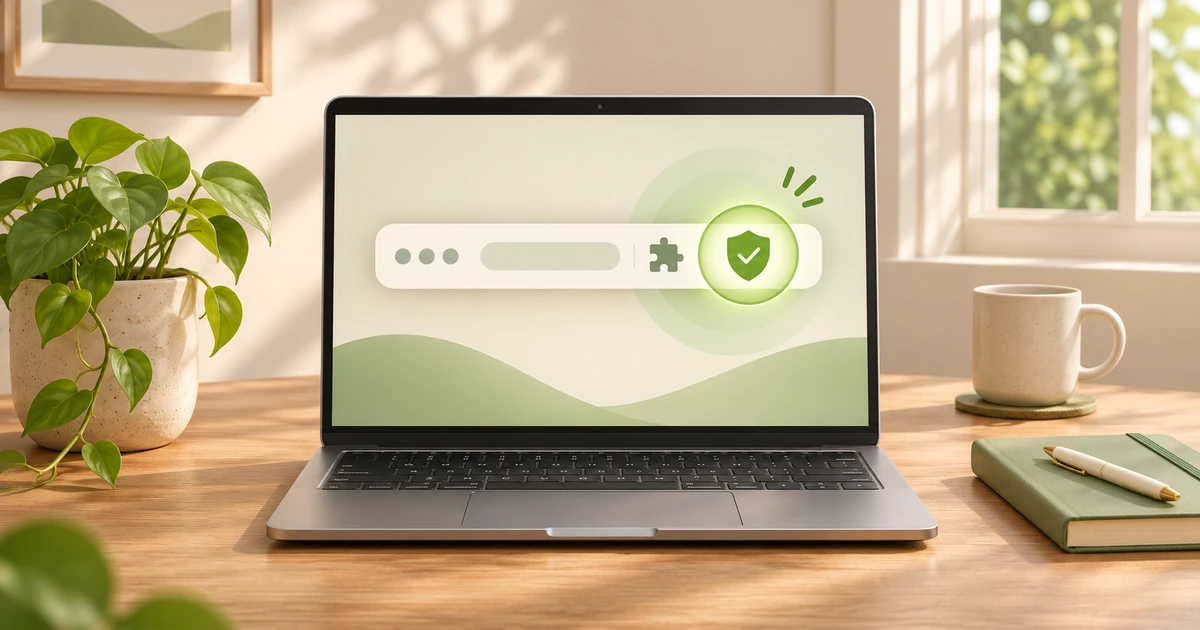
Open Edge’s Extensions menu and find ClearBlock. Use the control beside its entry to show or pin it on the toolbar. Depending on your Edge version, the wording may refer to pinning or showing the extension. In the tested ClearBlock setup, the tooltip read Pin to Toolbar.
If you cannot find the menu, open Edge’s main menu and look for Extensions, then choose Manage extensions. Microsoft’s extension management instructions describe how to find installed extensions and switch them on or off.
Installing ClearBlock in Chrome does not mean it is installed in Edge. Even on the same computer, check the extensions list in the browser you are actually using. Avoid installing a similarly named product just because its icon looks familiar.
Check whether the extension is enabled
In Chrome, open the main menu, then Extensions and Manage extensions. In Edge, open Extensions and Manage extensions. You can also type chrome://extensions/ or edge://extensions/ directly into the matching browser’s address bar.
Find the ClearBlock entry and read its status. If you deliberately switched it off and want protection back, turn it on. If the browser displays a warning, read that warning before proceeding. A disabled extension, a hidden icon and an allowed website are separate states.
When the browser says an extension is blocked by an organisation or disabled for a security reason, do not try to bypass that restriction. On a work or school device, ask the administrator. If Chrome specifically reports corruption and offers a Repair action, follow the browser’s repair guidance rather than downloading a replacement from an unrelated website.
Check the browser profile before reinstalling
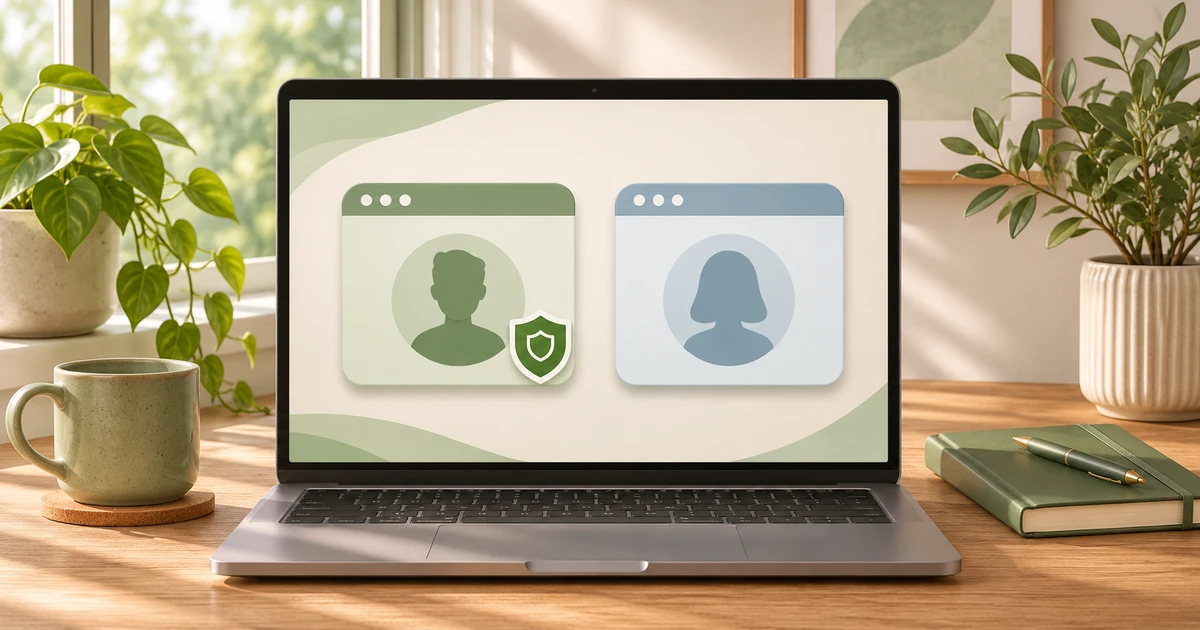
A common explanation is that you have opened a different browser profile. For example, ClearBlock may be installed in your personal profile while the current window belongs to a work profile. Check the profile button near the browser menu and compare it with the profile you normally use.
Open the familiar profile and repeat the Extensions-menu check there. Do not sign out, delete profiles or reset synchronisation just to locate the shield. Those actions change much more than a toolbar shortcut. If the extension exists in the other profile, you have identified a profile difference rather than a missing installation.
Private browsing needs a separate check too. Do not use the absence of ClearBlock in an Incognito or InPrivate window as evidence that it has vanished from normal browsing. Return to a standard window first. Only change private-window permissions if you intentionally want the extension available there and understand the permission you are granting.
If the shield appears but the popup does not open
First try opening ClearBlock from the Extensions menu instead of its pinned shortcut. This helps separate a toolbar interaction problem from a wider extension problem. Note what happens: nothing, a blank panel, a panel that closes immediately, or a browser message.
Save any work before closing windows. Close and reopen the browser, return to a familiar website and try again. If an update is waiting, use the browser’s own update process and relaunch when prompted. Do not download a browser updater from an advertisement or a page claiming that ClearBlock needs a special repair tool.
If the problem persists, record your browser version, operating system and the ClearBlock version shown in the extensions management page. Take a cropped screenshot of any error, excluding account details. These observations are more useful than repeatedly reinstalling the extension without recording the result.
Once ClearBlock opens, check protection separately
Finding the shield restores access to the controls, but the icon’s presence is not proof that every page is protected. On the website you want to check, open ClearBlock and read its protection status. Check whether global protection is paused and whether you have allowed that particular website.
ClearBlock provides Don’t block this site for allowing the current website, alongside controls to pause or resume protection across sites. Use the current button labels and status in your version. Reload the page after restoring the intended protection state, especially if the tab was already open when ClearBlock was installed or enabled.
Free ClearBlock includes website ad and tracker blocking and helps block YouTube video ads. YouTube coverage varies, and playback can sometimes take longer to start. Optional Premium tools are separate from finding and pinning the extension; you do not need to purchase Premium to put its shield back on the toolbar.
A zero counter is also a separate issue. Counts reflect recorded blocked network requests, while hiding a supported ad space does not increase that count. Use the counter troubleshooting guide if the popup opens normally but its numbers are what concern you.
Reinstall only after confirming it is absent
If ClearBlock is not present in the correct browser profile’s management page, use the store link provided by the official ClearBlock website to install it for that browser. Review the listing and requested permissions before confirming. Avoid copies offered by pop-ups or downloads that ask you to disable browser security.
If ClearBlock is still installed, record your relevant settings and exceptions before considering removal. Do not assume that reinstalling will preserve local history or preferences. A reinstall is unnecessary when the only problem is an unpinned shortcut.
What to include when asking for help
If you still cannot locate or open ClearBlock, report which stage failed: missing from the toolbar, absent from management, disabled with a message, or visible but unable to open. Include the browser and extension versions, whether this happens in a normal window, and whether another profile has the extension.
Use the ClearBlock problem-reporting guide for the next steps. If the popup works but a particular website fails, follow the website troubleshooting checklist instead. Keeping those symptoms distinct makes the next test more useful.
Quick answers
Does unpinning ClearBlock turn off ad blocking?
Unpinning hides the toolbar shortcut. Check the extension’s enabled state and the current website’s protection status to establish whether blocking is active.
Why is it in Chrome but not Edge?
They have separate extension installations and profiles. Check the management page inside each browser rather than assuming one installation covers both.
Should I reset my browser to get the icon back?
Start with the Extensions menu, enabled state and profile checks. A browser reset is a broad change and is unnecessary for a hidden shortcut.
Will pinning ClearBlock remove every advertisement?
Pinning only makes the controls easier to access. Blocking depends on the extension being enabled, the site’s protection state and supported filtering coverage.