
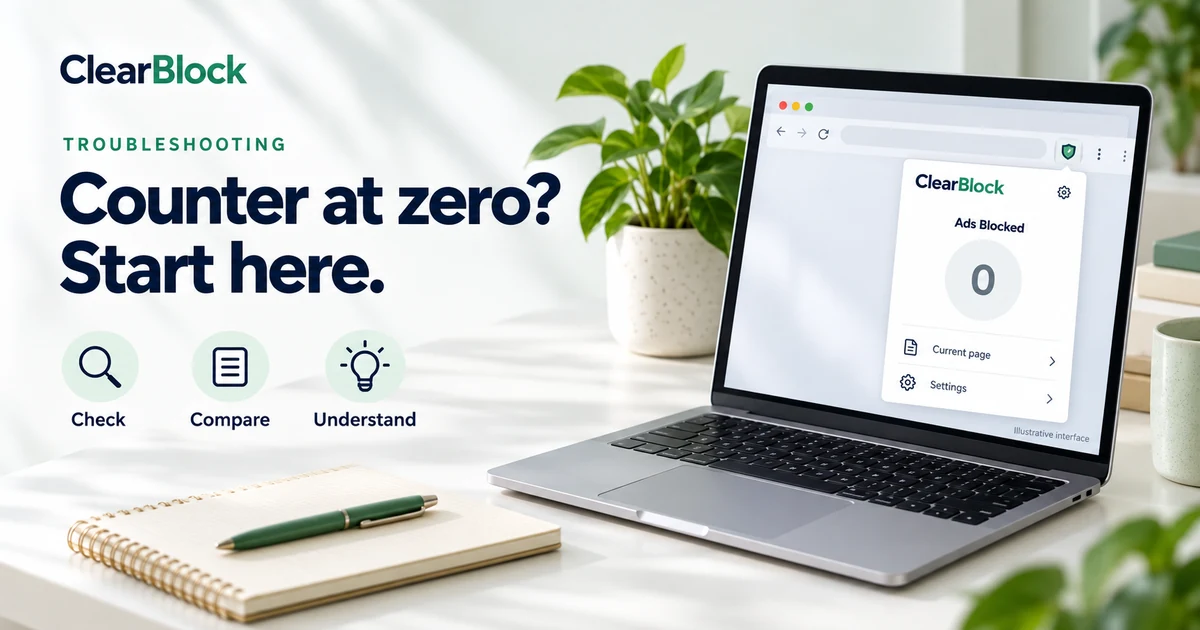
If ClearBlock shows zero ads blocked, first check which number you are reading and which page it describes. A zero on one page is not automatically a fault. The page may not have made requests that match the active filters, protection may be intentionally paused for that site, or you may be looking at a different metric or recording period.
This guide walks through the useful checks without asking you to reset everything or chase a larger number. You will learn how to compare the toolbar badge, popup and dashboard, inspect your current blocking state, and collect a clear support report if the result still looks wrong.
Understand what Ads Blocked measures
Ads Blocked counts recorded blocked network requests, including requests affected by custom blocked domains. It does not count individual advertising boxes removed from the screen. One visible advertising area may involve several requests, while a page can contain an empty space handled through cosmetic hiding rather than network blocking.
Cookie choices and popup attempts are separate activities. Hiding a distraction or handling a supported cookie banner does not mean the network ad count must increase. Before investigating a zero, identify the metric you expected to change and whether it actually measures the behaviour you observed.
For a full introduction, read understanding the ClearBlock dashboard and counters. The aim of these records is to describe observed activity, not to provide a complete inventory of every unwanted item on every page.
Check whether it is a missing badge or a zero value
A hidden toolbar number is different from a displayed zero. ClearBlock has a Show badge counter preference in General Options. If that setting is off, the lack of a badge does not mean the extension is disabled. Open the popup to inspect the information available there.
The badge represents the last verified network-block snapshot. It refreshes while the popup is open and visible; it is not a continuously live background counter. Avoid judging the entire extension by a badge that you expected to update while you were doing something else.
If the icon itself is missing, open the browser's Extensions menu and find ClearBlock by name. You may only need to pin it again. See pinning ClearBlock and finding its controls before considering a reinstall.
Use an ordinary web page for the check
Open a familiar website with an HTTP or HTTPS address. Browser settings pages, extension management pages and extension store pages are protected browser surfaces, so they are unsuitable places to assess ordinary page controls. A blank tab also provides little meaningful activity to measure.
Wait for your chosen page to load, then open ClearBlock on that tab. Read the hostname shown in the popup and make sure it is the page you intend to inspect. If you have switched tabs, close and reopen the popup rather than assuming the old view describes the new page.
Choose a site you already use rather than visiting suspicious advertising pages to force a count. Do not click adverts or install test software just to generate activity. A safe comparison should help you understand your settings without introducing an unrelated problem.
Check whether blocking is paused globally
Open the popup and read the global pause control. If it says Resume on all sites, global blocking is paused. Decide whether you want to resume it, save any unfinished work first, and then use the control. Changing this setting can reload the current supported web page.
If the control says Pause on all sites, that is the action available to you rather than a message that blocking is already paused. Read button labels as actions. This avoids repeatedly switching between states while trying to interpret a colour or an icon.
For a detailed explanation of the two states, read how to pause and resume ClearBlock. Keep a note of your intended final state so a temporary comparison does not leave blocking paused after you finish.
Check the current site's allowance
A website allowance is separate from global pause. If the popup offers Stop allowing this site, an allowance applies to that website. Removing it lets normal protection apply again when no separate relevant bypass remains. Save unfinished forms before changing the control because the page may reload.
You can also review Allowed sites in Site exceptions and blocks on the options page. Parent-domain allowances can cover subdomains, so check relevant broader entries rather than looking only for an exact copy of the current hostname.
Resuming globally does not remove a site allowance, and removing an allowance does not end a global pause. Both checks matter. Read managing ClearBlock site rules if you want to inspect saved entries together.
Compare the same page after a reload
Once you understand the current state, reload the page if you need a fresh comparison. Save work first, particularly on a form, checkout or messaging page. A page loaded before a setting changed is not a clean test of requests that might be made after that change.
Open the popup on the reloaded page and keep it visible while checking the verified snapshot. Do not expect counts from unrelated tabs to represent the page in front of you. Record what you see and which settings were active rather than relying on memory across several navigations.
A reload may still produce zero. The site can load different resources on different visits, and the requests made on that particular page may not match the active rules. Repeatedly reloading until a number rises does not provide a reliable measure of whether your overall setup is correct.
Look at page behaviour as well as numbers
Check whether the page displays its main content, whether unwanted interruptions remain, and whether useful controls still work. A number is only one piece of information. An advertising area may be absent for reasons other than ClearBlock, and a remaining blank area may be part of the site's layout.
Do not try to maximise the count by blocking broad resource domains. A custom block can increase recorded network activity while also breaking images, sign-in or video. Add custom rules only when you understand the goal and can test the effect.
For cosmetic spaces, see hiding empty ad spaces with ClearBlock. That feature concerns supported matched spaces and should not be assessed solely by whether the network request total changes.
Check dashboard metric and time period
If the popup has a page count but the dashboard looks empty, inspect the selected activity and date range. Ads Blocked, popup reports and cookie choices describe different events. A zero in one activity does not establish that there were no records in another.
Today, This Week, This Month, This Year and All Time also cover different periods. The calendar views use device-local time, and the week begins on Monday. A recording near a date boundary may belong to a different period from the one you had in mind.
The summary total and a period chart are not necessarily the same population. Earlier network totals without dated metadata remain separate rather than being assigned invented dates. An all-recorded-time number can therefore exist alongside a chart that does not contain every earlier record.
Understand recording limits
ClearBlock's totals contain recorded page snapshots and can miss browsing activity. New recorded increases include the time observed and the top-level site visited. That observation time is not a promise that every underlying request happened at exactly that moment.
Earlier or unattributed records are kept distinct where the required metadata is unavailable. Do not interpret an empty daily graph as proof that an older total was fabricated or that all history was deleted. Read the explanatory text associated with the chosen dashboard activity.
Likewise, comparing ClearBlock with another extension's count may compare different definitions and recording methods. Without knowing what both numbers measure, the difference alone cannot show which product blocked more visible adverts or provided a better browsing result.
Check the browser profile and installed extension
Make sure ClearBlock is installed and enabled in the profile you are currently using. Work, personal and other profiles can have separate extension states and preferences. Chrome and Edge are also separate browser installations even when both are on the same computer.
If the extension is disabled, review the browser's displayed reason before enabling it. A managed work or school browser may limit what you can change. If the popup opens normally, note the installed version so any later support report describes the actual build you tested.
Do not uninstall immediately to solve a counter question. Reinstalling can disrupt your setup and removes a useful opportunity to inspect the current state. Start with the straightforward checks: correct profile, enabled extension, ordinary page, global pause and site allowance.
Consider other tools without changing everything
Other extensions, browser privacy settings or network filtering can affect which requests a page makes. If something else prevents a resource from loading first, ClearBlock may not record the result you expected. That is a reason to consider the environment, not a reason to disable every security setting at once.
If you choose to make a comparison with another extension temporarily disabled, change one variable, use a familiar page and restore the setting afterwards. Record the difference. Avoid drawing a conclusion from two visits where the page, profile and several tools all changed together.
Collect a useful report if the issue persists
Describe exactly which display is wrong: badge, current-page count, total, or a particular dashboard graph. Include the browser and ClearBlock versions, the website hostname, the chosen metric and date range, and the pause or allowance state you checked.
ClearBlock's Support section provides a Download diagnostics option. The reviewed export is redacted and excludes licence keys, email, device IDs, site names, paths and uploaded images. Review any file or screenshot before sharing it, and send only what is relevant to the problem.
Contact ClearBlock support with a short reproduction sequence. If a page also fails to work, explain that separately and consult the website troubleshooting guide. A clear symptom is more useful than simply reporting that the number seems too small.
Frequently asked questions
Does zero mean ClearBlock is switched off?
No. Inspect global pause, site allowance and the browser's enabled state directly. Zero can also mean that the current page has no recorded matching network blocks or that you are viewing a different metric or period.
Why did a cookie banner disappear without increasing Ads Blocked?
Cookie activity is separate from network ad blocking. The disappearance of a banner also does not by itself establish whether rejection or acceptance occurred. Review the relevant cookie mode and available activity record.
Should the badge change continuously?
No. It shows the last verified network-block snapshot and refreshes while the popup is open and visible. It is not a live background activity meter.
Should I clear counters to fix a zero?
Start by inspecting the relevant display and settings. Clearing activity is not a way to create missing records and can remove information useful to your investigation. Understand the counter maintenance description before using it.
Browse more Troubleshooting guides for focused checks on page behaviour, settings and ClearBlock's recorded activity.