
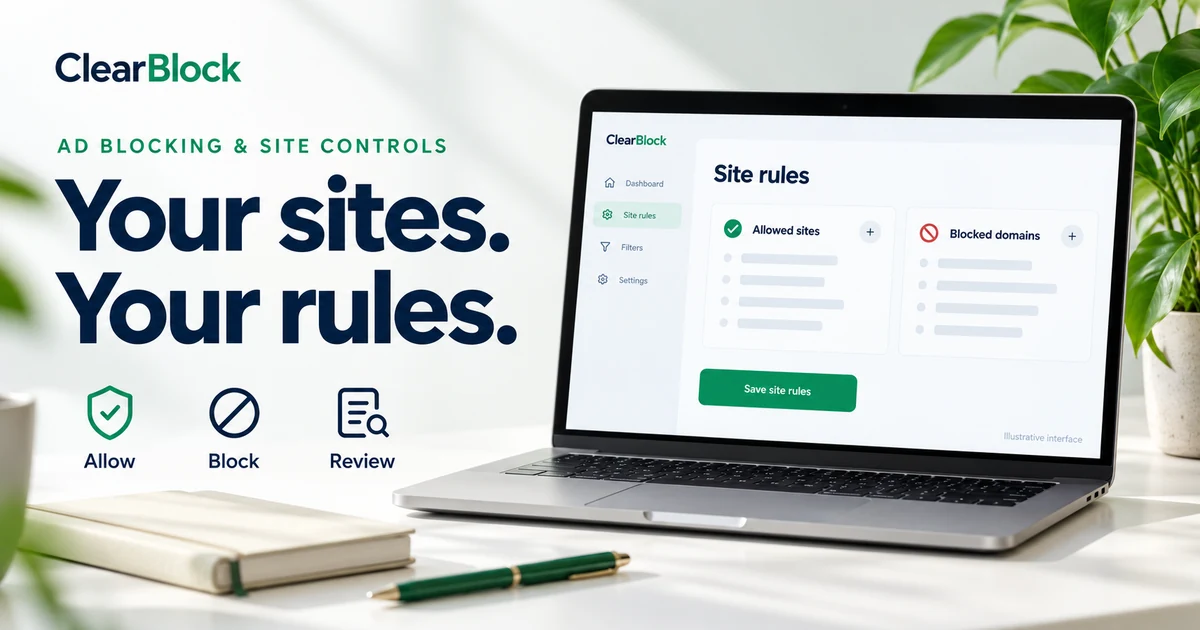
ClearBlock's usual filters handle supported advertising requests without requiring you to build your own rules. Sometimes, however, you want a more specific decision: let a familiar website bypass protection, remove an old exception, or block requests to a domain you have identified. The Site Rules section brings these saved decisions together.
This guide explains how to manage Allowed sites and Blocked domains in ClearBlock, use the shared Save site rules button, and test changes without losing track of your original settings. It also explains why a domain rule is different from hiding an element, pausing the extension or restricting access to a website.
Understand the two site rule lists
Allowed sites contains websites that bypass ClearBlock protection. A site allowance is useful when you deliberately want to support a website's advertising or compare how a page behaves without ClearBlock's normal protection applying to that site. It should be an intentional choice rather than a list you populate automatically.
Blocked domains contains domains whose matching network requests you want to deny. This is a resource blocking control. It can affect things a page loads, including content required for normal functionality. It is not a parental control system, a browser navigation lock or a guarantee that a website cannot be reached.
These lists solve different problems. Allowing a site does not mean adding it to a list of trusted businesses, and blocking a domain does not establish that the domain is malicious. Keep your entries tied to a clear browsing need that you can explain and test.
Open Site exceptions and blocks
Open ClearBlock's options page and select Site exceptions and blocks. Look for the Site Rules section containing both text areas. The interface describes Allowed sites as one hostname per line and provides a separate Blocked domains field beneath it.
If you cannot find the options page, use the browser's extension management interface to locate ClearBlock and open its available extension options. You can also start with pinning ClearBlock and finding its controls. Check that you are using the browser profile where the extension is installed.
Use hostnames rather than full page addresses
For these fields, work with a hostname such as example.com or media.example.com. A complete page address can also contain a scheme, path, query string and fragment. Those extra parts describe a particular page or request; they are not the hostname that the site rule field asks you to enter.
For example, the hostname in https://media.example.com/watch?id=123 is media.example.com. Do not paste a long address containing login tokens, private query parameters or personal account identifiers into a rule field. Use one hostname on each line, and keep your own notes separately if you need to remember the reason for a rule.
The example domains in this guide are placeholders. Adding them will not identify advertising services on a real website. Avoid copying an unfamiliar list merely because it is labelled an ad blocking list: these fields are for hostname entries, not arbitrary filter syntax, CSS selectors or imported filter subscriptions.
Review existing entries before editing
Read both lists before making a change. You may already have a site allowance created through the popup, or an older custom block that explains the current behaviour. Reviewing the existing entries prevents you from adding a second change when the first one is the real cause of a problem.
If you have several entries, keep a private copy before editing. A short note containing the original lists, the date and the reason for your change is enough. Do not include passwords or session details. The aim is to make a small test reversible, not to collect more information than you need.
How to add an allowed site
- Open Site exceptions and blocks in ClearBlock options.
- Find the Allowed sites text area.
- Keep the existing entries you still want.
- Add the intended hostname on its own line.
- Check that you have not accidentally changed the Blocked domains list.
- Select Save site rules and reload the affected page.
Save unfinished work before reloading, particularly if you are completing a form or making a purchase. Test the specific part of the website that prompted the change. If you are only comparing behaviour, decide afterwards whether the allowance should stay or whether it should be removed.
The popup offers a quicker current-site control through Don't block this site. For that workflow and its matching behaviour, see how to allow ads on one website. The options page is useful when you want to review saved entries together.
Check parent domains and subdomains
A hostname such as shop.example.com is a subdomain of example.com. In ClearBlock's site allowance matching, a parent-domain allowance can cover its subdomains. This means a broad parent entry may explain why protection is bypassed even when the exact current hostname does not appear as a separate line.
Before creating an allowance, consider whether you intend it to apply to the parent website or only to a more specific host. If you are restoring blocking, review any matching parent allowance too. Removing an unrelated line will not resolve an allowance inherited from a domain that remains in the list.
Website addresses can also change during sign-in or payment. Check the actual hostname in the current tab rather than assuming every page belongs to the same host. Do not broaden an allowance across services simply because they appeared in the same browsing session.
How to add a blocked domain
- Identify the hostname you actually intend to block.
- Record your current settings so you can restore them.
- Add that hostname on its own line in Blocked domains.
- Keep all unrelated entries unchanged in both text areas.
- Select Save site rules.
- Reload an affected page and test the intended result and essential page functions.
Be particularly careful with domains used for images, video, sign-in or other shared services. A page can depend on resources loaded from a hostname different from the one shown in the address bar. Blocking a broad resource domain may remove useful content across several websites rather than just the single item you wanted to stop.
If you cannot confidently identify the resource, start with ClearBlock's maintained filters and available feature controls. A guessed domain is a poor basis for a permanent rule. You do not need a long custom blocklist for the extension's core ad blocking to operate.
Save site rules applies to both lists
The Save site rules button submits the current Allowed sites and Blocked domains values together. Treat the two text areas as one saved form. Before pressing it, check both fields, especially if you started editing one list and then moved to the other.
Do not clear the opposite field just to focus on the list you are changing. Removing entries and saving changes the saved rules. If a save reports an error, resolve it before assuming the new rule is active. Reopen the relevant section and inspect the displayed entries if you need to confirm what was retained.
Reload affected pages after saving. Existing content on an already loaded page is not a reliable test of a changed network rule. A request may have happened before the edit, while a cached or previously rendered element may still be visible until the page is loaded again.
How to remove or undo a rule
Remove the relevant hostname from the appropriate text area, leave unrelated entries intact, select Save site rules and reload the affected page. If you kept a private copy, compare the lists against it to make sure your test did not alter anything else.
For an allowance, removing the matching entry lets normal blocking apply again when no other relevant bypass remains. For a custom block, removing the entry removes that custom rule; ClearBlock's usual filters may still block matching resources independently. Undoing a custom block therefore does not promise that every previously blocked request will become allowed.
If you made several edits and no longer know which one mattered, restore your original lists and test again from that baseline. Then introduce one intentional change. This is usually more informative than adding more entries in an attempt to compensate for an uncertain earlier edit.
Keep global pause separate from saved rules
Global pause is a different control. A saved site rule is not a timer, and a global resume is not a command to clear your exceptions. If protection still appears paused after you remove an allowance, open the popup and inspect whether the global control says Resume on all sites.
Conversely, resuming globally does not remove an allowance that you intended to keep. Read the current button labels and check the lists before drawing conclusions. The pause and resume guide explains how to compare these states without accidentally changing your long-term preferences.
Test the page rather than only the counter
After a change, check whether the page still displays its main content, opens required menus and performs the action you care about. A resource block that removes an unwanted element but also prevents sign-in is a different outcome from a clean improvement. Use a familiar page and avoid submitting duplicate payments or forms while comparing states.
Ads Blocked counts recorded blocked network requests, including custom blocked domains. It is not a count of visible advertising boxes removed. An increased number after a custom block does not by itself demonstrate better browsing or stronger privacy. Cosmetic hiding, popup reports and cookie activity are separate measurements.
For help interpreting these records, read the dashboard and counters guide. Keep your rule decision tied to the result you wanted, rather than trying to maximise a number.
If a page breaks after a change
Start by undoing your most recent custom rule, saving and reloading. If the problem disappears, keep that rule removed while you reconsider its scope. If the problem remains, return to your baseline and investigate other possible causes instead of assuming the last edit must explain everything.
Another extension, browser setting, network issue or website fault can produce a similar symptom. Change one variable at a time. A focused comparison is easier to explain to support than a session in which several extensions, site allowances and browser privacy settings all changed together.
See Website Not Working with ClearBlock? for a broader checking process. If you contact ClearBlock support, describe the hostname, the symptom, the rule you changed and whether undoing it restored the page. Avoid sending private account pages or credentials.
Frequently asked questions
Can I paste an entire filter list here?
Use hostname entries for these fields. They are not a general filter language editor or an arbitrary subscription import tool. For the available filter settings, browse Filters & Customisation guides.
Will a blocked domain stop someone visiting a website?
Do not rely on it for that purpose. The control denies matching network requests; it is not designed as a parental restriction, account policy or tamper-resistant access control. Use the appropriate browser or device management tools for a different requirement.
Why are ads still missing after removing my custom block?
The normal filters may independently block the resource, or the page may not have shown an advert at that moment. Another extension or browser feature can also affect loading. Reload and compare carefully before attributing the result to one setting.
How often should I review exceptions?
Review them when your browsing needs change or when a site behaves unexpectedly. Remove entries you no longer understand or need after a deliberate check. A short, intentional set of rules is easier to maintain than a collection of unexplained entries.
Return to Ad Blocking & Site Controls for more practical ways to manage ClearBlock on individual websites.
Ready to try it?
Explore free core ad blocking and controls for individual websites.
Explore site controls →