
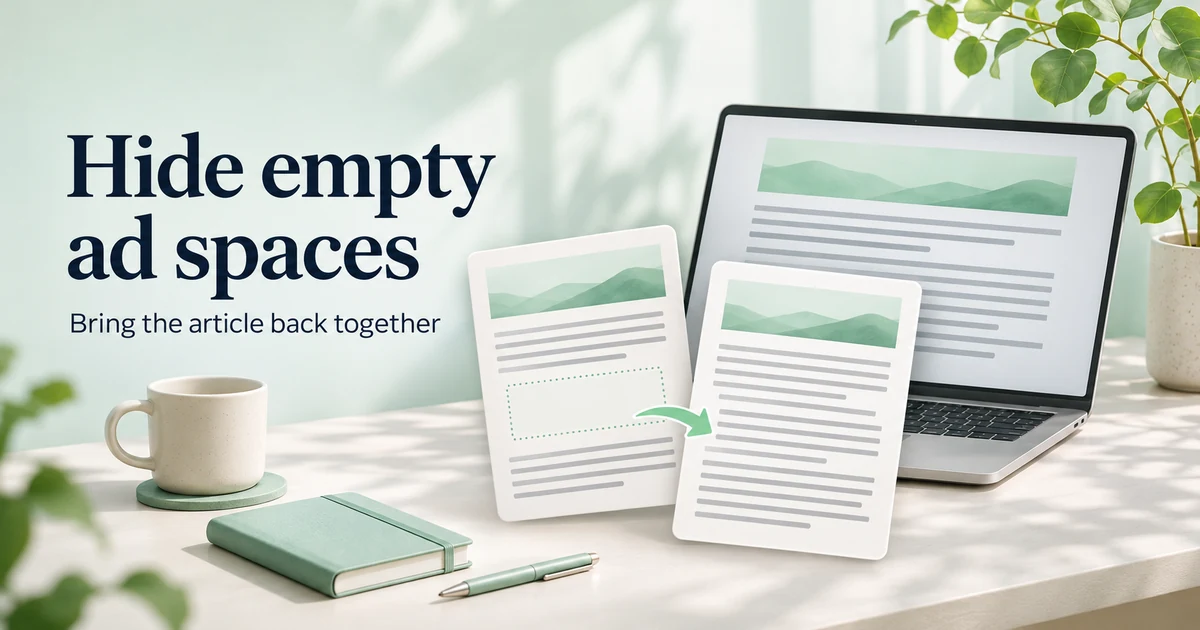
If ClearBlock blocks an ad request but the page still shows an empty rectangle, try Hide matched ad spaces (Free). Open ClearBlock from the Chrome or Edge toolbar, look for the checkbox, and turn it on if it’s available in your installed version. You can also look in Options → General. Return to the page, reload it when it’s safe to do so, and check whether the gap has closed.
The checkbox controls how ClearBlock handles supported elements in the page layout. The blocked-request counter measures a different action. A matched space can disappear without adding to that count, and some gaps can remain even with the checkbox turned on.
Why blank boxes remain after ads are blocked
A website can reserve space for an advert before asking the browser to fetch it. The layout might include a box at the top of an article or a tall rectangle in a sidebar. When a network filter blocks the request, the reserved area can remain in the page. You may see a border, the word “Advertisement” or just a gap between paragraphs.
ClearBlock’s ad-space setting uses supported filters to recognise and hide some of those elements. This is often called cosmetic filtering because it changes what you see in the page. Whether the gap closes depends on how the site put the page together. If a surrounding row or column reserves its own height, an inner element can be hidden while the surrounding space stays.
Picture a news article with a large rectangle between the headline and the first paragraph. If ClearBlock matches the element that holds the rectangle, the article text may move up when the element is hidden. If the height belongs to a larger container that also holds the byline or a photo, you may still see space around that content. The size of the gap alone doesn’t tell you which element the page is reserving.
How to turn on Hide matched ad spaces
- Open the page where you see the gap, in the Chrome or Edge profile where ClearBlock is installed.
- Click the ClearBlock shield. If the icon isn’t pinned, open your browser’s Extensions menu and select ClearBlock.
- Check that blocking is active for the site, then tick Hide matched ad spaces (Free) if you can see it.
- Read the status below the checkbox if your version shows one. Return to the page and check the area you noticed.
- If the page still looks the same, save anything you’re editing, reload, and look at the same part of the page again.
To find the same setting in Options, open ClearBlock’s settings and choose General. The checkbox in the popup and the checkbox in Options control the same saved preference. Changing it from the popup can affect other supported websites too. The status under the popup checkbox is useful because it describes whether hiding is active for the tab you’re viewing.
These labels come from the review interface. If the checkbox isn’t present, check the version listed for ClearBlock in your browser’s extension manager and the listing for your browser. The walkthrough applies to versions that expose this setting. Chrome Web Store listing and Microsoft Edge Add-ons listing.
How to tell whether the setting helped
Choose a single page and identify the area before you change anything. A useful description is “the rectangle between the second and third paragraphs”. Note whether the area includes a label or border, and whether it remains after the rest of the article has loaded. Save your work and compare the same area after enabling the checkbox.
If you’re troubleshooting, keep the rest of the setup the same. Use the same browser window size and zoom level, and leave site exceptions and other blocking controls alone for the first comparison. Many sites arrange their columns differently when you resize the window. Changing the viewport and the extension setting together can make it hard to tell which one affected the layout.
It can help to take a small screenshot before and after. Crop it to the gap and nearby content. If the box closes, check that the title, next paragraph and any controls still display and work. If it looks unchanged, try scrolling back to the same heading after a reload. Some websites move sections as images or recommendations load, which can make the gap appear to shift.
A second visit can also show a different layout because the site served a different page variant or changed its advertising. If you’re confident it’s safe to reload the page, compare with the checkbox unticked and then ticked again. Restore the setting you want after the check. One page with a good result is enough to tell you that it helped on that page.
Why the blocked-request count may stay the same
ClearBlock’s recorded blocked-request count reflects network requests. Hiding a matched element changes the layout. If an ad request was already blocked and the cosmetic filter then hides the empty slot, hiding that slot adds no request to the count.
For example, you might see a recorded count in the popup while an empty box is still visible in an article. After switching on ad-space hiding, the box may close and the count may stay where it was. A reload can also cause the website to make a different set of requests, so the figures before and after a reload can differ for reasons unrelated to the checkbox.
Use the page to judge whether a visual gap is gone. Use the popup and activity views to understand recorded blocking. If you see a pop-up attempt figure, read it separately from the ad-request count. How to see what ClearBlock blocked in Chrome and Edge.
What to check if the ad space stays visible
Confirm the site is covered by the setting
Open the popup from the affected tab and look below the checkbox. In the review interface, the status can explain why hiding is inactive even if the saved preference is on. For example, ClearBlock may be paused, the site may be allowed, or the ad filter list may be disabled. Browser settings pages and other internal pages are also different from ordinary websites.
If you previously allowed the site to make something work or to support the publisher, decide whether you want to keep that exception. If you restore blocking for the site, reload and compare the same area. A site exception and a pause across all sites have different scopes. Read the popup before you change either one. How to allow ads on one website.
Check whether the gap looks like a supported ad slot
A blank area can be a design margin, a video that hasn’t loaded, a recommendation widget or space reserved by a whole column. If you see no ad label or visible boundary, try another article on the same site and look for the same location. A gap that appears consistently beside an article might be part of the site’s layout. Even a box marked as an advertisement can remain if the filters don’t match the relevant element.
If the popup reports that it is still checking the page, let the page finish loading, then reopen the popup. A checked box shows what you saved, while the status below it tells you what the extension reports for that tab. Read both before deciding whether a gap is due to a setting or a filter that doesn’t match.
How to undo the change if the layout looks wrong
If a paragraph, navigation control or other part of the page appears to vanish, untick Hide matched ad spaces (Free) in the popup or in Options → General. Check whether the missing part returns. If needed, reload after saving any work. This turns off cosmetic hiding across sites where it would otherwise apply. Ad and tracker request blocking are controlled separately.
If the issue affects only one website and you want to leave ad-space hiding on elsewhere, you can choose Don’t block this site for that website and reload. This is a broader exception for the site because it also lets requests through that ClearBlock would otherwise block there. Use it when that trade-off works for you. To reverse the exception, open the popup on the same site and use the control to stop allowing it.
If turning off cosmetic hiding brings the missing element back, that gives support a specific change to reproduce. If the element only returns after allowing the entire site, mention that too. Record which test made the difference and whether you refreshed the page. This helps separate a possible layout filter issue from a request needed by the site.
What to send if you report a stubborn ad space
Send the page address, your browser and ClearBlock version, and a short description of the gap. Include whether the checkbox was ticked, what the status below it said, and whether reloading changed anything. A note such as “there’s still an empty rectangle between the headline and the article after reloading with hiding enabled” gives support a place to look.
If you can show the issue with a screenshot, crop it to the relevant area. On a signed-in page, remove private content before sending it. Mention if the problem needs a particular window width, occurs only after scrolling, or affects a particular page on the site. ClearBlock Support.
Common questions
Do I need Premium to hide matched ad spaces?
The checkbox is labelled Hide matched ad spaces (Free) in the review interface. It is separate from Hide Page Distractions, an optional Premium tool for supported items such as newsletter prompts, widgets and floating video players. If your goal is to close a space left by an ad, look for the free checkbox first.
Why do I see different results on two pages of the same site?
Publishers can use different article templates, ad sizes or placements on different pages. A filter that recognises a banner container on the home page may have nothing to match on a story page. If you report the issue, share the exact page where you saw it and describe where the space sits on that page.
Will hiding a box change the number of ads blocked?
Hiding the box itself adds nothing to the recorded request count. If you reload and the figure changes, the browser may have made a different set of requests on the new visit. Check the page for the visual change and the popup for request activity.
Explore more Ad Blocking & Site Controls guides.
Ready to try it?
Explore free core ad blocking and controls for individual websites.
Explore site controls →