
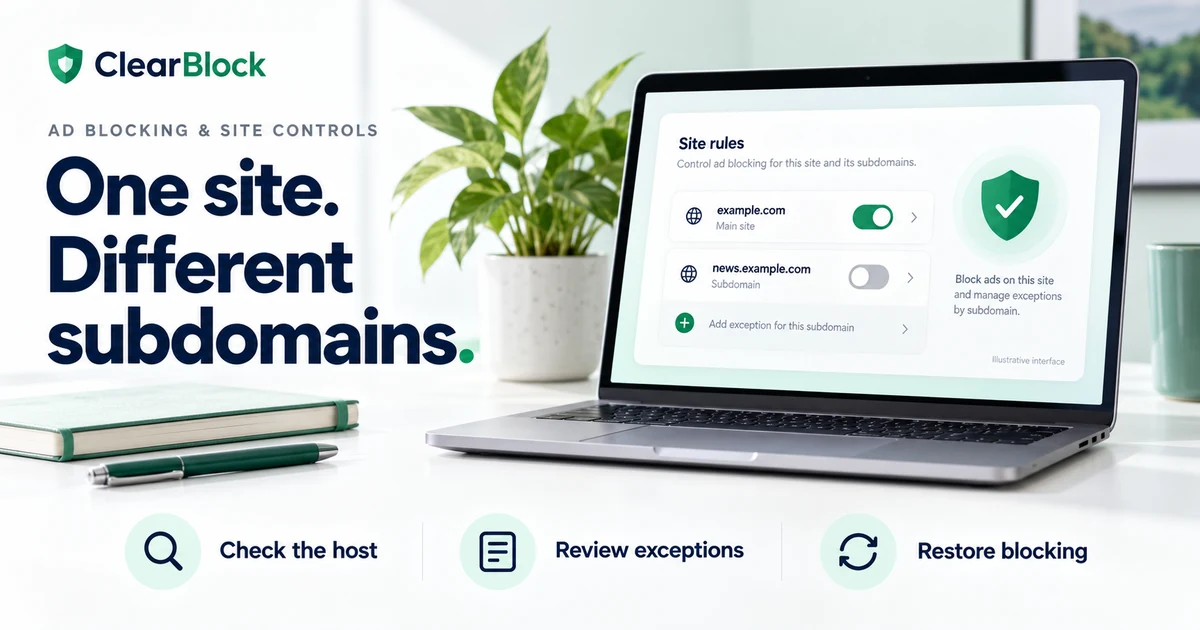
A website can use several addresses while still feeling like one service. You might read articles at news.example.com, sign in at accounts.example.com and shop at store.example.com. That matters when you change an ad blocking exception: a rule saved for a parent hostname can also affect its subdomains.
This guide explains how to check the address you are changing, recognise an inherited exception and restore ClearBlock blocking without making unnecessary changes elsewhere. The examples use illustrative hostnames rather than real services. Save any unfinished work before changing settings, because site controls can reload the current page.
What is a subdomain?
A hostname identifies the website address your browser is visiting. In news.example.com, news is a subdomain of example.com. Another address, shop.example.com, is a different subdomain of that same parent. Websites often divide publishing, accounts, payments or customer support between these addresses.
A path is different. In example.com/news/article, the hostname is still example.com; the words after the slash describe a location within that site. A hostname exception is not a separate setting for every article or folder. Adding a page path does not turn a site exception into a page-specific preference.
Also distinguish a related-looking name from a subdomain. example-news.com is not underneath example.com. Read the complete hostname rather than relying on a familiar word at the beginning. A brand can operate several independent domains, and those addresses do not automatically share one ClearBlock exception.
How ClearBlock site exceptions affect subdomains
In the ClearBlock controls reviewed for these guides, an allowed hostname also covers its subdomains. Allowing example.com therefore affects news.example.com as well. Allowing news.example.com is a narrower choice: it covers that hostname and addresses beneath it, rather than automatically allowing every sibling under example.com.
This is useful when you intentionally want to support an entire website. It can be confusing when you only meant to test one part of it. Before saving a broad exception, consider whether the problem occurs on the parent address or on a more specific hostname you can identify in the address bar.
The scope comes from the saved rule, not from how the site describes itself. A link labelled Support could open help.example.com or an entirely different domain. After following a link or completing a redirect, check where the browser actually arrived before interpreting ClearBlock's current-site controls.
Check three things before changing a rule
- The current hostname: read the address bar and note whether you are on example.com, www.example.com or another subdomain.
- The current site state: open ClearBlock and read the action shown for this website. A button offering to stop allowing the site indicates an exception is relevant.
- The global pause state: check whether blocking has been paused on all sites. Removing one site exception does not independently resume global blocking.
These checks help separate two different causes of an allowed page. One is a site rule that matches the current hostname. The other is the global pause control. If both apply, changing only one can leave the page behaving differently from what you expected.
For a general introduction to these controls, read how to pause and resume ClearBlock. Use a single-site change when you want to test one website, and reserve the global control for a deliberately wider comparison.
Allow one part of a website deliberately
Suppose an article at news.example.com needs a temporary test with ClearBlock allowing that site. Start on that exact page, save any writing or form entries and open the extension. Use Don't block this site when that is the action presented for the current website.
After the page reloads, check the hostname again and repeat the same action that was failing. For example, open the same article or try the same menu. Keeping the test consistent makes the result easier to interpret than browsing to a different page with different content and settings.
If you manage rules in the options page instead, use the specific hostname that matches your intention. Review the existing parent entries first. Adding a narrow entry beneath an already allowed parent does not remove the broader parent's effect; the broader exception still needs its own review.
Allowing a site does not guarantee visible advertisements. That page may have no ads, another extension may filter them, or browser settings and consent choices may change what loads. Judge the test by the original problem and the saved exception, rather than treating the appearance of an advertisement as the only confirmation.
Find and remove an inherited exception
An inherited exception occurs when the current page is allowed because a saved parent hostname covers it. For example, you might be visiting news.example.com while the relevant entry in your site exceptions is example.com. Looking only for the complete news hostname can make the exception seem to be missing.
Open ClearBlock's options and review Site exceptions and blocks. Look for both the current hostname and its relevant parent hostname. If the intention is to restore blocking across the whole parent site, remove the broad allowed entry and save the site rules.
If you still want one section allowed, replace the broad allowance with the narrower hostname you actually need. Review the complete saved list before submitting. The Save site rules action submits both the allow and block fields, so keep unrelated entries intact while editing the intended exception.
Return to the affected tab and reload it if needed. Then open ClearBlock again and inspect the current state. A parent exception should be resolved at the parent rule; repeatedly removing or adding a child entry is not a reliable substitute for reviewing the rule that actually covers the address.
Use a simple before-and-after example
Imagine your allowed list contains example.com, but you only want to allow shop.example.com. Before the change, the parent allowance can cover both the shop and news.example.com. Your goal is to narrow the exception while keeping the rest of the website subject to normal blocking.
- Record the current allowed entries so you can reverse the edit if necessary.
- Remove example.com from the allowed list.
- Add shop.example.com as the intended narrower allowance.
- Preserve unrelated allowed and blocked entries, then choose Save site rules.
- Check the shop and news tabs separately after reloading, making sure global blocking is active.
This example describes exception scope, not a promise that every advertisement on the news page will disappear. Filtering coverage and the page's content still matter. The important outcome is that your allowed list now expresses the narrower browsing preference you intended.
Common address details that cause confusion
The www version
www.example.com is a subdomain of example.com. If you save an allowance for the parent, the www address can be covered too. If you only save the www hostname, do not assume it expresses the same broad scope as the parent. Check redirects, because entering one address may take you to the other.
Sign-in and payment pages
An account or payment flow can visit several hostnames. Avoid changing all of them simply because one step failed. Identify the exact step and address, make one limited test and restore any temporary allowance that does not help. Never include account tokens or payment details when recording a test URL.
Addresses inside the page
A page can load resources from other hosts while the address bar stays on the same website. Do not add every resource hostname to the allowed list in response to a problem. Start with the current-site control and a focused comparison; large speculative exception lists make later troubleshooting harder.
Site exceptions are not a website access lock
Keep the allowed list distinct from custom blocked network hostnames. These settings have different purposes. A ClearBlock network blocking rule is not a parental control system, an account restriction or a guarantee that a user cannot navigate to a website.
Do not try to cancel a broad allowed exception by adding conflicting entries without understanding the matching behaviour. Review and simplify the allowance first. If you need access restrictions for a managed device, use the appropriate browser, operating system or organisation controls rather than assuming an ad blocker provides that policy.
For a broader explanation of editing the two lists, see how to manage ClearBlock site rules. Keep rules intentional and describe the reason for a temporary change in your own notes, especially when several people use the same browser profile.
Troubleshoot a rule that seems ineffective
First confirm that you are testing the browser profile where you saved the setting. A second Chrome profile or a separate Edge installation can have its own extension setup. A change in one profile should not be treated as proof that the same preference exists elsewhere.
Next check global pause, the exact hostname and any parent exception. Reload the affected tab after saving, then repeat one clear test. If another ad blocker or privacy extension is installed, remember that its behaviour can continue even when ClearBlock allows the current website.
Finally, separate network filtering from visible page layout. An empty space, a site message or a newsletter panel does not by itself prove that your hostname exception failed. Use the website troubleshooting guide when a specific function remains broken.
Frequently asked questions
Can I allow just one article?
The hostname-based controls described here are site exceptions, not per-article rules. Different paths on the same hostname share that site-level scope. Use the narrowest relevant hostname, and restore a temporary allowance when you finish testing.
Why is a subdomain allowed when it is not listed?
A saved parent hostname may cover it. Review the parent entry in Site exceptions and blocks, along with the global pause state. Remove or narrow the matching parent allowance if it no longer reflects what you want.
Does removing an exception clear cookies?
No. Changing a blocking exception is separate from deleting website data or changing a saved consent choice. Use the website's privacy settings or your browser's site-data controls when you specifically intend to manage cookies.
Should I allow every domain a site uses?
No broad list is needed as a routine first step. Identify the problem, test one relevant site change and keep only allowances that serve a clear purpose. If you need help, describe the failing action and hostname without sharing private page details.
Keep your exceptions easy to understand
A short, deliberate exception list is easier to maintain than a collection of forgotten tests. Review broad parent entries when a subdomain behaves unexpectedly, keep global pause separate from site preferences and retest after each meaningful edit. Browse more Ad Blocking & Site Controls guides for practical help with ClearBlock.
Ready to try it?
Explore free core ad blocking and controls for individual websites.
Explore site controls →