
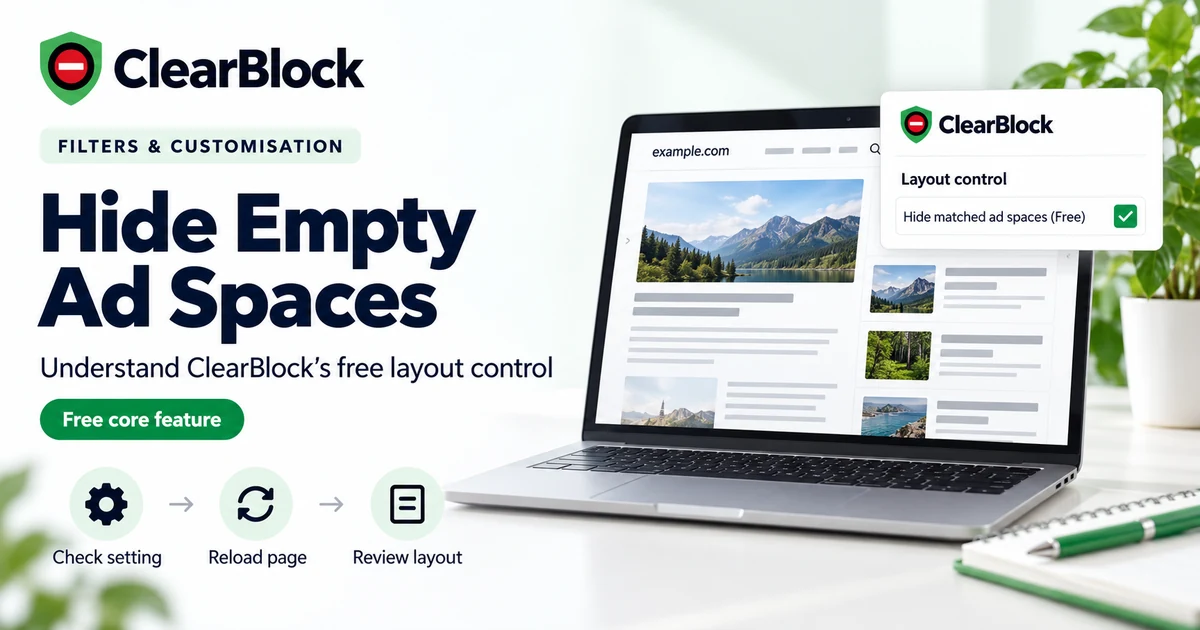
To hide supported advertising spaces with ClearBlock, review Hide matched ad spaces (Free) in the popup or General Options. Check that the website is not allowed and global blocking is not paused, then inspect the feature’s status message. Reload the page when needed and compare the layout. This free feature handles supported matched spaces; it is not a command to remove every blank area from every website.
This guide explains how visual ad-space hiding differs from network blocking, why a selected setting may be inactive on a page and how to investigate an unwanted layout change. The featured image is an illustrative settings mockup, not a promise that every webpage will look like the example.
Understand the difference between a blocked request and a hidden space
A website can reserve room for advertising separately from the request that supplies its content. Preventing a matching request does not necessarily tell the surrounding page to remove that room. Visual handling and network filtering therefore address different parts of the result.
ClearBlock’s Hide matched ad spaces setting uses supported ad filters to hide matching spaces. That is commonly described as cosmetic handling because it changes the displayed page rather than simply counting a blocked request. A network result and a layout change should not be treated as the same event.
| Observation | Relevant question | What it does not prove |
|---|---|---|
| An advertising request was blocked | Did the network rule match? | That the website removed its reserved layout space |
| A matched space disappears | Did cosmetic handling apply? | That the network count should increase by one |
| A blank region remains | Is it a supported matched ad space or ordinary layout? | That the whole extension is inactive |
| A page control is missing | Which setting changed the result? | That every blank region should be restored by one universal fix |
Start with the specific element and its behaviour. A more compact page can be useful, but a visual change alone is not a measured improvement in speed or a complete inventory of advertisements removed.
Find the free setting
Open ClearBlock from the browser toolbar on the website you want to inspect. Look for Hide matched ad spaces (Free). You can also open Options and find the corresponding setting under General.
If the toolbar icon is hidden, locate ClearBlock in your browser’s Extensions menu. Confirm the profile you are using before comparing settings with another browser window. The installation guide covers finding and pinning the extension.
The Free label identifies this control separately from optional Premium tools such as Hide Page Distractions. You do not need to activate Premium merely to select supported ad-space hiding. Review the actual label rather than assuming every visual feature has the same access requirement.
Check the current site and global state
Before changing the cosmetic preference, read the website hostname in the popup. Then inspect the site and global controls. Stop allowing this site means a matching exception exists; Resume on all sites means global blocking is paused.
The reviewed ClearBlock interface explains that allowed sites and a global pause restore hidden spaces. A cosmetic checkbox can therefore be selected while the broader state prevents it from applying on the current website. The status explanation is important context.
If the allowance or pause was intentional, keep that decision separate from the cosmetic setting. Do not remove a deliberate exception solely to make a label look active. If you are doing a test, record the original state and restore it afterwards.
Make one controlled layout comparison
- Choose a normal webpage with the space you want to inspect.
- Save unfinished work before reloading.
- Record the ad-space setting and relevant pause or allowance state.
- Change only Hide matched ad spaces for the initial comparison.
- Read any status message and reload when necessary.
- Inspect the same region and check that wanted page controls still work.
Keep the page URL, browser window size and navigation sequence consistent. If you compare different articles or resize the window between observations, the website’s own layout changes may confuse the result.
Do not assume that any difference is necessarily caused by the extension. Record what changed and repeat the same narrow comparison if you need more confidence. Avoid broad resets before you understand which condition matters.
Read status messages as well as the checkbox
The reviewed popup can explain conditions such as a globally paused setup, an allowed site, disabled ad filtering or another preference taking priority. It can also indicate that cleanup is pending, no supported filters apply or a session limit has been reached.
These are different situations. A preference being selected expresses what you want; a runtime message describes what is happening on that page. Do not collapse every inactive status into the claim that the setting was never saved.
If the message asks for a reload, save your work and reload before judging the result. If an error remains, keep the exact wording for support. A screenshot containing the status and the affected page area is more helpful than the checkbox alone.
Why a blank area may remain
A blank region can be part of a website’s spacing, a reserved media container, delayed content or another design element. ClearBlock should not be described as knowing that every empty rectangle is an advertisement. Supported matching is the relevant limit.
The bundled filters are also not an implementation of every possible cosmetic rule. The reviewed package explains that unsupported and extended cosmetic rules are omitted. A website using an unfamiliar pattern may therefore retain a space even while network blocking works.
Do not paste arbitrary CSS selectors or third-party filter syntax into the hostname fields in Site exceptions and blocks to address the gap. Those fields serve a different purpose. Use the documented controls and report the page if supported handling appears to need attention.
Check selected ad-image allowances
The Filter lists page includes Selected ad images (legacy). Its explanation says it allows images from a limited legacy domain set and suspends ad-space hiding while selected. That preference can explain why the cosmetic result differs from what the free checkbox alone suggests.
Review why you enabled it before changing it. If you are comparing the interaction, record both settings, change one at a time and reload. Do not claim that the legacy allowance certifies advertisements against an external standard; the reviewed interface does not make that promise.
For a broader overview of bundled filters and optional controls, read the filters and settings guide. It explains why filter status, domain rules and appearance preferences need separate interpretation.
Understand Image Swap priority
The reviewed interface states that Image Swap takes priority over ad-space hiding. If you use that separate feature, inspect its current state before assuming the cosmetic preference should independently control the same region.
This guide does not treat Image Swap as a general fix for empty spaces or claim that every installation has it active. The practical point is the interaction: another chosen behaviour can take precedence even while the ad-space preference remains selected.
If you do not use Image Swap, do not enable it just to diagnose an unrelated blank area. Keep your comparison focused on the settings already relevant to the page. If you do use it, preserve its original state before making changes.
Distinguish ad spaces from page distractions
Hide matched ad spaces (Free) and Hide Page Distractions are different controls. The latter is an optional Premium feature concerned with supported page interruptions, such as recognised overlays or floating elements. A newsletter panel is not automatically the same thing as an advertising slot.
Read what the element does before selecting a tool. If a video keeps playing, the autoplay control addresses playback rather than simply removing layout space. If an overlay covers text, the relevant question is whether supported page-distraction handling recognises it.
The browser distractions guide explains those differences. Selecting more switches without identifying the element can make troubleshooting less precise.
If wanted content disappears or the page layout breaks
Save your work and reverse the relevant cosmetic setting for a focused comparison. Reload and inspect the same page area. Check not only whether the missing content returns but also whether scrolling, navigation and important buttons remain usable.
If the result changes, record the URL, original setting and affected element. That is useful evidence but does not by itself identify a particular filter. If the result does not change, the comparison has not established that ad-space hiding caused the problem.
A temporary site allowance can provide a wider ClearBlock comparison if needed, but it affects more than the cosmetic setting. Use the individual-site controls guide and remove a test allowance when finished. Check the global pause separately when restoring your setup.
Keep counters out of the visual test
The Ads Blocked figure counts recorded blocked network requests, including custom blocked domains. Cosmetic hiding is separate and should not be added to that figure as a count of visible advertisements removed.
A smaller-looking page with no new network count is not necessarily contradictory. Likewise, many blocked requests do not prove that every reserved advertising space should vanish. The measurements and the page layout answer different questions.
Use the dashboard guide if a figure appears confusing. For this comparison, the most useful observations are the matched region, the feature status and whether wanted content remains accessible.
A worked example: a gap between article paragraphs
Imagine a fictional article with a large blank region between two paragraphs. You confirm the current site, note that global blocking is active and check that no matching allowance is saved. You record the free ad-space preference and its status.
You then change only that preference, reload and inspect the same region at the same window width. If the space changes, you note the result and check the rest of the article. If it remains, you do not immediately assume a broken extension; the region may not be a supported matched space.
Next, you review whether a known competing preference is active and whether the status gives a useful explanation. This example describes an investigation, not a guarantee that the setting will remove every article gap.
What to include in a layout report
- The page URL and the location of the affected region.
- Your browser and ClearBlock versions.
- The ad-space checkbox and exact status message.
- Global pause and individual-site allowance state.
- Relevant competing preferences, if used.
- The result after reloading with that one setting changed.
- Whether important content or controls were affected.
Include a focused screenshot if it helps show the layout, but remove private account details and licence keys. Contact support or follow the troubleshooting guide for further checks. Do not edit unrelated domain rules merely to produce a different screenshot.
Frequently asked questions
Is hiding matched ad spaces free?
Yes. The reviewed control is labelled Hide matched ad spaces (Free). It is separate from optional Premium page-distraction tools.
Will it remove every empty area?
No. It handles supported matched spaces, not every blank region or layout decision on a website.
Why is it selected but inactive on this site?
Check global pause, site allowance and the status message. Selected ad-image allowances, Image Swap and other conditions can affect whether it applies.
Should the Ads Blocked count increase when a space disappears?
Not necessarily. That figure records blocked network requests. Cosmetic hiding is a different action.
Can I use a blocked-domain entry to hide one blank box?
Do not treat the domain field as a cosmetic selector editor. It blocks matching requests and can affect wanted resources as well.
What should I do if wanted content disappears?
Reverse the relevant setting, reload and compare the same region. Preserve the URL, state and status message for a focused report.
Prefer a useful layout over a larger count
Check the free setting, read its runtime status and compare one page region carefully. Keep network filtering, cosmetic hiding and Premium distraction controls distinct. Explore more Filters & Customisation guides as you refine the setup you want.
Ready to try it?
Learn about filter lists and individual website controls.
Explore ClearBlock features →