
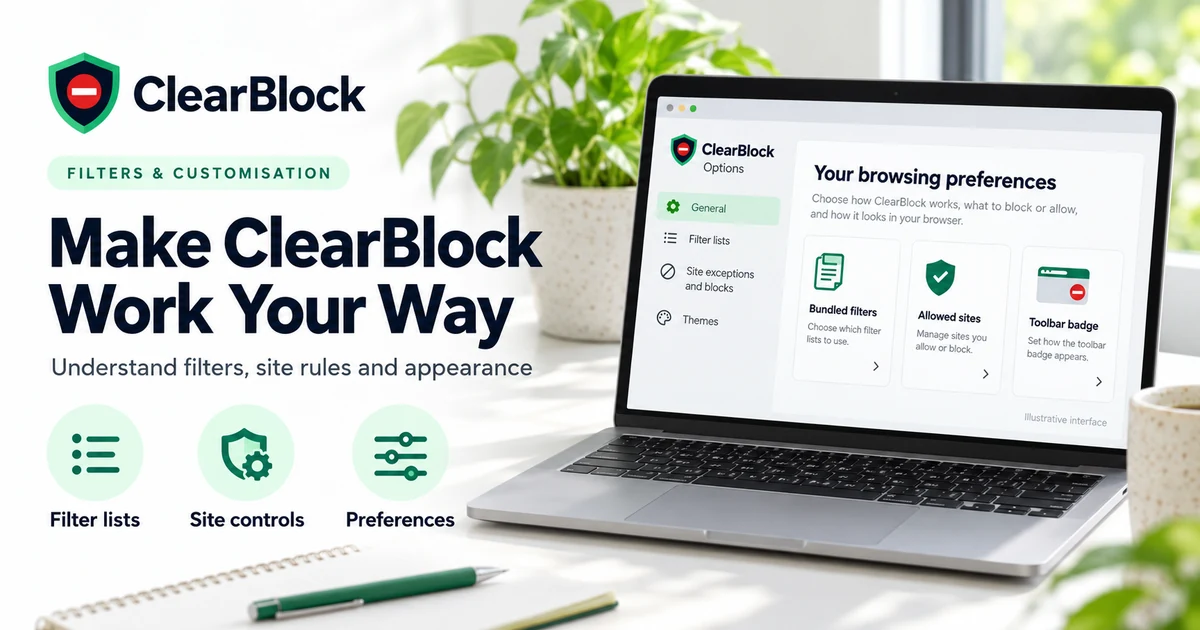
To customise ClearBlock, open its Options page and choose the setting that matches your goal. Filter lists describe bundled network filtering, Site exceptions and blocks manages domain rules, General includes ad-space hiding and the toolbar badge, and Themes changes the appearance for Premium users. Start with one specific change, save where required and reload the affected website before comparing the result.
This guide explains what those settings actually control, how to make reversible changes and why more blocking is not automatically a better setup. Free core ad blocking and site controls are separate from optional Premium features. The featured image is an illustrative Options mockup: use the actual labels and explanations inside your installed extension when making changes.
Start with the browsing outcome you want
Before opening every setting, describe what you want to change. Perhaps you want a familiar website to work without an exception affecting all your browsing. Perhaps empty advertising spaces bother you, or you prefer a quieter toolbar. These goals call for different controls.
Changing several settings together makes the result harder to understand. A saved domain exception can affect whether protection applies, while a theme changes appearance. A hidden toolbar badge does not mean blocking has stopped. Keeping these differences clear helps you build a setup you can explain and undo.
| Your goal | Where to start | Key distinction |
|---|---|---|
| Understand network filtering | Filter lists | Bundled filter subsets are not a live subscription manager. |
| Allow a website | Site exceptions and blocks or the toolbar popup | An allowed site bypasses protection. |
| Block requests to a domain | Blocked domains | A network block is different from hiding a page element. |
| Hide matched advertising spaces | General: Hide matched ad spaces (Free) | Cosmetic hiding does not add visible-ad counts to network totals. |
| Change the badge display | General: Show badge counter | The badge is a verified snapshot, not a continuously live background total. |
| Change the extension’s colours | Themes | Premium appearance preferences do not increase blocking strength. |
Open Options and record your starting point
Open ClearBlock using its toolbar icon, then select the Options control. If you cannot find the extension, use your browser’s Extensions menu and check the current profile. Our installation guide covers the initial setup.
Before editing a list, copy the existing entries into a private note so you can restore them if necessary. Record the state of the relevant switch, but avoid including licence keys or other private information in screenshots. You do not need to record every setting if your change affects only one feature.
Check global pause and the current site allowance when testing a website. A globally paused setup or a saved site exception can make a feature appear inactive even when its preference is selected. Read the popup state and any status message alongside the setting.
Understand the bundled filter lists
The reviewed ClearBlock package includes pinned EasyList and EasyPrivacy network-rule subsets. These bundled rules provide part of the extension’s network filtering. The Options page explains that unsupported filter types and extended cosmetic rules are omitted, so the package should not be described as implementing every rule in the original source lists.
Bundled filter updates require a new extension package. There is no basis for promising that opening Options downloads the latest upstream list or that a subscription check refreshes bundled rules. Browser-managed extension updates and Premium entitlement checks are different processes.
The Maintained ad and tracker network filters indicator reports the bundled filters’ state. In the reviewed interface it is a disabled status checkbox, not a control for adding arbitrary lists. Read its accompanying message, which can indicate active filters, a global pause or an incomplete active state.
If a particular advertisement remains, that alone does not tell you which rule is missing or whether a network request was involved. Describe the affected page and behaviour before trying unrelated settings. Filter coverage can vary, and a single visible result is not a complete audit of the installed rules.
Use optional filter controls deliberately
The Filter lists page also includes Optional anti-adblock script rules. Its explanation identifies a small bundled set with coverage that varies by website. Do not treat this as a universal solution to every site asking you to disable an ad blocker, and do not assume that a payment or subscription requirement will disappear.
If you test this setting, note its original state, change it once and reload the affected page. Compare the same action rather than browsing unrelated pages and guessing what changed. If the site still behaves differently, a focused support report is more useful than repeatedly switching every option.
Another control is labelled Selected ad images (legacy). It allows images from a limited set of legacy ad-image domains and suspends ad-space hiding while selected. It is not a certification that those advertisements meet an external standard. Read that explanation before enabling it merely because its label sounds like a general preference for less intrusive ads.
Manage allowed websites with hostname entries
Open Site exceptions and blocks to review Allowed sites. The interface expects one hostname per line. A hostname looks like example.com; a full page address can also contain a protocol, path and query string, which are different parts of a URL.
- Review the existing Allowed sites entries.
- Add only the hostname you intend to allow, using one entry per line.
- Select Save site rules.
- Read any confirmation or error message.
- Reload the affected website and inspect its popup state.
Allowed sites bypass protection. Do not add a broad parent domain when you intend only a narrow test without considering its scope. In the reviewed version, parent-domain allowances can also match subdomains. An allowance for example.com may therefore affect news.example.com.
For a simple one-site action, the toolbar’s Don’t block this site button may be easier than manually editing a list. The individual-site allowance guide explains the button labels, automatic reload and removal of inherited exceptions.
Understand what Blocked domains does
The Blocked domains field defines domains whose matching requests should be blocked. It is not a free-form box for arbitrary filter syntax, CSS selectors or copied rules from another extension. Use the input format and guidance supplied by ClearBlock rather than assuming that every ad-blocking rule language is supported.
A request blocked at the domain level can affect more than a visible advertising box. Websites may use a shared service for images, scripts or other page functions. If you add a domain without understanding its role, wanted content may stop loading as well.
Start with a domain you have a clear reason to test, preserve your original entries and avoid making a long speculative list. Select Save site rules, reload the affected page and check both the intended effect and the functions you still need. If the change causes a problem, remove the entry, save again and reload.
Do not assume a blocked-domain entry is a parental-control system or a guarantee that someone cannot access content through another route. This guide covers request filtering within your ClearBlock setup, not device-wide access enforcement.
Save site rules carefully
The reviewed Options page uses one Save site rules action for the allowed and blocked domain fields. Check both fields before saving, particularly if you have been experimenting with entries in each. A save can submit both sets of edits, not just the field you last clicked.
If an error appears, read it and inspect the entries rather than repeatedly pressing Save. Do not navigate away assuming the list was accepted. If you leave an edited field open while changing settings elsewhere, return and confirm the values you actually saved.
To remove a rule, remove its entry and save the lists again. Reload affected pages afterwards. Closing the Options tab does not automatically mean that a saved rule has been removed, and closing the website tab does not erase a saved exception.
Adjust free ad-space hiding separately from network blocking
General includes Hide matched ad spaces (Free). This is cosmetic handling: it hides supported spaces matched by ad filters. It is different from preventing a network request and should not be interpreted as deleting every blank area or redesigning every webpage.
When comparing the setting, choose a page with a relevant matched space, record the switch state and reload when necessary. Check the layout and any status message. A blank area can belong to the website’s own design or to content that is not covered by supported cosmetic filters.
Other preferences can affect whether this feature applies. The reviewed interface explains that pausing or allowing a site restores hidden spaces, while selected ad-image allowances and Image Swap take priority. A selected checkbox is therefore not enough to establish that ad-space hiding is active in every situation.
Do not add cosmetic hiding to the Ads Blocked figure as though both measurements represent individual advertisements removed. The network count and visual page changes describe different work.
Choose whether to show the toolbar badge
The Show badge counter preference changes the badge display on the extension’s toolbar icon. In the reviewed version, it shows the last verified network-block snapshot and refreshes while the popup is open and visible. It is not a continuously live background counter.
You can hide the badge if you prefer less visual noise. That preference is about displaying the figure, not a command to pause all blocking. Use the actual pause control and site state to determine whether protection is applying.
A changing number is not a measure of how attractive or readable a page has become. The count includes recorded blocked network requests, including custom blocked-domain requests. It is not an exact count of visible ads removed, and it does not combine popup attempts, cookie outcomes and cosmetic hiding into one result.
Customise appearance with Premium themes
The Themes section provides optional Premium appearance controls. The reviewed extension supports theme preferences for the popup and Options page separately. Choose the area you want to change instead of expecting every surface to follow a single selection automatically.
Selected themes apply immediately when Premium access is active. Without active Premium, the extension uses its default appearance while retaining saved theme preferences. A change back to the default look is therefore not necessarily evidence that you lost your saved selection.
Themes change how ClearBlock looks; they do not establish stronger filtering or a different privacy outcome. Choose a design you find readable, then assess blocking through feature state and website behaviour rather than through the colour of the interface.
Keep Premium protection preferences distinct from appearance
Premium Filters and other advanced controls affect behaviour, while themes affect appearance. Review the feature overview to understand which tools are optional Premium features. A working free setup does not require enabling every available advanced switch.
Cookie handling deserves its own review because the selected mode can change the consent outcome. Read the cookie consent guide before assuming that a banner-control setting always rejects optional cookies. For Popup Shield and media behaviour, use the browser distractions guide.
Licensing checks can update access without changing your saved preferences. Do not confuse checking Premium access with refreshing bundled filter content. If a control becomes unavailable, review its access state and any message before editing unrelated domain rules.
A worked example: a simpler setup for one regular website
Imagine you read a fictional magazine website every morning. You want to allow that site, keep your wider browsing setup and hide the toolbar badge because you find the number distracting. Begin by recording whether a global pause is active.
Add the intended hostname to Allowed sites or use the toolbar’s site allowance, then confirm the saved state on that website. Next, change Show badge counter as a separate display preference. Verify that other websites have not acquired exceptions simply because the badge is now hidden.
If you later want blocking back on the magazine website, remove the allowance and reload. The badge preference can remain off if you still prefer that appearance. This example shows why site behaviour and display settings should be reviewed independently rather than treated as one protection level.
Undo changes and report problems clearly
- A website breaks after a domain edit: restore the previous entries, save and reload.
- The filter status says paused: check the global pause control before changing lists.
- Ad spaces are not hidden: review site allowances, competing preferences and the cosmetic status message.
- The badge stays unchanged: remember its snapshot behaviour and open the popup to inspect current information.
- A theme is unavailable: check Premium access instead of assuming the filters are broken.
- A setting appears saved but behaves differently: repeat a fresh-page comparison with one change at a time.
If you need help, use ClearBlock troubleshooting or contact support. Include the browser and extension versions, page URL, relevant setting and steps to reproduce. Options also provides a redacted diagnostics download; review any file before sharing it and never include passwords or licence keys.
Frequently asked questions
Can I paste any third-party filter list into ClearBlock?
Do not assume that. The reviewed interface uses bundled filters and hostname-based site rules. It is not presented as an arbitrary subscription or general filter-syntax importer.
Do bundled filters refresh when Premium access is checked?
No. Entitlement checks and bundled content updates are different. Bundled filter updates require a new extension package.
Does hiding the badge turn blocking off?
No. The badge preference changes the display. Check global pause and site exceptions to understand whether blocking applies.
Are themes required for ad blocking?
No. Themes are optional Premium appearance settings. Free core ad blocking works separately.
Will a site exception affect only one article?
No. The allowance is hostname-based, and parent-domain entries may cover subdomains. Review the saved entry and its scope.
Should I add more blocked domains to improve the counter?
No. Add a rule only for a clear browsing purpose. A larger number is not proof that the setup is more useful or that wanted page functions remain intact.
Keep your customisation understandable
Choose a specific goal, change the matching setting and confirm its effect after saving or reloading. Keep domain rules narrow, understand the limits of bundled filters and separate appearance choices from blocking behaviour. Explore more Filters & Customisation guides as you refine a setup that works for your browsing.
Ready to try it?
Learn about filter lists and individual website controls.
Explore ClearBlock features →