
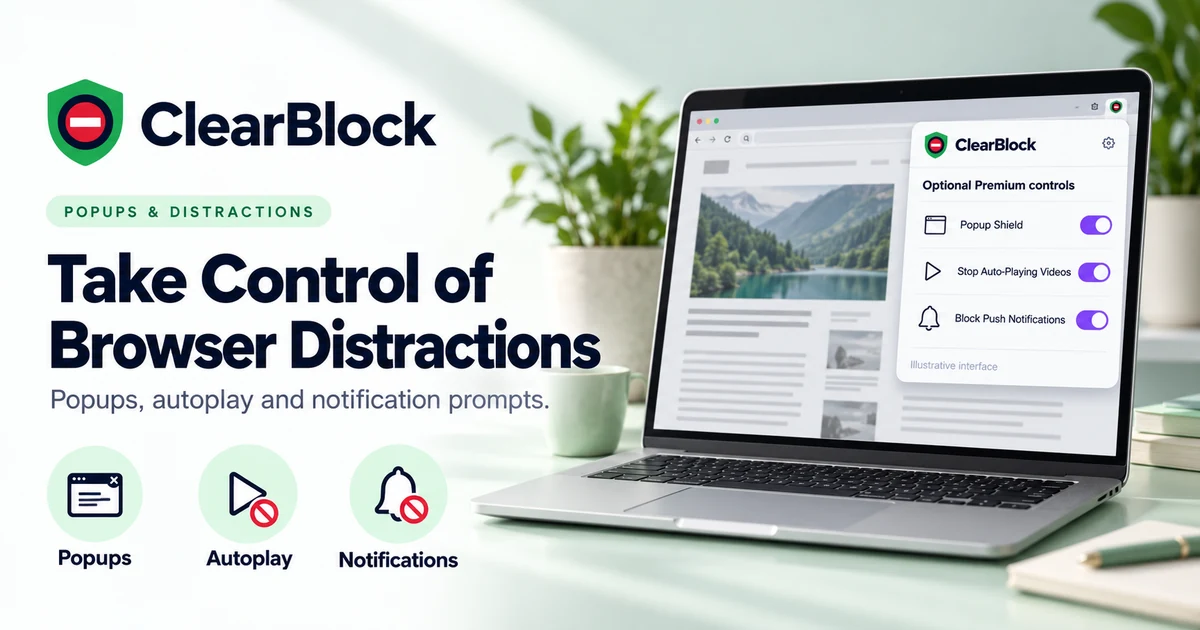
To reduce popups and browser distractions with ClearBlock, first identify what is interrupting you: a new window, an autoplaying video, an on-page overlay or a notification permission request. Then use the matching control, reload the website when needed and check the result. ClearBlock’s optional Premium tools include Popup Shield, Stop Auto-Playing Videos, Hide Page Distractions and Block Push Notifications.
These controls have different jobs. Turning on one should not be treated as a guarantee that every interruption will disappear. This guide explains how to choose a setting, make a useful comparison and keep the website functions you actually want. Core ad blocking remains free; the distraction controls discussed here are optional Premium features. The featured image is an illustrative interface rather than a literal screenshot.
Identify the type of interruption first
People often call several different things a popup. A browser window appearing behind your current tab is different from a newsletter panel inside an article. A small message asking to send notifications is different again. Identifying where the interruption appears helps you choose a relevant control instead of changing every setting at once.
| What you see | What to investigate | Useful starting point |
|---|---|---|
| A separate tab or window appears | A popup attempt or another navigation action | Popup Shield and the browser’s own popup settings |
| A video starts without you choosing to play it | Autoplaying media | Stop Auto-Playing Videos |
| A newsletter overlay or floating panel covers content | An element inside the webpage | Hide Page Distractions, where the element is supported |
| The website asks permission to send notifications | A new notification permission request | Block Push Notifications |
| Notifications arrive after you previously allowed a site | An existing browser permission | Review that website’s notification permission in browser settings |
| A cookie consent panel appears | A consent-management interface | Review the separate cookie controls and their chosen mode |
The appearance of an interruption is not enough to establish exactly how it was created. Treat the table as a starting point, then use a controlled test. Some sites combine multiple techniques, so solving one type of interruption may leave another visible.
Prepare ClearBlock before changing distraction settings
Open the website in the browser profile where ClearBlock is installed. Select its toolbar icon and confirm the hostname shown in the popup. If the icon is hidden, open your browser’s Extensions menu. The installation and setup guide explains how to get started.
Check the global pause and individual-site allowance before assessing a feature. If the global control reads Resume on all sites, blocking is paused. If the site control reads Stop allowing this site, a matching site exception exists. These states can explain why a setting is not applying on the page you are testing.
Also check that your Premium access is active before expecting Premium switches to work. A switch that is unavailable is not evidence that you need to reinstall the extension. Review the Premium page and your activation state, then use the available controls. Save unfinished forms before reloading a page or changing a setting that reloads it.
Use Popup Shield for unwanted popup attempts
Popup Shield is the ClearBlock control to investigate when a website tries to open an unwanted additional window. Open ClearBlock on the affected website, find Popup Shield and enable it if Premium access is active. Reload the page so the protection can apply to a fresh load, then repeat the action that previously triggered the interruption.
- Note what happened before the unwanted window appeared.
- Check that the current website is not allowed and global blocking is not paused.
- Enable Popup Shield.
- Reload the webpage after saving any unfinished work.
- Repeat the same browsing action once and observe the result.
- If necessary, check the popup status message in ClearBlock before drawing a conclusion.
Do not assume that a subscription panel displayed inside a page is a separate browser popup. It may need a different control. Similarly, not every new tab is created through the same mechanism. Popup Shield should not be described as a universal block on every possible navigation or window-opening technique.
Keep legitimate windows working
Some websites use additional windows for actions you deliberately request, such as a document preview or a sign-in flow. If a wanted action stops working, focus on that action and the affected site. Avoid disabling unrelated settings across your whole browser before trying a smaller comparison.
Save your work, temporarily change the relevant setting and reload if required. Repeat the legitimate action, then restore your preferred protection afterwards. Alternatively, use an individual-site exception when you deliberately want to allow the website. The guide to allowing a website in ClearBlock explains how to remove that exception later.
A successful comparison helps describe the problem, but it does not identify a particular rule by itself. If you report the issue, say which control you changed and which action started working. That is more useful than saying only that the website is broken.
Understand the popup attempts counter
ClearBlock’s popup attempts count is not a count of visible advertising windows you watched disappear. In the reviewed extension, it reports intercepted popup attempts through the supported popup mechanism. A blocked attempt may never produce a visible window, and a visible on-page overlay is not automatically part of that counter.
A zero value does not establish that protection is broken. The page may not have made a counted attempt, the trigger may not have occurred or the interruption may belong to another category. Read any status message alongside the number, and judge the browsing action you are testing rather than trying to produce a larger count.
The network ad-blocking count has a different meaning: it represents blocked network requests, not individual visible advertisements removed. Comparing the two figures as though they measure the same thing can be misleading. See How ClearBlock works for the broader distinction between controls and reported activity.
Reduce autoplay without confusing it with manual playback
Stop Auto-Playing Videos is intended to reduce media starting without your deliberate playback action on supported pages. It is separate from hiding a video panel or removing a player. A video can remain visible while paused, which can be the expected result rather than a failure.
To test the control, enable it, reload the website and wait before touching the player. Then choose Play yourself and check whether you can use the content you intended to watch. Starting with a fresh page makes the comparison clearer than toggling settings repeatedly after a video has already begun playing.
Browser media rules, player implementation and your interaction with the page can affect the result. Do not promise that every video on every website will behave identically. If a particular player remains troublesome, record whether it started before any interaction, after scrolling or after selecting a control. Those differences help make a report reproducible.
Distinguish autoplay from floating video panels
A player that follows you as you scroll can be distracting even when its playback is intentional. Conversely, a stationary player can autoplay without following the page. Decide which behaviour you want to change: playback, the floating container or both.
Try the playback control first when the issue is unsolicited media starting. Review Hide Page Distractions when the issue is a supported overlay or floating panel. A single control may not cover both behaviours, and hiding the container should not be mistaken for a universal media-playback setting.
If you deliberately open or interact with a panel, its behaviour can differ from an unsolicited interruption. Keep that interaction consistent during testing. For example, compare two fresh loads without clicking the player before concluding that the result changed between visits.
Use Hide Page Distractions for supported page elements
Hide Page Distractions targets supported page elements rather than every element you personally find distracting. It is not a general command to erase any part of any website. A newsletter overlay, floating panel or other recognised interruption may be handled, while an unfamiliar design remains visible.
Enable the control, reload and inspect both the content and the actions you need. Check that you can still scroll, open relevant controls and access the information you came for. If a page element remains visible, avoid assuming that the extension has recognised it and chosen to ignore your preference; it may be outside the supported patterns.
If an important page function is affected, reverse the relevant change and reload. A precise report includes the page URL, the element involved and whether it appeared automatically or after your own action. The distinction between a panel you requested and one that appeared unsolicited can matter when diagnosing behaviour.
Block new notification requests and review old permissions separately
Block Push Notifications is aimed at website requests for notification permission. It should not be treated as a way to revoke every permission you granted in the past. If a site already has permission and notifications continue arriving, review the saved permission in your browser.
- Open your browser’s settings and search for notifications.
- Find the site-permission controls and review websites allowed to send notifications.
- Locate the relevant hostname carefully.
- Use the browser’s available option to block or remove that permission.
- Return to the website and review whether you still want its notifications.
The exact labels vary by browser and version. Changing a website permission is separate from changing ClearBlock’s toggle. Also distinguish website notifications from notifications generated by another app on your computer. ClearBlock’s website controls are not a replacement for your operating system’s notification settings.
A website may also show its own on-page message asking you to subscribe to alerts. That message is different from the browser’s permission prompt. Blocking a permission request does not guarantee that the website’s explanatory panel will also vanish.
Keep cookie handling as a separate decision
Cookie consent panels can look like other overlays, but the choice they ask you to make is different from whether to play a video or allow a popup. Review ClearBlock’s cookie settings deliberately rather than treating every banner as an interchangeable distraction.
The reviewed extension includes distinct cookie modes, including rejecting only and a mode that can accept when rejection is unavailable. Read the selected mode before using it. Do not assume that enabling a cookie feature always means rejecting every optional cookie, and do not assume that hiding a panel proves a preference was saved.
If you prefer to decide manually, use the relevant off setting and manage the website’s consent interface yourself. Changing a feature does not automatically undo consent choices already stored by a website. The ClearBlock feature overview explains the available controls and their free or Premium status.
A practical test: one busy article page
Imagine a fictional article page with three interruptions: a video starts on arrival, a newsletter panel appears after a delay and a button triggers a separate window. Begin by recording those behaviours without changing several settings together.
First enable Stop Auto-Playing Videos, reload and wait without clicking. Note whether the video begins. Next review Hide Page Distractions for the automatically appearing panel and repeat a fresh-page comparison. Finally test Popup Shield using the same button that triggered the unwanted window.
If a change affects a function you actually want, reverse that change and repeat the test. Keep notes on what you clicked and what loaded automatically. This example is a testing method, not a claim that every website with these three elements will be handled in exactly the same way.
When a distraction still appears
- Check the category: a page overlay is different from a new window or permission prompt.
- Check the selected website: redirects can leave you on a different hostname.
- Check pause and allowances: a saved exception or global pause can prevent protection applying.
- Check Premium state: an unavailable Premium feature cannot be assessed as though it were enabled.
- Reload after changes: save work and begin with a fresh load where appropriate.
- Check other settings: browser permissions and other extensions can affect the same page.
- Record the trigger: arrival, scrolling, a delay and a deliberate click are different conditions.
Use ClearBlock troubleshooting for further checks. If you contact support, include browser and extension versions, the page URL and a short reproduction sequence. Keep licence keys, passwords and payment information out of screenshots. Do not repeatedly reproduce an unwanted navigation when one clear description is enough.
Frequently asked questions
Are these distraction controls included in free core ad blocking?
No. The Popup Shield, autoplay, page-distraction and push-notification controls described here are optional Premium features. Core ad blocking and individual-site controls remain available separately.
Why does a popup blocker not remove a newsletter overlay?
The overlay is part of the webpage rather than necessarily a separate browser window. Review Hide Page Distractions for supported elements and recognise that unfamiliar patterns may remain visible.
Does blocking notification prompts stop notifications I already allowed?
Do not rely on that. Review and revoke the existing website permission in your browser’s notification settings. The ClearBlock control addresses notification permission requests.
Does a zero popup counter mean nothing is working?
No. The counter measures supported reported popup attempts, not every kind of visual interruption. Review the status, the page state and the specific trigger you tested.
Should I enable every switch at once?
You can choose the features you want, but a one-at-a-time comparison is easier to understand when diagnosing an issue. Confirm that wanted page functions still work after each relevant change.
Can I make an exception for one website?
Yes. Use Don’t block this site, then remove the exception with Stop allowing this site when appropriate. Check the global pause separately when restoring protection.
Build a browsing setup you can understand
Start with the interruption you can describe, choose its matching control and test the same action after a fresh load. Keep site exceptions intentional and review notification permissions separately from new prompts. A useful setup gives you control while preserving the content and functions you deliberately use. Explore more Popups & Browser Distractions guides as you refine your preferences.
Ready to try it?
Review optional Premium tools for popups, autoplay and other distractions.
Explore Premium →