
18 Nov 2026
How to Allow a Useful Popup on One Website
Allow an expected popup on one website in Chrome or Edge, test ClearBlock separately and review temporary exceptions after your task.
Read guide →
Manage popups, autoplay videos and push notifications.
Allow an expected popup on one website in Chrome or Edge, test ClearBlock separately and review temporary exceptions after your task.
Read guide →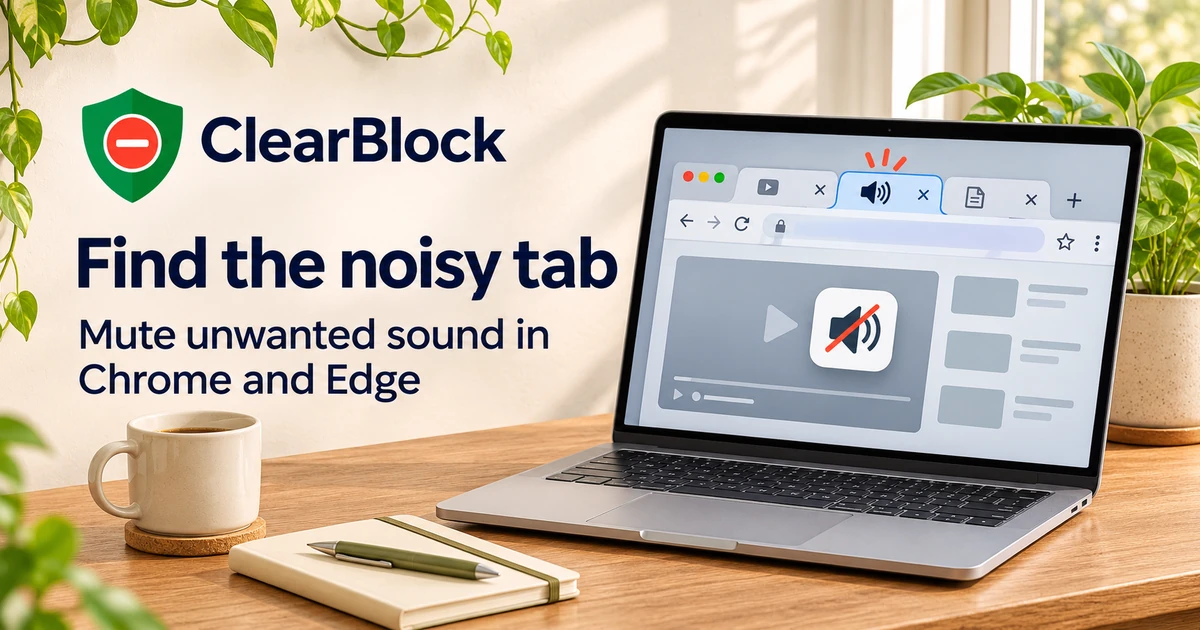
Find the browser tab playing unwanted sound, then pause the player or use the mute controls in Chrome or Edge.
Read guide →
Use ClearBlock Popup Shield, read intercepted attempt counts and troubleshoot sign-in or payment windows that will not open.
Read guide →
Reduce supported newsletter overlays, floating players and chat distractions with a practical ClearBlock setup and repeatable page checks.
Read guide →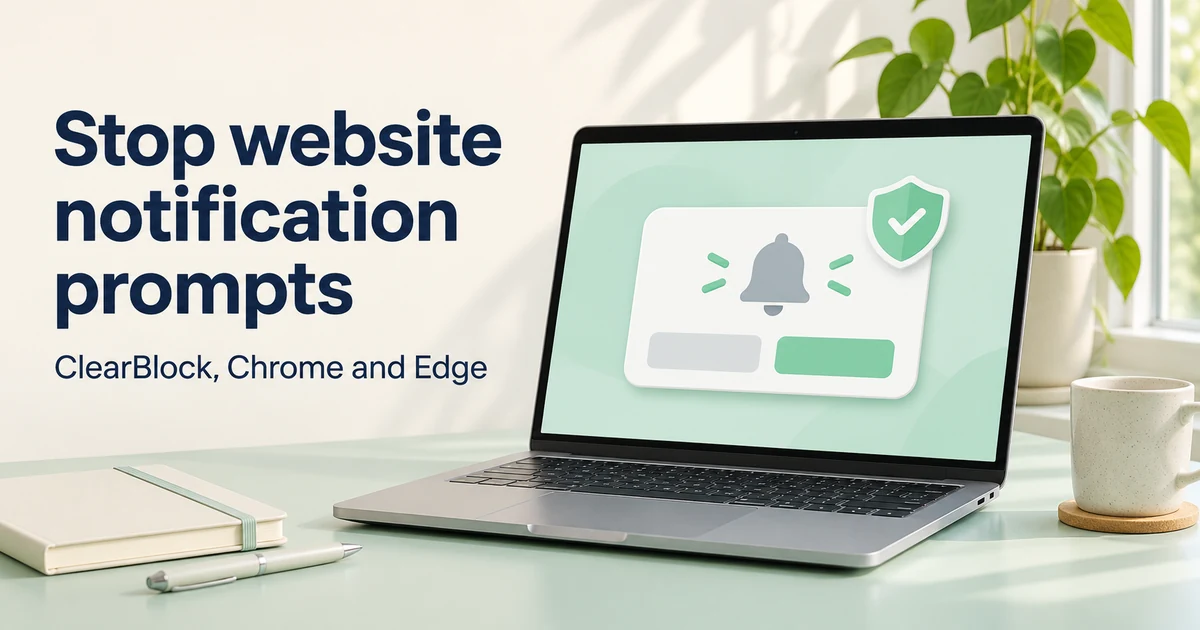
Learn how ClearBlock handles new notification requests and how to review existing website permissions without losing useful alerts.
Read guide →
Use ClearBlock’s optional Premium autoplay control, test intentional playback and distinguish automatic videos from floating panels, audio and other interruptio
Read guide →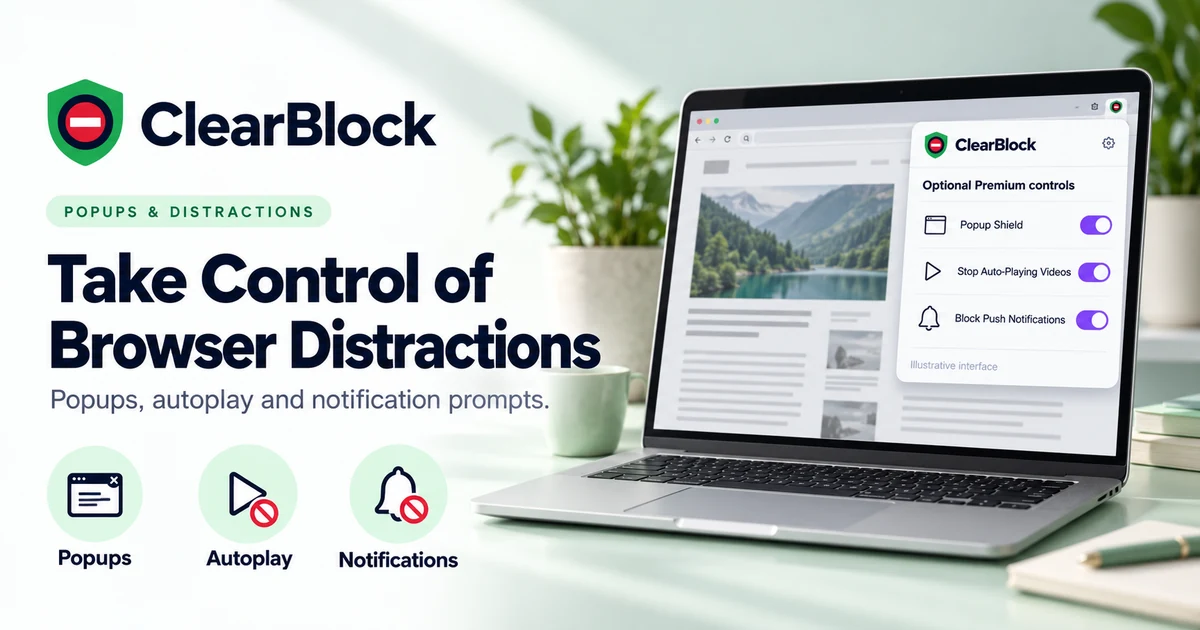
Learn which ClearBlock Premium controls address popup attempts, autoplay, page overlays and notification requests, and how to test changes without losing wanted
Read guide →Explore the features or visit support for help with a specific issue.
Explore ClearBlock features →