
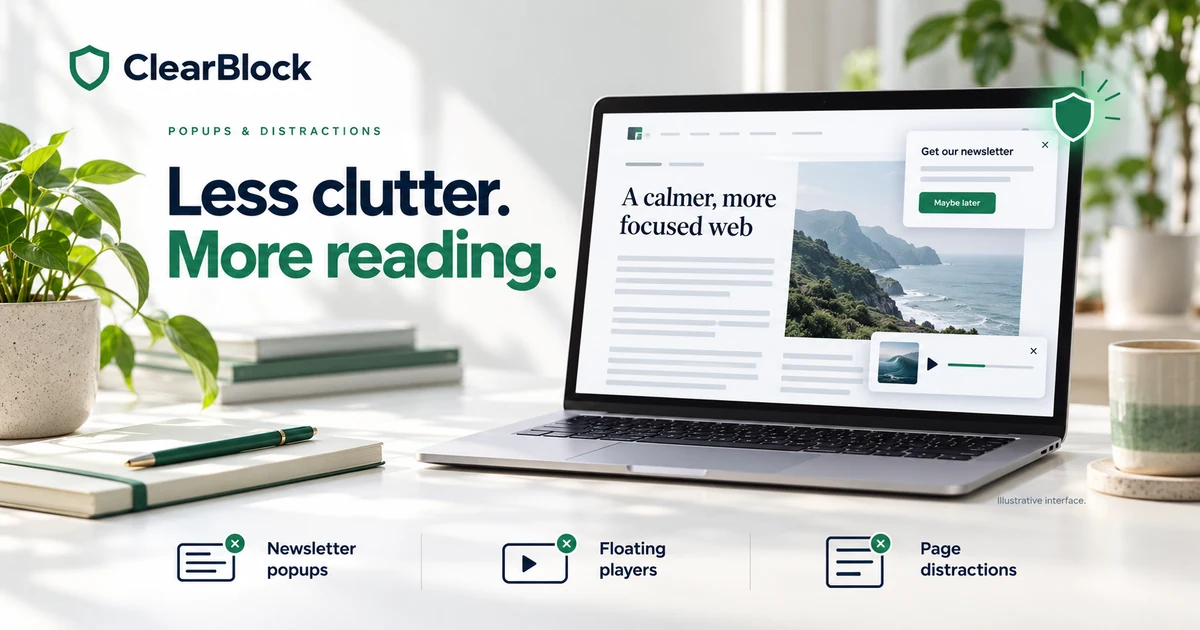
A newsletter invitation covers the paragraph you are reading. A video shrinks into the corner as you scroll. A chat bubble keeps inviting you to start a conversation. These interruptions can make a useful website feel crowded even when its advertisements are already blocked.
This guide explains how to recognise different page distractions, use ClearBlock's supported controls and check the result without hiding something you need. The aim is a calmer reading experience while keeping account, consent and other interactive website functions usable. Coverage varies between websites, so a sensible setup includes both extension settings and straightforward manual choices.
Why page distractions remain after ads are blocked
An advertisement and a website interface are not always the same thing. A newsletter panel may be created directly by the publisher. A floating video may be part of the site's own player. A support widget can be a genuine service the website wants you to use. These elements do not necessarily depend on an advertising request that a network filter can block.
That is why an ad blocker can record blocked requests while a subscription invitation still appears. The counter describes one kind of activity; it does not promise that every panel, animation or overlay has been removed. Understanding the distinction helps you choose the relevant control instead of repeatedly refreshing the same page.
Start by describing what you see. Is it inside the webpage, in a new tab, or a browser notification permission prompt? Those are different behaviours. The correct next step depends on which one is interrupting you, rather than on whether you casually call all three a popup.
Identify the interruption before changing settings
- Newsletter overlay: a panel within the page asks for an email address, often after a delay or some scrolling.
- Floating player: a video moves to a corner and follows you down the page.
- Chat invitation: a widget opens or expands automatically to offer a conversation.
- New browser tab or window: the interruption opens outside the current page layout.
- Notification prompt: the browser asks whether a website may send notifications.
- Consent or account dialogue: the website requests a privacy choice, sign-in or another action that may be necessary.
A screenshot for your own reference can help you compare the same interruption before and after a setting change. If you share it with support, remove account details, private messages and any personal information first. A short description of the trigger is often more useful than a full screen capture.
Use Hide Page Distractions for supported page elements
ClearBlock includes an optional Premium control labelled Hide Page Distractions. In the implementation reviewed for these guides, it targets supported automatic newsletter modals, certain floating muted mini-players and supported chat distractions. It is not a universal instruction to delete every box on a website.
Open the extension on the affected website and check whether the control is available in your current setup. Enable it if you want to use that feature, return to the page and compare the result. Save unfinished work before reloading or changing broader site settings.
Use one recognisable test: open the same article, scroll to the same point and wait for the same invitation. A panel appearing after a particular action may behave differently from a panel that opens automatically. Comparing equivalent steps gives you a clearer answer about what the setting changed.
Do not assume an unchanged page means the control is broken. The website may use an unsupported design, or the panel may be an interactive function that the implementation deliberately preserves. If it remains visible, use its normal dismiss option when appropriate and continue with a focused diagnosis.
Reduce newsletter interruptions without losing useful access
Newsletter invitations commonly appear over an article or near the bottom of the screen. Some are easy to dismiss; others appear again on later visits. If you do not want to subscribe, look for a clear close button or a choice such as Maybe later. There is no reason to provide an email address simply to make an optional invitation disappear.
ClearBlock's supported distraction handling can help with recognised automatic newsletter modals. However, an invitation embedded in the article may remain part of the normal page. Treat an inline subscription form differently from an overlay preventing you from reading; the first may not be an interruption that requires removal.
If the same invitation keeps returning, the website may not retain its dismissal preference between visits. Private browsing, deleted site data or the site's own behaviour can affect that experience. Avoid weakening broad privacy settings solely to suppress one marketing panel. A manual dismissal or choosing another source may be the more practical response.
Also separate newsletters from paid access. Hiding a marketing invitation does not grant a subscription, unlock a paid article or change the publisher's access rules. If the page requires membership, use the site's legitimate access options rather than expecting a distraction setting to provide the missing content.
Handle floating videos and mini-players
A floating player can follow your scroll position even after the original video area is out of view. That behaviour is separate from whether the video starts automatically. You may want to stop unsolicited playback, hide a supported distracting mini-player, or keep a video you deliberately started.
ClearBlock's Stop Auto-Playing Videos and Hide Page Distractions controls therefore serve different purposes. The former addresses supported unsolicited playback; the latter includes supported automatic floating player distractions. Neither should be described as guaranteed control over every video framework on the web.
First decide what you actually want to change. If you started a tutorial and want to keep watching it while scrolling, use the player's normal controls. If an unrelated muted video follows you without being requested, the distraction setting may be the more relevant comparison.
Try the visible close or minimise button when available. If playback itself is the issue, read how to stop autoplay videos with ClearBlock. Testing the two behaviours separately avoids turning off a useful player while trying to solve a different annoyance.
Manage chat bubbles and automatic invitations
A chat widget can be useful when you need help, yet distracting when it repeatedly expands during reading. There is a difference between an automatically opened invitation and a conversation you intentionally started. Keep that distinction in mind when deciding whether an element should stay visible.
The reviewed ClearBlock implementation includes handling for supported chat distractions, including supported Crisp elements. This does not mean every chat service, custom button or support panel is covered. Different websites integrate the same provider differently, and their interface can change.
If you need the conversation, avoid changing settings in the middle of writing a message. Finish or save it first. If a useful support control disappears during a test, turn off the relevant distraction control and reload when it is safe to do so, then check the same website again.
For a panel that remains open, use its own close option rather than installing several additional blockers at once. Multiple extensions can overlap in ways that make a missing button harder to diagnose. A single controlled change produces a more useful result than several unexplained changes together.
Keep consent, account and security dialogues usable
Some overlays are part of a necessary task. A sign-in form, a password confirmation, a checkout step or a privacy choice should not be treated as an unwanted marketing popup just because it sits above the page. Removing it may leave the website waiting for an action you can no longer see.
ClearBlock's reviewed distraction handling preserves recognised interactive account and consent elements. That distinction is a practical safeguard, rather than a promise that every website can always be classified perfectly. If a page stops responding after a setting change, check whether a required dialogue or its background overlay was involved.
Cookie choices have their own settings and consequences. Hiding visual clutter is not the same as rejecting tracking, withdrawing an earlier choice or deleting cookies. Use the cookie consent mode guide when your goal is to manage consent rather than the appearance of the page.
A repeatable five-minute reading test
- Choose one public article where the interruption occurs, and save any work in the tab.
- Record the type of interruption and what triggers it: opening, scrolling, waiting or clicking.
- Check that ClearBlock is active for that site and that blocking is not globally paused.
- Change one relevant control, then reload if needed and repeat the same browsing steps.
- Check both the distraction and a useful page function, such as navigation or opening the article menu.
- Keep the change if it helps; reverse it if it removes something you need or makes no useful difference.
This is a practical comparison, not a speed benchmark or a guarantee of improved performance. Websites can vary content between visits. Repeat the test only when that variation makes the first result unclear, and avoid treating a single blocked-request count as proof of the visual outcome.
When the unwanted element still appears
Check the current site state before assuming a feature has failed. A saved site exception can allow the website, and a global pause is independent of that exception. Read the labels in the popup and review the intended preference before making another change.
Then consider whether you are looking at the same kind of interruption. A new tab requires a different investigation from a newsletter overlay. A browser notification permission request differs from an old notification permission already granted. See the notification prompts guide for that situation.
If the element is unsupported, close it normally when possible. For an actual broken page, use the website troubleshooting guide. A useful support report describes the hostname, browser, relevant setting and repeatable trigger without including private account information.
Frequently asked questions
Will Hide Page Distractions remove every overlay?
No. It handles supported distractions and preserves recognised interactive functions. Coverage varies, and a website's design can change. Use the page's normal dismiss control for an unsupported invitation.
Does hiding a newsletter popup unsubscribe me?
No. Page appearance and an existing email subscription are separate. If you already subscribed, use the sender's legitimate unsubscribe process or account preferences to manage those emails.
Why is a video still visible when autoplay is off?
Stopping unsolicited playback does not necessarily remove the player itself. A video you deliberately started or an unsupported implementation can behave differently. Identify playback and floating layout as separate issues.
Can I keep ad blocking but allow a useful page widget?
Start by testing the specific optional distraction control rather than pausing all blocking. Check the result on the same page, then retain the setting that suits your needs. Broader site exceptions are a separate choice.
Build a calmer browsing routine
Identify the interruption, choose the relevant control and verify that the page still works. That approach makes ClearBlock easier to configure and keeps changes intentional. Explore more Popups & Browser Distractions guides for help with new windows, autoplay and unwanted prompts.
Ready to try it?
Review optional Premium tools for popups, autoplay and other distractions.
Explore Premium →