
Website notification requests can interrupt a page before you have decided whether it is useful. Sometimes the interruption is a browser permission prompt; sometimes it is a website's own banner asking you to subscribe. You may also receive notifications from a site you allowed earlier, even when you are no longer looking at that page.
The right response depends on which of those situations you have. This guide explains ClearBlock's Block Push Notifications control, how it differs from popup blocking, and how to review notification permissions already saved in your browser. The aim is to keep useful alerts while reducing requests and messages you do not want.
Identify what is interrupting you
Before changing settings, look at the interruption and where it appears. A request asking whether a website may send notifications is a permission decision. A promotional box inside the page may simply be part of that website's design. A message appearing on your desktop may be a delivered notification rather than a new request.
These can look similar, but they are controlled in different places. Blocking new permission requests does not revoke an earlier browser permission. Closing a page banner does not necessarily change a stored subscription. Identifying the type first helps you avoid toggling unrelated features and then wondering why the same interruption continues.
What ClearBlock's notification control does
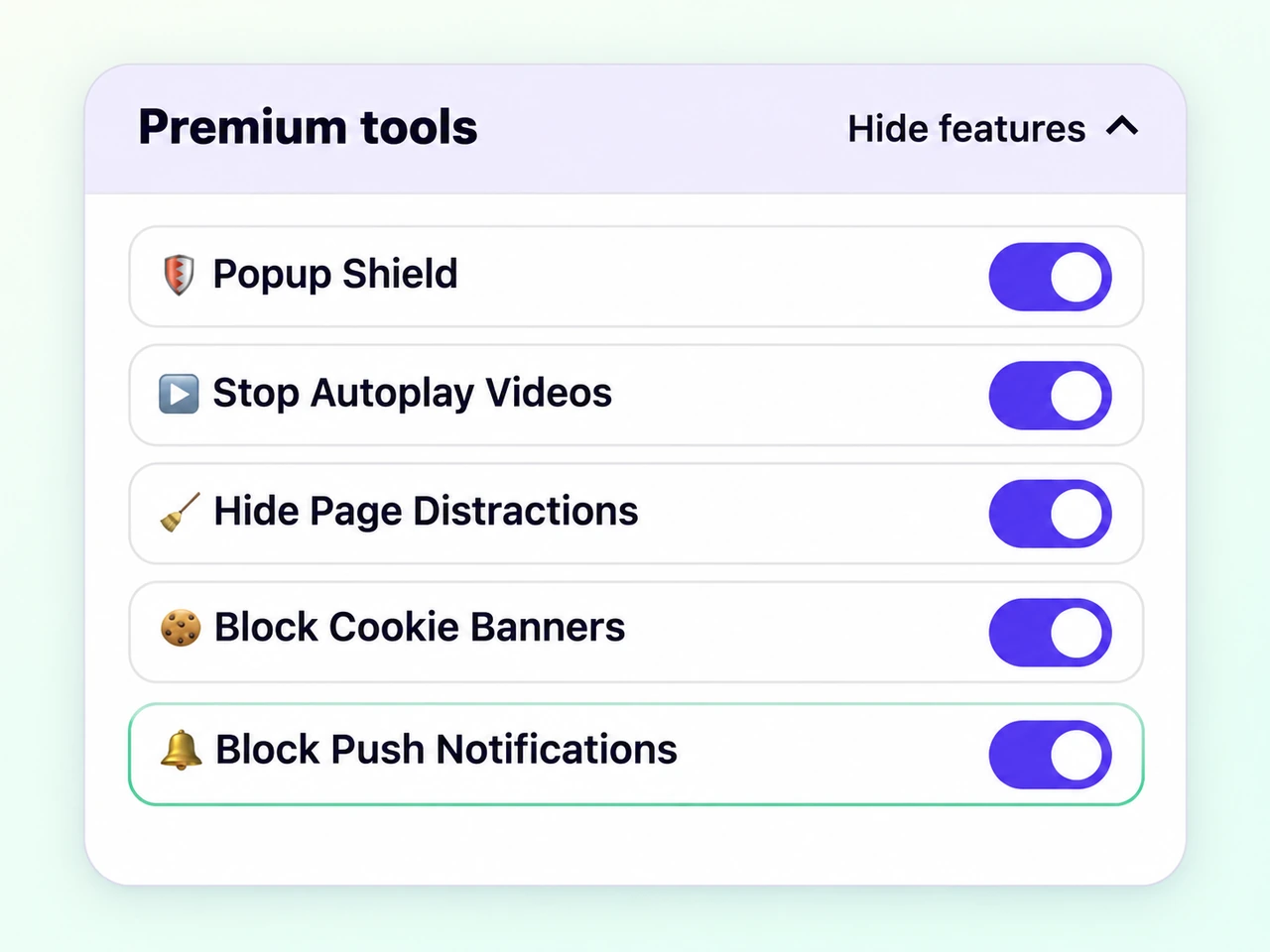
Block Push Notifications is an optional Premium control intended to stop websites asking for notification permission on supported pages. It is useful when you prefer to browse without repeated requests to subscribe. You can find it among ClearBlock's additional browsing controls.
It does not automatically revoke notification permissions you previously granted in Chrome or Edge. It also should not be treated as a system-wide switch for every desktop alert. Notifications from installed applications, browser extensions and operating-system services may have their own settings outside the website permission flow.
Core ad blocking remains free. The availability of this additional notification control depends on Premium access and your installed version. For the wider feature list, visit ClearBlock features. You do not need to enable every Premium tool simply because you want fewer notification requests.
Enable Block Push Notifications in ClearBlock
- Open a normal website in the browser profile where ClearBlock is installed.
- Select the ClearBlock toolbar icon to open its popup.
- Find the Block Push Notifications control among the available Premium options.
- Enable it if you want to suppress supported new permission requests.
- Save any unfinished work, then reload the page before comparing its behaviour.
If you cannot find the icon, read how to pin ClearBlock and find its controls. Browser settings pages and extension store pages are not ordinary web pages, so use a familiar HTTP or HTTPS website when checking page behaviour.
Check the current site's allowance and global pause state too. An intentionally allowed website or a broader pause can affect whether protection applies. Read the current control labels rather than assuming that a visible switch proves the whole page is being handled in the state you expect.
Review existing website permissions in Chrome
If notifications are already arriving, review Chrome's saved permissions. Open Settings, then Privacy and security, Site settings and Notifications. Inspect the allowed entries and change the permission for sites whose alerts you no longer want. Check the hostname carefully before editing an entry.
Chrome also provides default notification settings, including options for how future requests are handled. Choose the behaviour you prefer, and keep individual site permissions in mind when assessing the result. The browser may already reduce some requests, so an absent prompt does not establish which layer prevented it.
Google's official notification help explains these browser controls. Menu wording can change between releases; searching Chrome settings for Notifications is useful if the route looks different in your version.
Review existing website permissions in Edge
In Edge, open browser Settings and search for Notifications. Open the website notification permission controls and inspect the sites that are allowed. Change the entry for a site you no longer want to hear from, rather than relying on ClearBlock's new-request control to remove an old permission.
Use the settings search if your Edge version groups site permissions differently. Check that you are editing the profile that actually receives the alerts. A personal profile and a work profile can have different saved permissions, and a managed browser may restrict some changes.
After changing an entry, observe whether messages from that site stop arriving. A notification already visible on the desktop may still need to be dismissed. If alerts continue, identify their source rather than repeatedly changing the permission for a website that may not be responsible.
Keep useful notifications intentionally
You may want alerts from a work chat service, calendar or another site you use regularly. Review those permissions separately from unfamiliar promotional sites. A selective approach helps you retain useful reminders without accepting every subscription request that appears while browsing.
If you deliberately want to grant a new permission, first check the website's identity and the browser's current notification setting. You may need to temporarily disable ClearBlock's request suppression while making that choice. Save your work before reloading, then return the extension setting to your preferred state afterwards.
Do not create a broad site allowance merely to solve one notification preference without considering its wider effect. An allowance bypasses ClearBlock protection for the matching site. Where possible, use the specific feature control and browser permission setting that correspond to the behaviour you want.
Notification prompts, popup windows and page overlays
A popup window or newly opened tab is different from a request for notification permission. ClearBlock's Popup Shield addresses supported popup attempts; it is not the same control as Block Push Notifications. A modal drawn inside the current page is another kind of interruption again.
For example, a website can display a large subscription panel before it ever asks the browser for permission. Suppressing the later permission request does not guarantee that the earlier panel will disappear. Supported page distractions may be handled by the relevant distraction feature, but coverage varies with the website and element.
For a broader explanation, read how to reduce popups and browser distractions. Identify whether a new window opened, the page drew a box, or the browser requested permission. That observation makes the next setting easier to choose.
Why a notification may still appear
The most common explanation to check is an existing permission: preventing new requests does not cancel a permission already granted. Another possibility is that the notification comes from an application, extension or different browser profile. Look for the sending website or application shown with the message.
It is also possible that the page is displaying an imitation notification within its own content. A box that disappears when you leave the page is different from a delivered system notification. You do not need to interact with a suspicious message to investigate it; open browser settings independently.
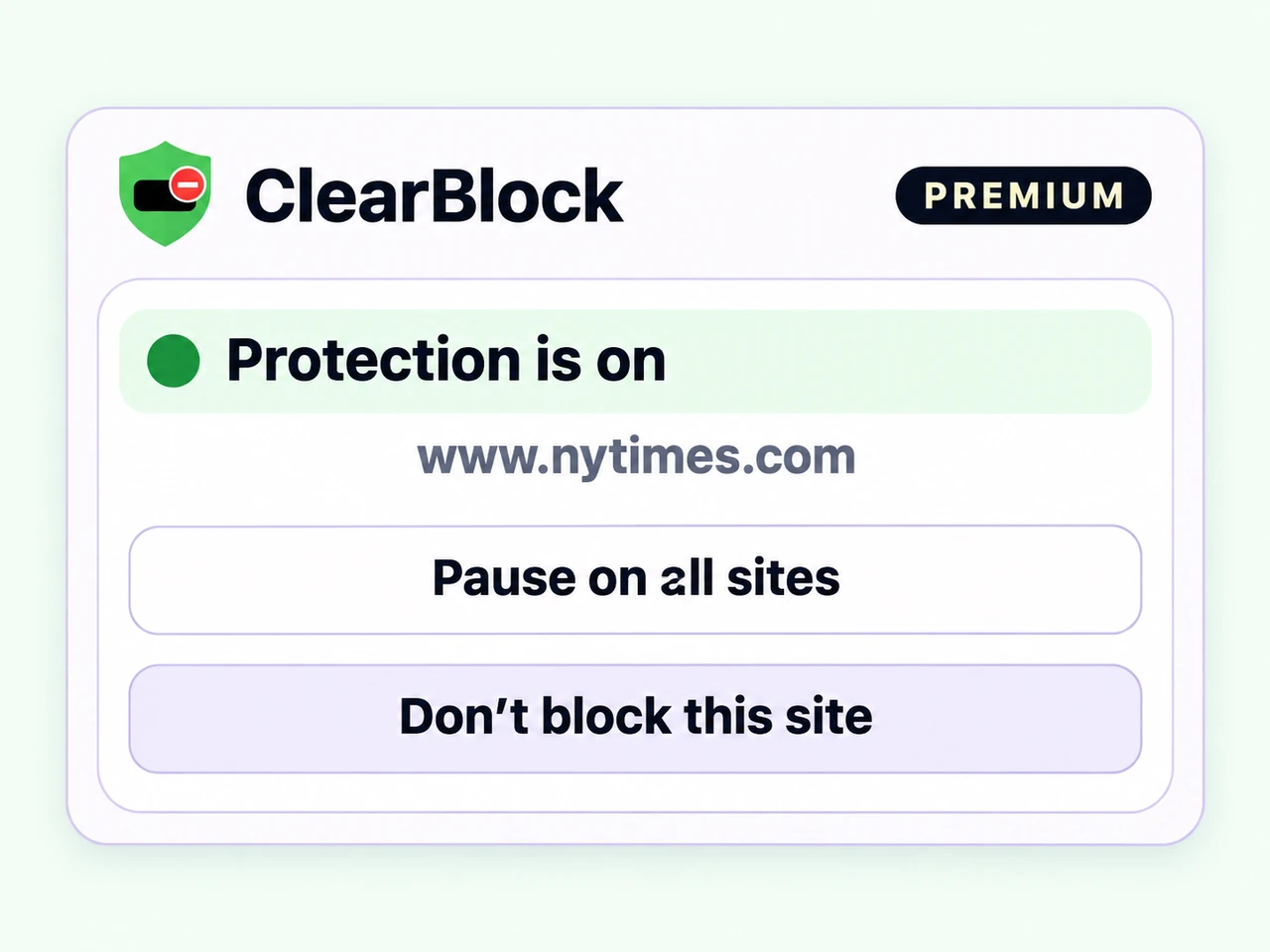
If you are testing ClearBlock, confirm that the relevant Premium control is available and enabled, the site is not intentionally bypassed, and global blocking is not paused. Then reload a supported page. Avoid changing several browser and extension settings at once, since that obscures which change mattered.
Make a controlled comparison
- Write down the symptom: new permission prompt, in-page subscription panel or delivered notification.
- Note the sending hostname or application if it is shown.
- Inspect the relevant browser permission before editing it.
- Change one setting that matches the symptom.
- Reload only after saving unfinished work, if the test requires it.
- Check the result and keep a note of the final setting you chose.
Do not repeatedly allow notifications just to generate a test. Testing should not leave you subscribed to a service you did not want. Use a familiar website and stop once you have enough information to understand the setting. If no prompt appears, remember that the site or browser may already have a stored decision.
Be cautious with misleading notification messages
Some messages use urgent language to encourage a click, such as a claim that an account needs immediate attention. A website notification is not proof that the browser or operating system has detected a problem. Consider who sent it and whether you expected that service to contact you.
Open the relevant service directly through a trusted address or bookmark if you need to check an account. Do not enter passwords, payment details or other sensitive information merely because a notification requested it. If you no longer recognise or want the sender, review its saved browser permission independently.
ClearBlock's request control is a browsing preference, not a guarantee that every misleading message or dangerous site will be detected. Keep the browser updated and use its own security features alongside intentional notification permissions. Treat unfamiliar senders as a reason to investigate, not an instruction to act immediately.
What the dashboard can tell you
Do not judge notification request suppression by the Ads Blocked number. That metric records blocked network requests, not every visible prompt, permission decision or desktop message. Popup attempts also represent a different class of activity and should not be treated as a notification-request total.
A quiet page with no change in the displayed ad count can still be consistent with your settings. Equally, a high network count does not prove that a particular site's notification permission has been removed. Inspect the relevant permission directly when that is the question you are trying to answer.
For more detail on what is recorded, read the dashboard and counters guide. Use the metric that actually describes the activity instead of interpreting one large total as a measure of every feature.
When to ask for support
If a new permission prompt continues on a supported page despite the intended setting, record the browser version, ClearBlock version, website hostname and whether the problem persists after a reload. Explain whether it is a browser permission request or a panel inside the website; those are materially different reports.
You can contact ClearBlock support with that description. A cropped screenshot can help if it avoids private tabs, account information and messages. Do not send passwords, licence details or full private browsing histories. If the issue is an already granted browser permission, review that permission first.
Frequently asked questions
Does Block Push Notifications remove permissions I already allowed?
No. Review existing website notification permissions in your browser. The ClearBlock control targets supported new permission requests and does not automatically revoke earlier grants.
Will it silence notifications from every application?
No. Installed applications and operating-system alerts have their own controls. Identify the sender before deciding whether to use browser permissions, application settings or system notification preferences.
Why is the website still showing a subscribe banner?
The banner may be an element drawn inside the page rather than the browser's permission request. It can remain even when the later request is suppressed. Use the appropriate page control where supported, or dismiss the site's banner manually.
Can I keep notifications from one useful site?
Manage that site's permission deliberately in the browser. If you need to grant a new permission, check both the browser's request setting and ClearBlock's suppression control, then restore your preferred general setup after making the choice.
Where should I go next?
Explore Popups & Browser Distractions guides for related controls, or read how to stop autoplay videos with ClearBlock if unwanted playback is your next interruption to address.
Ready to try it?
Review optional Premium tools for popups, autoplay and other distractions.
Explore Premium →