
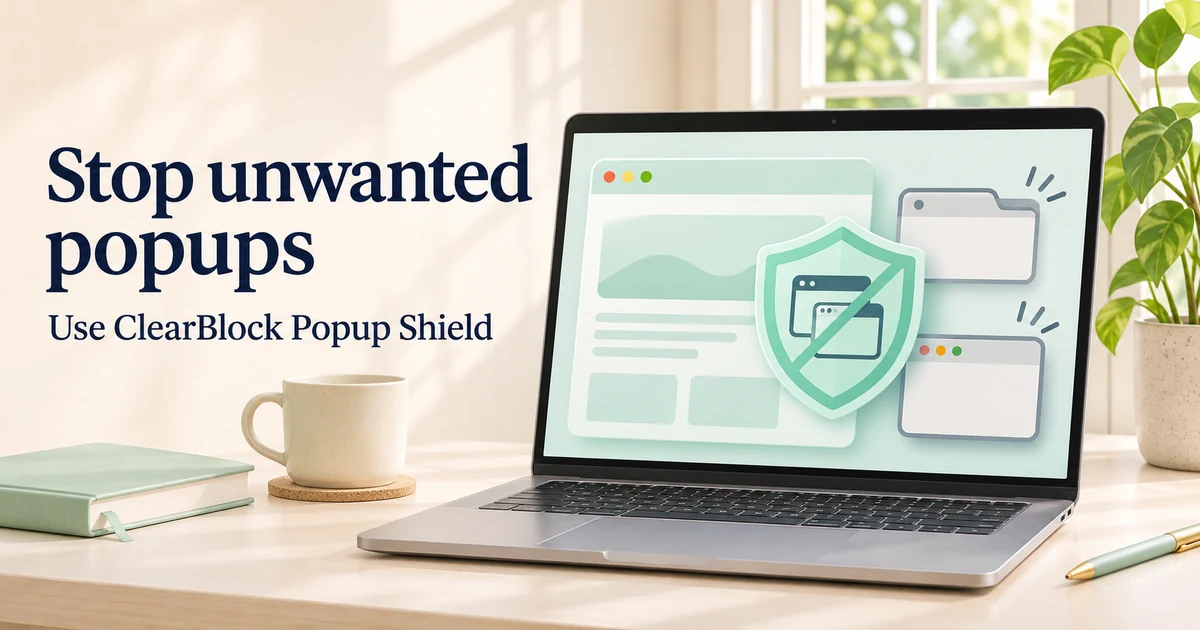
ClearBlock’s Popup Shield helps stop unwanted windows and tabs opened by supported page scripts. It is an optional Premium feature. In builds that show the control, open ClearBlock on the affected site in Chrome or Edge, turn on Popup Shield and check its status. Reload the page if the popup is waiting for protection and you can safely reload.
Start by checking what actually opened. A separate tab, a box over an article and an “Allow notifications?” prompt call for different controls. If a legitimate sign-in or payment window won’t open, test the affected site first. You can make a site exception without pausing ClearBlock across every site.
What Popup Shield can stop
Some sites use a script to ask the browser to open a new window or tab. The attempt may happen as the page loads or a moment after you interact with it. Popup Shield can intercept supported requests that don’t have a qualifying user action. An intercepted attempt can be counted even though you never see a separate window.
The shield is designed to let legitimate user actions through. A button you deliberately click may need to open a sign-in window, a help article or a file preview. A normal link may also open a new tab by design. In the review build, Popup Shield targets supported scripted window-opening requests and lets qualifying direct interactions through. That means some unwanted tabs can still open, including ones tied to a direct click.
For example, a link might open a new tab immediately because that’s how the link is set up. A different site may wait a moment and then try to open a promotional window using a script. If you’re reporting a problem, note whether the new tab appeared at the exact moment you clicked or after a delay. That clue can help identify what happened.
How to turn on Popup Shield in Chrome or Edge
- Open a normal webpage in the browser profile where ClearBlock is installed.
- Click the ClearBlock shield in the toolbar. If it’s unpinned, open the browser’s Extensions menu and choose ClearBlock.
- Confirm that your ClearBlock Premium access is active. In the popup, find Popup Shield and turn it on if the control is available.
- Look for the status on the affected page. In the review interface, Popup Shield active means the popup reports that the page guard is active. If it says it’s waiting for page protection, save anything you’re editing and reload the tab if needed.
- Open the popup again on the same tab and check its status. If the page is safe to revisit, repeat the ordinary action that triggered the unwanted tab.
The toggle is a feature preference. The status refers to the page you’re viewing and can differ when a site is allowed or protection is paused. The labels above come from the review interface. Store versions can present the control or counters differently. If you see an unlock prompt or can’t find the feature, check your installed version and Premium access. ClearBlock Premium overview.
Read the Popup Shield count
Open the ClearBlock popup on the affected page and look for Popup attempts blocked, if your version shows it. In the review interface the card has a count on this page and a count in total. Use the page figure to check the tab you’re testing and the total to see the wider record.
An interception means ClearBlock stopped a supported attempt before handing it to the browser to open. The count measures attempts, so it can rise while the page looks exactly the same. A page can make repeated attempts. The counter can’t tell you how many distinct windows you would have seen, or which attempts the browser itself would have blocked. A zero means no interceptions were recorded in the scope you’re viewing.
For a wider view, open Options → Block Stats Dashboard if available. In the review interface, choose Popup attempts blocked under the Activity selector. Check the period you’ve selected before comparing the chart with the popup. If older reports appear separately, keep them separate when interpreting the verified figures.
The Ads Blocked figure tracks recorded blocked network requests. A new popup interception doesn’t increase that figure by itself. If both counts rise while you browse, you’re seeing two different kinds of activity. How to read ClearBlock’s blocking activity.
What to do when a legitimate popup won’t open
Some sign-in, file preview and payment flows open a separate window. First check for a blocked-pop-up icon or message in the browser’s address bar. Chrome and Edge have their own controls for pop-ups and redirects. A ClearBlock site exception changes ClearBlock’s behaviour for the site. The browser can still block the window under its own rules. Chrome pop-up settings and Microsoft Edge pop-up settings.
On a site you trust, try opening a harmless window, such as a help link or a sign-in prompt, before testing with a payment. If the site shows no browser warning and you think ClearBlock is involved, compare the same action with a temporary exception for that site.
- Open ClearBlock on the page where you start the action. Confirm the address matches the site you meant to use.
- Choose Don’t block this site. This can allow other content ClearBlock normally filters on that site too. Leave the global pause control alone.
- Reload if it is safe to do so, then try the same action again. If it’s a checkout and you already submitted a payment, check your order or payment status before trying again.
- When you’ve finished testing, choose Stop allowing this site and reload if you want ClearBlock to filter the site again.
If the window only opens with the site allowed, tell support which page and button were involved. The comparison points to a difference when ClearBlock’s controls are active there. Because the exception changes more than Popup Shield, that result alone can’t identify which feature was involved. A page feature such as a sign-in flow can also depend on a request allowed by the exception. How to allow ads on one website.
Pick the control that matches the interruption
- A separate window or tab opens. Check Popup Shield and your browser’s pop-up controls. Check whether you clicked a link meant to open separately.
- A newsletter box covers the article. It may be part of the page. ClearBlock’s optional Hide Page Distractions control addresses supported overlays and widgets.
- A browser prompt asks whether a site can send notifications. Check Block Push Notifications for supported new requests. If you already granted permission, manage that site in the browser’s notification settings. Chrome notification settings.
- A video starts moving or playing sound without your choosing Play. Check the player’s settings or ClearBlock’s optional autoplay control for supported players.
- A cookie banner asks for consent. Check your cookie banner mode or use the site’s choices directly. ClearBlock cookie banner settings.
If you’re unsure what you saw, note whether a new tab appeared in the tab strip, whether the address changed, or whether the interruption was still drawn inside the same page. For instance, a floating panel that moves with the article is a different symptom from a second window opening behind the browser.
What to check if unwanted tabs still open
First, check that you’re looking at the same browser profile where ClearBlock Premium is active. Open the popup on the page that initiated the new tab. The tab that appeared may show a different site and a different status. If you opened ClearBlock from that new tab, go back to the original one before checking its page count.
Then check whether protection is paused or the original site has an exception. If the status is still waiting, reload only when safe and check it again. Keep the same browser and site settings while you compare. If the status says the shield is active and the new tab opens immediately when you click, the action may fall outside the type of attempt Popup Shield intercepts.
If the tab appears only when you click one particular element, describe it in your report. For example, “the new tab opened when I clicked the next-page arrow, but it didn’t open when I scrolled.” That gives support a specific action to check. If the tab opens without interaction, note how long it took and whether the page had finished loading.
Avoid repeatedly opening an unfamiliar destination to collect evidence. If an unexpected tab asks you to install software, paste a command or sign in, close it and return to the service through an address you trust. How to spot fake verification prompts.
Two examples of how to narrow down the cause
A sign-in window is missing
Imagine you select “Sign in” on a service you know, but the page stays where it is. Check the address bar first. If Chrome or Edge says it blocked a popup, review the browser’s settings for that site. If there’s no message and the page shows an error of its own, record it before making a ClearBlock exception. The error may help support distinguish an unopened window from a sign-in request that failed.
An article opens a second tab
If you see a second tab after selecting a link, check the original tab before opening the popup. Record whether the link opened the article you expected or sent you somewhere unrelated. If the same article opens normally from the publisher’s navigation, that gives you a specific link and context to report. You can close the unexpected tab without interacting with it.
What to send if you need help
Include the original page address, Chrome or Edge version, installed ClearBlock version and whether the shield showed as active. Say what you clicked, what opened and whether the current-page count changed. Mention whether the browser displayed its own blocked-pop-up message. Crop screenshots to remove unrelated tabs or account details. ClearBlock Support.
Common questions
Does Popup Shield close tabs that are already open?
Popup Shield targets supported attempts to open new windows or tabs. Close an unwanted tab that is already open using your browser controls. If the tab keeps reopening, check which page or action triggers it.
Do I need ClearBlock Premium for Popup Shield?
Popup Shield is an optional Premium feature. Free ad and tracker blocking can still run separately. Chrome and Edge also provide their own pop-up settings, which you can check independently of ClearBlock.
Find more walkthroughs in Popups & Browser Distractions.
Ready to try it?
Review optional Premium tools for popups, autoplay and other distractions.
Explore Premium →