
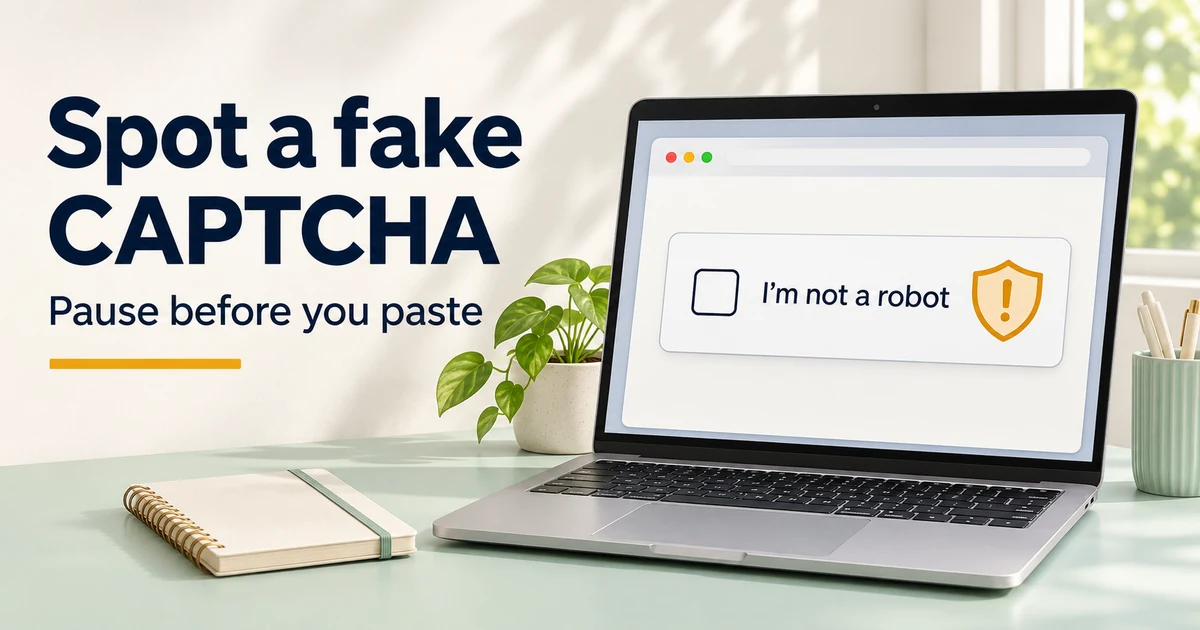
A page says you need to prove you’re human. You click a checkbox and get instructions to open Windows Run, paste something from your clipboard and press Enter. Close the tab. A website that asks you to run a command on your device to complete a CAPTCHA is showing a warning sign of a scam known as ClickFix.
If you already ran the command, disconnect the device from the network and follow the recovery steps below. If you only saw the prompt, close it and reopen the service through an address you already trust. The next step depends on what you did, including whether you approved a permission or entered a password. Microsoft Threat Intelligence analysis of ClickFix.
What is a fake CAPTCHA scam?
A CAPTCHA is a website check that helps distinguish a person from an automated program. It might use a checkbox, ask you to select images, or finish in the browser with little visible interaction. A fake CAPTCHA borrows that familiar design to persuade you to do something outside the webpage.
In a ClickFix attack, the page may copy a command to your clipboard when you click a button. The instructions then guide you to paste it into a system tool such as Windows Run, PowerShell or Terminal and execute it. The text on the page can say you’re copying a verification token while the clipboard contains something else. Running the command can let malware access information available to your account, including browser data. The exact outcome depends on what executed. Microsoft Security Intelligence on ClickFix.
The name refers to the idea of fixing a small obstacle so you can get on with what you were doing. Some pages claim a robot check failed. Others pose as a broken download, an audio or video problem, or an error on a meeting page. The useful clue is the requested action. A page that asks you to run pasted code is asking you to give it access far beyond a browser verification step.
How to spot a fake CAPTCHA before you follow it
- It sends you to a system tool. A CAPTCHA should complete in the browser. Treat directions to open Windows Run, PowerShell, Command Prompt or macOS Terminal as a reason to leave.
- It asks you to paste text you didn’t choose. If a webpage says it copied something and asks you to paste it into a system tool, close the prompt before pasting.
- It asks for a file, extension or permission. A request to install software, approve notifications or change security settings calls for a separate check of the site and what the permission does.
- The address changed on the way there. A familiar logo can appear on an unfamiliar domain. Check the actual address in the browser, especially after clicking an ad, a download button or a link in a message.
- It turns a routine check into an emergency. A deadline or warning that you’ll lose access can discourage you from opening the service by another route.
Imagine you’re downloading a user manual and land on a page that looks like a verification screen. The checkbox appears to work, then a second panel tells you to switch to Windows Run. Stop at that second panel even if the original download page looked credible. Reopen the manufacturer’s website from a known address and find its support section. This checks the route to the file without interacting with the suspect page again.
Where fake verification pages turn up
You might reach one through a sponsored result, an email link, a redirect on a website or a download page. Attackers can also compromise a legitimate website and use it to send visitors somewhere else. Recognising the original site name gives you a place to start checking, but the destination and what it asks you to do matter more. Australian Cyber Security Centre advisory on compromised websites and ClickFix.
For example, if a meeting link leads to an unexpected microphone repair prompt, open the meeting service from its official app or ask the organiser to confirm the link using a contact method you already know. If a download page claims you need to fix a browser error, find the file through the publisher’s own support or download page. Avoid using support numbers or links shown in the unexpected prompt.
What to do based on what you clicked
You saw the prompt, clicked the box or copied text
Close the tab using the browser’s tab controls. If you opened a system dialog and pasted something without submitting it, cancel the dialog. Replace the current clipboard contents by copying harmless text from somewhere you trust. If the site downloaded a file, leave it unopened and inspect the browser’s download list. On a work device, report the URL and time if your organisation asks staff to report suspicious pages.
Distinguish clicking a webpage control from submitting a command in a system dialog. A copy action alone can put text on the clipboard, but it doesn’t run that text. If you’re unsure whether you submitted it, or you approved a system prompt or opened an unexpected download, treat the device as potentially affected and get help.
You clicked Allow on a browser notification prompt
Go to your browser’s site permissions and remove or block notification access for the domain that requested it. If alerts keep appearing, read which site the browser attributes them to and check for other entries you don’t recognise. Open browser settings directly instead of clicking a notification that claims to offer a cleanup. If you also ran a command or installed a file, follow the recovery steps below.
You entered a password or payment details
Use a device you trust and go directly to the real service. Change the exposed password and any other account that uses the same one. Sign out other sessions where the service allows it, and review recovery details and recent activity. If you provided payment details, contact your bank or card provider through its official app or the number on your card. For a work login, tell IT what you entered so they can review the account. NCSC guidance on recovering a hacked account.
What to do if you ran the command
- Disconnect the device. Turn off Wi-Fi and unplug any network cable. If it’s a managed work or school device, call its support team from another device and follow their incident process before making further changes.
- Record what you remember. Note the time, the link or domain if known, what you clicked and whether you saw a download, a brief window or a permission prompt. Keep any existing screenshots. Avoid revisiting the page or rerunning the instructions to collect evidence.
- Protect important accounts from a trusted device. Start with email, work accounts and services that can reset other passwords. Change passwords, sign out sessions where available, check recovery details and enable multi-factor authentication where supported. Review your email for unexpected forwarding rules and login alerts.
- Get the device checked before using it for sensitive work. For a personal Windows computer, follow trusted antivirus guidance. If Microsoft Defender is your antivirus, you can open Windows Security, then Virus & threat protection and Scan options. Microsoft Defender Offline is an option that restarts the computer. Save work before starting it. If your provider or IT team recommends more investigation or a reinstall, follow their recovery process.
A suspicious command may finish quickly or show no window. If you use the computer normally afterwards, that tells you very little about whether data was accessed. A scan can help detect malware, while the account checks help address possible access that has already happened. If the scan finds a threat it cannot remove, or you see recurring alerts or unexplained activity, contact a trusted support provider for help deciding how to recover the device. ESET’s ClickFix response guidance, NCSC infected-device guidance and Microsoft Windows Security scan options.
Make the next suspicious prompt easier to handle
If you’re helping someone who saw a suspicious prompt, ask them to describe the last action they completed. “I clicked the checkbox” and “I pasted text into Run and pressed Enter” call for different responses. Give them a trusted way to reach their bank, service provider or IT team if they need to report it. Send a plain description of the prompt instead of forwarding the link.
Bookmark services you use often, especially work portals, banking and file-sharing tools. If a link in a message opens a strange prompt, use the bookmark or official app to see whether you can reach the same service. If a colleague or customer sent the link, tell them the action the page requested so they can check it without repeating it themselves.
Keep your browser and operating system up to date. If you use a browser extension to reduce intrusive ads, keep it updated through its official listing. A fake prompt may also come through a link or a compromised webpage. Close the page whenever its instructions move from verification in the browser to running code on your device.
Common questions
Can a fake CAPTCHA affect a Mac?
Yes. Windows Run is one common version of the trick. Microsoft has also documented ClickFix variants that target macOS. If a page asks you to open Terminal and run text copied from a website to verify yourself, leave the page. Use a trusted route to the service and report the prompt if it involved a work device or account. Microsoft’s ClickFix research.
Does HTTPS mean the verification is real?
HTTPS protects the connection to the domain shown in the address bar. A scam site can also use HTTPS. Check the destination and the requested action. If you’re unsure, close the page and find the organisation through a bookmark, official app or a contact you already trust.
What if a legitimate verification keeps failing?
Go directly to the service and try the verification again from its official site or app. If the check offers a built-in accessibility option, use that in the browser. If you still can’t proceed, use support contact details you obtained independently. If you can reach the service through its official app, tell support which browser and page triggered the failed check.
For more ways to check unfamiliar pages, read how to check whether an online shop is genuine or browse Online Scams & Website Safety.