
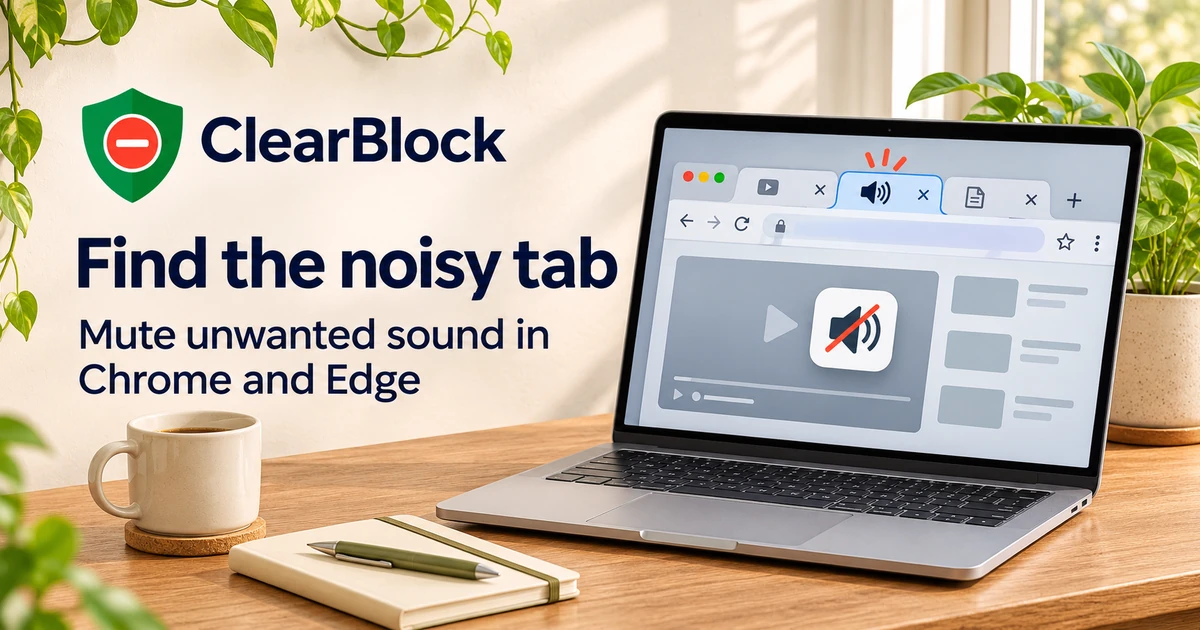
If sound starts while you are working in another tab, look for the speaker icon in the tab strip. In Chrome, use Media control to pause supported playback, or right-click the tab and choose Mute site. In Microsoft Edge, click the speaker icon on the tab to mute it. These options let you keep the rest of your computer’s audio available for calls, music or other work.
Find the tab making the noise
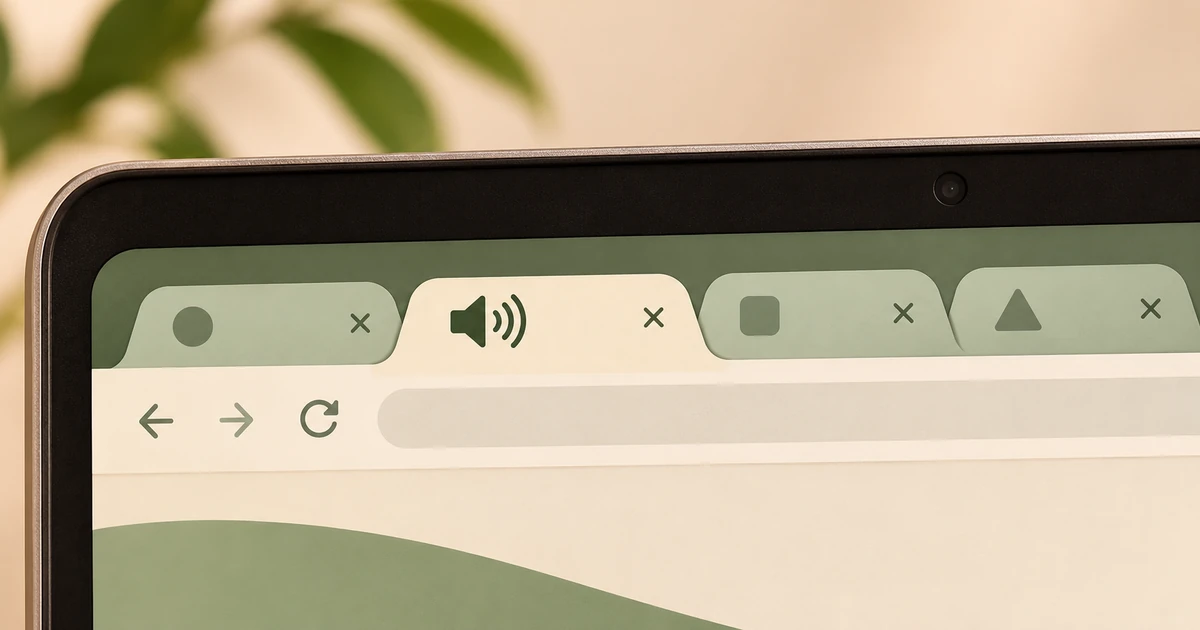
Scan the tabs in the current window for a small speaker icon. Check other windows for the same browser if nothing stands out, including windows on another display or in a different profile. A pinned tab can be easy to overlook because it takes up little space. Expand any collapsed tab groups that might contain a video, stream or other page you opened earlier.
Start with the most likely sources. A live stream can keep playing in a background tab, a news site can contain an embedded clip, and a web chat can play a short alert. If you hear a brief sound and it stops before you find it, make a note of what you were doing when it started. Try reproducing that action on a familiar page, such as scrolling to a particular part of an article.
Pause or mute the sound in Chrome
- Open Media control near the top right of Chrome if it is visible.
- Look for the video or audio session that matches what you hear. Pause it from the panel or return to its tab to use the page’s own player.
- If you want to silence the whole site, right-click its tab and select Mute site. To restore sound, right-click a tab for that site and choose Unmute site.
Use the player’s mute or pause control when you have several tabs from the same site open and want to change just one video. Chrome’s Mute site can also silence other tabs from that site. If the sound belongs to a short alert or another type of audio that you cannot find in the media panel, use the tab strip and check the page’s own settings. Chrome media controls
Mute one tab in Microsoft Edge
Find the tab with the speaker icon and click it to silence that tab. Click the icon again when you want its sound back. You can also select the tab and press Ctrl + M. Microsoft documents that shortcut for both Windows and Mac. On Mac, Command + M minimises the window. Mute a tab in Microsoft Edge · Edge keyboard shortcuts
Tab muting is useful when you want to keep the page open while taking a call or playing audio from another tab. If the video should stop playing altogether, open the tab and use the player’s pause control.
Choose whether to pause playback or keep the page silent
- Pause the player when you want to return to the same moment later.
- Mute the player when you still want to watch the video and the page gives you a volume control.
- Mute the site in Chrome or the tab in Edge when the page is making noise and the player is hard to find.
- Close the tab when you have finished with the page. Save any work in it first.
Check what happens when you return to the site
If a video starts as soon as the page loads, open a fresh visit to the same page and see whether it happens again. If it starts only after you press Play, check the player controls. If one YouTube video ends and a different one starts, check YouTube’s own Autoplay setting. Those are different triggers, so match the setting to what you saw. Turn off YouTube autoplay
ClearBlock Premium’s Stop Autoplay Videos can prevent automatic playback on supported players while leaving Play available. Use Chrome or Edge’s audio controls when you want to silence a particular source that is already playing. Stop autoplay videos with ClearBlock
If you still hear a sound after muting the tab
Look for a second speaker icon in another tab or another window. If you hear a chime alongside a desktop notification, check the site named on the notification and review its permissions. If the sound continues when the browser’s media is paused, check calls, music players or other open apps. Start with the source you can identify, then change its setting and check whether the sound stops. Manage website notification prompts
If a familiar site has no sound afterwards
Check the browser mute first, then the volume control inside the player. In Chrome, especially if you opened another page from the same site, look for Unmute site in the tab’s menu. In Edge, check the speaker icon on the particular tab. Try a short clip you can pause easily to check that sound has returned.
Ready to try it?
Review optional Premium tools for popups, autoplay and other distractions.
Explore Premium →