
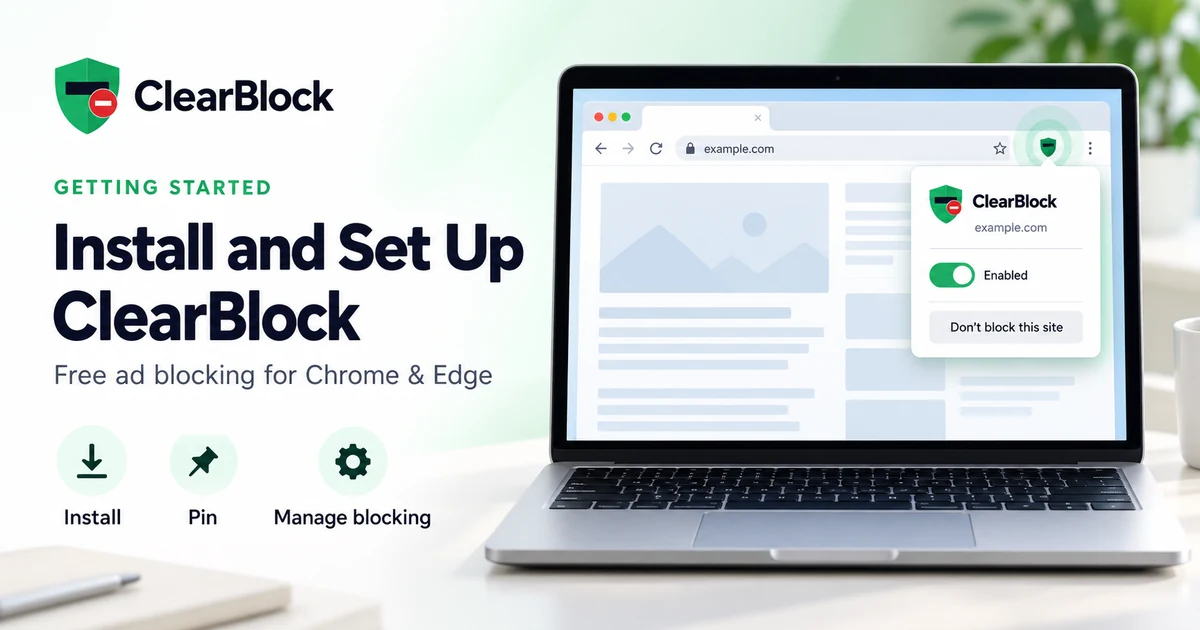
To install ClearBlock, open its listing in the extension store for your browser, confirm the installation and make the extension accessible from your toolbar. Then visit a normal website and open ClearBlock to manage blocking for that site. This guide takes you through installation in Chrome and Edge, the main toolbar controls and a few useful first checks.
ClearBlock provides free core ad blocking, with optional Premium tools for popups, cookie banners, autoplay videos and other distractions. You can start with the free features and explore additional controls later. The featured image is an illustrative setup mockup; the actual browser and extension interface may look different.
Before you install ClearBlock
Use the desktop browser where you want ClearBlock to work. Installing an extension in one browser or browser profile does not mean it is installed in every other profile on your computer. If you switch between personal and work profiles, check which one is open before starting.
The reviewed ClearBlock Chrome package requires Chrome 120 or later. Use a current supported browser version and check the relevant store listing for compatibility with your device. This guide covers desktop Chrome and Edge; do not assume that the same installation steps apply to a phone or tablet.
- Start from the ClearBlock links below rather than an unfamiliar download site.
- Review the browser’s permission prompt before confirming installation.
- If a work or school browser prevents installation, contact its administrator.
- Keep the browser updated so you receive its extension and security improvements.
Install ClearBlock in Google Chrome
- Open ClearBlock in the Chrome Web Store using Chrome.
- Review the listing and select the store’s installation button, usually labelled Add to Chrome.
- Read the permission prompt and confirm if you want to proceed.
- Wait for Chrome to confirm that the extension has been added.
- Open Chrome’s Extensions menu and look for ClearBlock.
If the store shows that ClearBlock is already installed, check the current browser’s extension manager before attempting another installation. It may simply be hidden from the toolbar or disabled. Reinstalling should not be your first response to a missing toolbar icon.
Install ClearBlock in Microsoft Edge
- Open ClearBlock in Microsoft Edge Add-ons using Edge.
- Review the listing and choose its installation option.
- Read the permissions shown by Edge and confirm the installation.
- Wait for the browser’s confirmation.
- Find ClearBlock in Edge’s Extensions menu.
The wording and placement of browser controls can change between versions. If your browser is managed by an organisation, some options may be unavailable. Use the browser’s own extension management screen to check whether ClearBlock is installed and enabled.
Pin ClearBlock so its controls are easy to reach
Open your browser’s Extensions menu near the address bar and locate ClearBlock. Use the available pin or show-in-toolbar control to keep the extension visible. In some browser versions you may need to open an additional menu beside the extension’s name.
Pinning gives you a convenient shortcut to ClearBlock’s popup. It does not install a second copy or activate Premium. If you prefer a tidy toolbar, you can leave ClearBlock inside the Extensions menu and open it from there when needed.
Open a website and check the popup
Visit a regular HTTP or HTTPS website, then select the ClearBlock icon. Use an ordinary webpage for this first check rather than a browser settings screen, extension-store page or local file: browsers restrict extension access to some special pages.
Check the website shown in the popup before changing its settings. If you installed ClearBlock while a webpage was already open, reload that page before judging the result. Some page changes require a fresh load.
Do not expect every website to show a blocked count. A page may have no requests matching the active filters. ClearBlock’s network count represents blocked network requests, not an exact count of visible advertisements removed; hiding an empty ad space is a separate kind of action. Learn more on How ClearBlock works.
Learn the three controls you are most likely to need
| Control | When to use it | How to return |
|---|---|---|
| Don’t block this site | Allow the current website when you want to support it or investigate a problem. | Open ClearBlock on that website and select Stop allowing this site. |
| Pause on all sites | Temporarily pause blocking across websites. | Select Resume on all sites. |
| Options | Review settings, filter lists and site exceptions. | Return to the webpage when you have finished reviewing your settings. |
Start with the individual-site control when only one website needs an exception. A global pause affects your wider browsing, so remember to resume it after testing. Reload the affected page when necessary and check the popup again to confirm the state you intended.
Keep the first setup simple
You do not need to change every setting immediately. Browse a few familiar websites using the free core features, learn where the site control lives and confirm that you can pause and resume blocking. Make one change at a time so you can tell what affected a page.
From the popup, open the Options control to explore settings such as filter lists and site exceptions. Avoid adding unfamiliar custom rules just to increase a counter. A useful setup is one that gives you the browsing behaviour you want while keeping the websites you use functional.
Understand free features and optional Premium tools
Core ad blocking is free. Optional Premium controls include Popup Shield, Stop Auto-Playing Videos, Hide Page Distractions, Block Cookie Banners and Block Push Notifications. Availability and activation depend on the feature and your Premium state; installing the extension alone does not mean every Premium control is active.
Review the ClearBlock feature overview before deciding what to enable. If you are interested in the additional tools, check the Premium page for the available offer. You can also review the privacy policy to understand how the product handles information.
If something does not look right
- No toolbar icon: open the Extensions menu, confirm that ClearBlock is installed and enabled, then pin it if desired.
- A website behaves differently: use Don’t block this site, reload and compare the result. Restore blocking afterwards if you only intended a test.
- No blocked requests: check that blocking is not globally paused, the site is not allowed and you are testing an ordinary website.
- A Premium switch is unavailable: check the feature’s Premium requirements rather than reinstalling the extension.
- Installation is blocked: check browser compatibility and organisation restrictions.
For more detailed checks, visit ClearBlock troubleshooting. If you contact support, include your browser version, extension version, the affected website and steps to reproduce the issue. Leave passwords, payment details and licence keys out of screenshots.
Frequently asked questions
Do I need Premium to start blocking ads?
No. Core ad blocking is free. Premium provides optional additional tools; review the feature overview for the distinction.
Does pinning ClearBlock turn blocking on?
Pinning controls whether the shortcut is visible on your toolbar. Check the extension’s own controls to confirm whether blocking is paused or the current site is allowed.
Why does the setup image look different from my browser?
The featured image is an illustration. Browser versions, themes and extension updates can change the appearance. Follow the control names and the actual prompts shown by your browser.
Can I pause blocking for just one website?
Yes. Open ClearBlock on the website and select Don’t block this site. To restore blocking there, use Stop allowing this site.
Should I remove ClearBlock if one website has a problem?
Start with an individual-site exception and reload the page. This gives you a focused comparison without immediately removing the extension. Use the troubleshooting page if the problem continues.
Your first setup checklist
Confirm that ClearBlock is installed in the browser profile you use, find its toolbar popup and learn the individual-site and global-pause controls. Keep your first settings simple, then explore additional features as you need them. You are ready to continue with the ClearBlock guide library.