
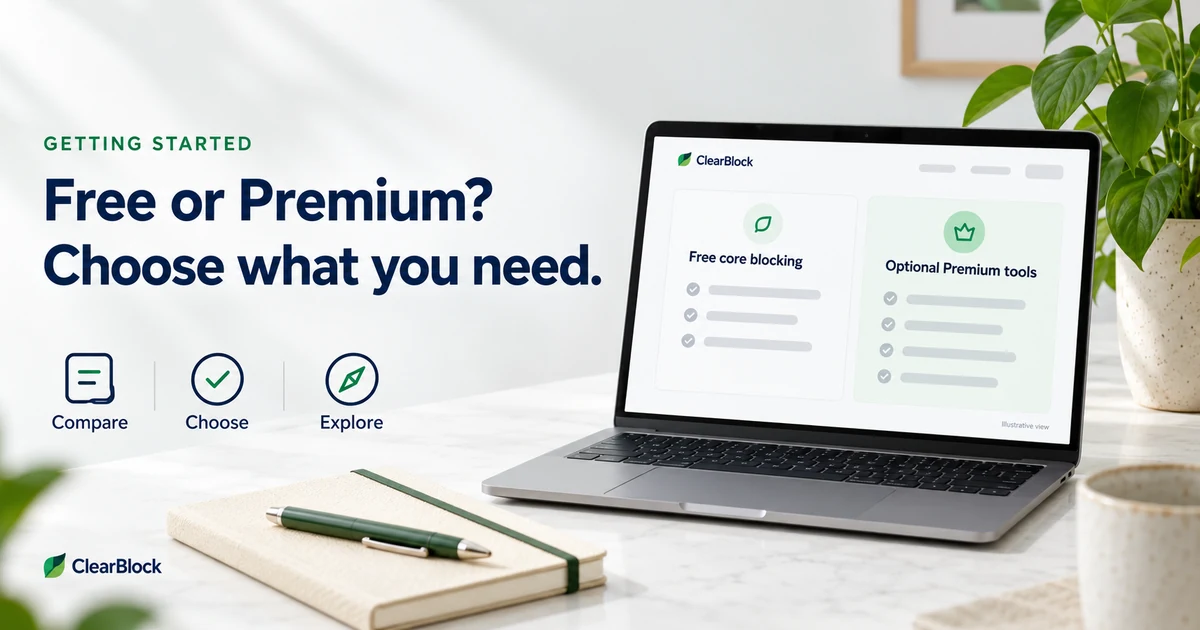
ClearBlock keeps core ad blocking free and offers optional Premium tools for additional browsing interruptions. You can start with the free extension, learn the site controls and decide whether features for supported popups, autoplay videos or cookie banners would help your normal browsing.
The useful question is which problem you want to solve. Premium adds different controls rather than turning every website into a guaranteed interruption-free experience. This guide explains how to choose a sensible starting setup, understand the main feature groups and compare changes without losing track of your preferences.
Start with free core ad blocking
If your main goal is reducing intrusive advertising, begin with ClearBlock's free core blocking. Install the extension in the browser profile you actually use, open a familiar website and learn how to reach the popup. You do not need to enable every additional control to get started.
Core filtering handles supported matching network requests. It is different from removing every promotional sentence, subscription offer or embedded interruption. Read how ad blockers work if you want a plain-English explanation of the mechanisms involved.
If installation is still your next step, use the installation and setup guide. Once installed, pin the toolbar shortcut so it is easy to inspect the current site without searching browser menus.
Learn the site controls before adding features
A site allowance and a global pause are different decisions. The popup offers a control to allow the current website, while the global pause affects browsing more broadly. Read the current labels before selecting either one.
Save unfinished work first because these changes can reload the current supported page. If you temporarily allow a website to compare its behaviour, decide afterwards whether the exception should stay. A forgotten allowance can explain why one site behaves differently from another.
For a step-by-step explanation, read pause and resume and allowing ads on one website. Knowing these controls makes both free and Premium browsing easier to manage.
Use the free matched ad-space control deliberately
Hide matched ad spaces (Free) addresses supported page spaces identified through cosmetic matching. Preventing a network request and hiding a matching container are related but separate jobs. A blank area can remain after an advert does not load.
This control does not promise to remove every gap in every layout. Some whitespace is part of the website's design. Check the relevant state information if another setting takes priority, rather than assuming that an unchanged space means all blocking is disabled.
The matched ad-space guide explains what to look for. Use a familiar page and inspect whether useful content remains available after changing a setting.
What Premium adds
Premium provides additional controls for supported kinds of interruption. Their jobs differ, so choose them based on what actually bothers you. A popup tool, cookie consent tool and theme preference should not be treated as three names for stronger network filtering.
- Popup Shield: addresses supported unsolicited popup attempts.
- Stop Auto-Playing Videos: reduces supported unsolicited video playback.
- Hide Page Distractions: addresses supported distracting page elements.
- Block Cookie Banners: handles supported consent choices according to the selected mode.
- Block Push Notifications: targets supported new notification permission requests.
- Extra Tracking Filters: provides optional additional tracker-domain rules.
- Themes: personalises the popup and options page appearance.
Labels and available controls should be checked in your installed version. The features page and Premium page are the places to review the current offer before making a purchase or starting any available trial.
If unexpected windows are your main problem
Start by distinguishing a new window from a box inside the current page. Popup Shield concerns supported popup attempts. An overlay drawn into a page is a different case, while an unexpected browser startup tab may have another cause entirely.
Keep legitimate tasks in mind. A trusted sign-in or payment flow can use another window, so compare the actual behaviour rather than assuming every new window is unwanted. If a useful action fails, make one focused change and avoid repeated form submissions.
Read the popup and distraction guide for ClearBlock-specific help, or why a browser keeps opening tabs for a broader investigation.
If video playback interrupts your reading
The autoplay control is relevant when a page starts supported media without the action you intended. It is not a promise that every video integration will behave identically. A manually selected player and an unsolicited start are different events.
Test on a familiar page where you know what normally happens. Change the relevant feature, reload after saving work and check both the unwanted behaviour and any player you still want to use. Avoid changing popup and cookie settings during the same comparison.
Use the autoplay video guide for a more detailed process. If the problem remains, describe the page and the playback event rather than assuming that enabling unrelated tools will help.
If cookie banners are the main interruption
Read the consent mode before enabling automated handling. ClearBlock offers Off, Reject only and a reject-first mode that can accept when rejection is unavailable in supported handling. That fallback can allow tracking, so it should be a deliberate choice.
A disappeared banner is not proof that optional cookies were rejected. Turning the feature off or changing modes does not undo a decision already saved by a website. Use the site's own consent controls when you want to review an earlier choice.
Read choosing a cookie consent mode before using the feature. You can prefer supported automatic rejection while leaving unfamiliar panels for manual attention.
If notification requests are the problem
Block Push Notifications targets supported new permission requests. It does not automatically revoke browser permission that you previously granted. Messages already arriving from an allowed website therefore require a separate check in browser settings.
Identify whether you are seeing a new request, a delivered notification or a subscription panel within the page. These can look similar but need different actions. Do not broaden a site allowance merely to deal with one notification preference without considering the wider effect.
The notification prompts guide explains the distinction. Keep useful alerts intentional and review unfamiliar senders through trusted browser controls.
If you want additional privacy controls
Extra Tracking Filters selects optional tracker-domain rules. Some coverage can overlap the free protection, and enabling the option does not establish that every kind of tracking is stopped. Filtering and account identity remain separate considerations.
If you sign into a website, that service knows the account you use. A cleaner page and a higher blocked-request number do not prove anonymity. Cookie choices, browser settings and information you submit also matter.
Read ad blocking versus tracker blocking for a broader explanation. Choose settings for a documented purpose rather than trying to maximise a total.
If you mainly want a different appearance
Premium themes change ClearBlock's own interface. The popup and options page have separate selections, so they can match or use different looks. Choose what makes controls and longer descriptions comfortable to read.
A darker theme does not block more requests. Changing colours also does not redesign every website you visit. Keep appearance preferences separate from functional settings so any later troubleshooting remains straightforward.
The themes and appearance guide explains the two surfaces and default behaviour. You can personalise the interface without rewriting your domain rules.
Choose one feature and compare
- Name the interruption you want to reduce.
- Read the description of the relevant control.
- Note your current setting and any site allowance.
- Change one option and reload safely if needed.
- Check the unwanted behaviour and essential page functions.
- Keep the change if useful, or restore the earlier state.
This routine makes the choice practical. Enabling several tools simultaneously might change the page, but it leaves you unsure which one helped. A small comparison also makes a support report easier to investigate if something unexpected happens.
How to decide whether free is enough
Start with the sites you actually use. If free core blocking and the site controls meet your needs, you can continue with that setup. There is no need to invent a problem simply because an additional switch exists.
If a supported Premium tool addresses an interruption you encounter often, review that feature and the current offer. Consider the value of that specific control to your browsing rather than expecting every remaining advert or site issue to disappear.
Before agreeing to any paid or trial checkout, read the displayed price, billing schedule, renewal terms and cancellation information. This guide does not quote those details because the current offer should be checked at the point of decision.
Check activation in the browser you use
After completing the current activation process, check the status shown by ClearBlock in the intended browser profile. A checkout page and an extension's active state are different things to verify. Use the on-screen instructions and support route if the state does not match your expectation.
Do not send a licence key, payment details or account credentials in a public screenshot. If you ask support for help, explain the browser, extension version and visible status, and review any screenshot before sharing it.
A locked feature is a reason to check access and version, not proof that free core blocking has failed. Keep those states separate when describing a problem.
Use the dashboard as context
The Ads Blocked figure concerns recorded network requests. Popup reports and cookie activity are different records. A feature can affect your experience without adding to the network total, so do not use one number as the verdict on every tool.
Read understanding the dashboard and counters for recording periods and limits. Your main comparison should remain whether the intended interruption is reduced while the page stays useful.
Frequently asked questions
Do I need Premium to start blocking ads?
No. Core ad blocking is free. Premium supplies optional additional tools for supported browsing interruptions and interface customisation.
Should I turn on every Premium control?
Start with the feature that matches your need. Read its behaviour, especially consent settings, and compare one change at a time.
Does Premium guarantee every advert is removed?
No. Coverage depends on the website, supported handling and settings. Read why some adverts can remain for the common explanations.
Where can I get help choosing a setting?
Browse the relevant guide category or contact ClearBlock support with a specific description of the problem. Return to Getting Started guides for installation, controls and dashboard help.