
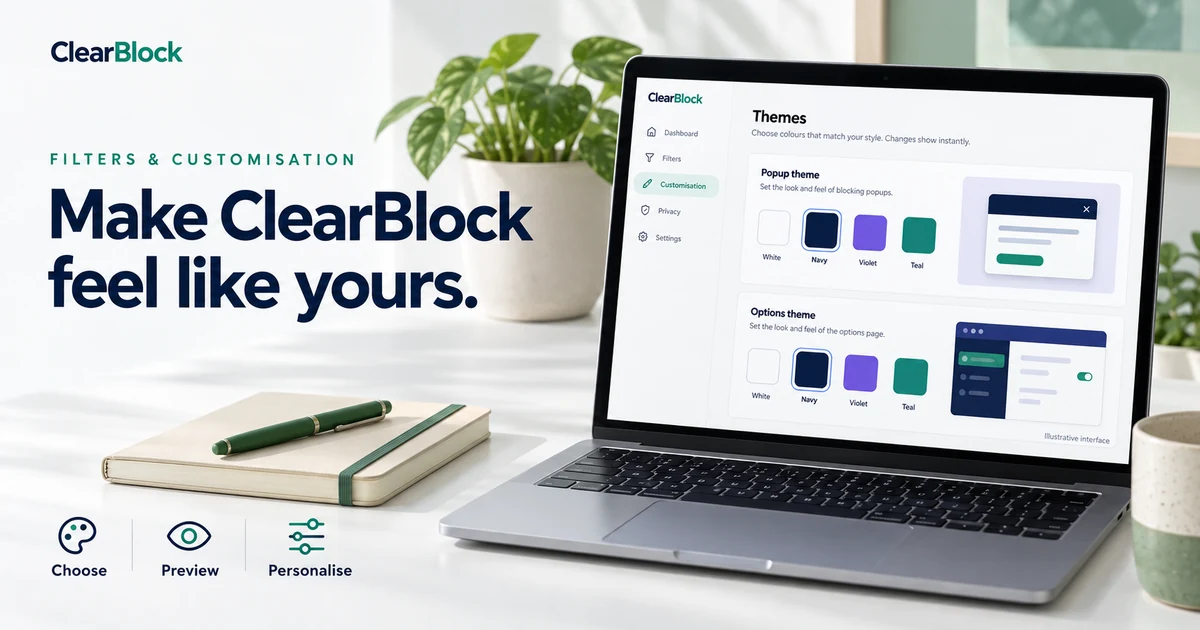
ClearBlock's themes let you personalise the extension interface without changing your website rules. You can choose a look for the toolbar popup and a separate look for the options page. That makes it possible to keep one surface understated while giving the other a colour scheme you prefer.
This guide explains where to find the theme controls, how the two selections work, and how to check a change. It also covers what happens when Premium is unavailable and how to avoid confusing a visual preference with a protection setting. Start with the appearance you find easiest to read, then leave your working filters and site rules alone unless you have a separate reason to change them.
What a ClearBlock theme changes
A theme changes the appearance of ClearBlock's own interface. Colours and surface styling help give the popup or options page a different look. Selecting a darker or brighter theme is a personal preference, not a command to block more resources or apply a stronger filter list.
For example, you might prefer a restrained dark popup while keeping the options page in its default appearance. That is a valid combination. The two surfaces do not have to match, and a difference between them does not by itself indicate a saving problem.
Themes also do not redesign every website you visit. A website's own colour scheme, a browser-wide theme and ClearBlock's interface theme are separate things. If your goal is to change a site's layout or remove an unwanted element, identify the relevant browsing feature instead.
Check Premium availability first
Changing themes requires ClearBlock Premium in the reviewed version. If the theme choices are unavailable, inspect the status shown in the Themes section before repeatedly clicking them. The interface explains when Premium is required and whether selected themes apply immediately.
Free core ad blocking remains separate from the theme feature. You do not need to change appearance to use the core blocker. Visit the ClearBlock features page if you want to compare the available functions, or the Premium page for information about the optional tools.
When Premium is unavailable, ClearBlock uses its default appearance while retaining saved theme choices. A return to the default look therefore does not necessarily mean your earlier preferences were deleted. Check the displayed status and the browser profile you are using before assuming the settings have been lost.
Open the Themes section
- Open ClearBlock's options page in the browser profile where it is installed.
- Select Themes in the options navigation.
- Read the status message about Premium availability.
- Locate the separate choices for the popup and options page.
- Identify which surface you want to change before selecting a swatch.
If you are still learning where the extension's controls are, read how to pin ClearBlock and find its controls. Pinning makes the toolbar shortcut easier to reach; it does not activate a theme or change the extension's saved preferences.
Use the names and choices shown in your installed version. The featured image for this guide is an illustration, not an exact screenshot of every available colour or control. The live options page is the place to confirm the current selection.
Choose a popup theme
The popup is the compact panel opened from ClearBlock's toolbar icon. Its theme selection applies to that interface. In Themes, find the popup choices and select the available swatch you want to use. With Premium active, selected themes apply immediately.
Then open the toolbar popup and inspect the result. Read a few actual controls rather than judging only by the small swatch. Check that you can comfortably distinguish text, buttons and status information in the conditions where you normally browse.
If the popup was already open during a change, close it and reopen it before deciding that the selection did not work. You are checking an interface preference, so there is no need to reload a website, clear cookies or alter a site's allowance merely to inspect the new popup colours.
Choose an options page theme
The options theme applies to the larger settings interface. Find the options choices separately from the popup choices, then select the appearance you want. The page may visibly change as the new theme is applied, making it straightforward to compare the result.
Browse a few sections after making the change. A theme that looks attractive in a preview should also make longer descriptions, selected controls and saved entries comfortable to read. The options page contains settings with different consequences, so choose an appearance that helps you read their labels carefully.
You can keep the options page different from the popup. If you prefer a consistent look, select the corresponding choice in both groups. Changing one group is not an instruction to overwrite the other group's saved selection.
Use a small comparison routine
- Note your current popup and options selections.
- Change one surface at a time.
- Open the relevant interface and read several controls.
- Check it in your usual lighting and at your usual browser size.
- Keep the change or return that surface to its previous choice.
- Repeat for the other surface only if you want to change it too.
This approach keeps the decision simple. There is no need to change filtering settings while comparing colours. If you later notice a difference in a website, keeping the changes separate makes it easier to investigate the actual cause rather than attributing it to a theme.
Choose for readability rather than the swatch alone
Consider how you use the extension. If you mostly open the popup for a quick site check, clear button labels and status text may matter more than a striking colour. If you spend time reviewing options, a comfortable background and readable longer text may be your priority.
Look at the interface at the size you actually use. A colour preview can help you narrow the choices, but it cannot reproduce your display settings, room lighting or personal preferences. Try the available themes and keep the one that works for you rather than assuming a dark or bright option is universally better.
Do not rely on colour alone to decide whether blocking is active. Read the current wording of the control you are about to use. A theme can alter visual presentation, while labels such as Pause on all sites and Resume on all sites describe actions with practical effects.
Restore the default appearance
To return to the standard look while Premium is active, select the default choice for the relevant surface. If you want both surfaces restored, check both the popup and options groups. Restoring one selection does not require resetting the whole extension.
Afterwards, open the popup and revisit the options page to confirm the combination you wanted. Your custom domain lists and consent preferences are separate settings. Do not clear those fields or reinstall the extension just because you want the original colours back.
If Premium is unavailable, the default appearance is used even when saved theme preferences remain. That behaviour is different from deliberately choosing default in each group. Read the status message so you understand whether you are seeing your selected appearance or the default used while theme access is unavailable.
Keep themes separate from filters
The Filters & Customisation category includes several kinds of settings, but their purposes differ. Themes personalise the extension interface. Network filters affect matching requests. Cosmetic hiding addresses supported spaces on web pages. Site rules specify allowances and custom domain blocks.
Changing a colour scheme is not a method for improving blocking coverage. If you still see an unwanted page element, review the appropriate feature and website state rather than cycling through themes. The filters and settings guide explains those broader controls.
For saved exceptions and custom blocks, read managing allowed sites and blocked domains. For blank areas left on a page, see hiding matched empty ad spaces. Neither task requires changing your interface theme.
If the popup and options page look different
First inspect the two theme selections. Different saved choices naturally produce different appearances. If you wanted them to match, select the corresponding theme for each surface and reopen the popup to check the result.
Also make sure you are comparing the same browser profile. Personal and work profiles can have different extension settings, and Chrome and Edge are separate installations. Do not assume that a choice made in one browser changed another installation on the same computer.
If the options page is using the default look unexpectedly, read its Premium status. A stored selection can remain visible as a preference while the default appearance is used because Premium is unavailable. This is a reason to check status before replacing settings or reinstalling.
If a theme selection does not apply
Check whether the choice is available and whether an error was reported. The reviewed interface disables theme choices when Premium is unavailable. If access is active but the expected appearance does not show, revisit the correct group, select the intended swatch and reopen the relevant interface.
Keep the investigation focused on appearance. Clearing website cookies, pausing protection or deleting domain rules is not a useful first response to a theme problem. Those actions change other parts of your browsing setup and can make a simple report harder to understand.
If the issue continues, note the selected theme, which surface is affected, the browser version and the ClearBlock version. Explain whether the change fails immediately or whether a different appearance appears after reopening. Contact ClearBlock support with those details if needed.
Keep your personalised setup easy to understand
Once you have a comfortable appearance, leave it in place while learning other controls. Make separate changes for separate goals. You can review a cookie mode or a site allowance without redesigning the interface at the same time.
If you keep notes about your setup, record popup appearance and options appearance separately. Add functional settings only when they are relevant to your troubleshooting or preferences. A short clear note is more useful than screenshots containing private tabs or account information.
For broader problems, start with Troubleshooting guides. Describe the actual symptom rather than saying the extension is broken when only one colour choice is unexpected. That distinction helps you choose the right check.
Frequently asked questions
Do themes change how many ads ClearBlock blocks?
No. Themes concern the appearance of the extension interface. Filtering behaviour, site allowances and other browsing controls are separate settings. Choose a theme for usability and preference rather than a higher blocking total.
Can I use different themes for the popup and options?
Yes. ClearBlock stores separate selections for those surfaces. Select the intended choice in each group if you want them to match, or leave them different if that is more comfortable.
Why did ClearBlock return to its default appearance?
Check Premium availability and the current browser profile. When Premium is unavailable, the default appearance is used while saved theme preferences are retained. A default look alone does not establish that those saved preferences were erased.
Does the theme change the websites I visit?
No. It changes ClearBlock's own interface. Website styling and browser-wide appearance settings are separate. Use the relevant page feature if your goal concerns unwanted content or spaces on a website.
Should I reinstall to reset the colours?
Start with the default choices in the Themes section. Reinstalling is unnecessary for an ordinary appearance preference and can create extra setup work. Check the two theme groups and their status first.
Explore more Filters & Customisation guides when you are ready to adjust functional settings as well as appearance.
Ready to try it?
Learn about filter lists and individual website controls.
Explore ClearBlock features →