
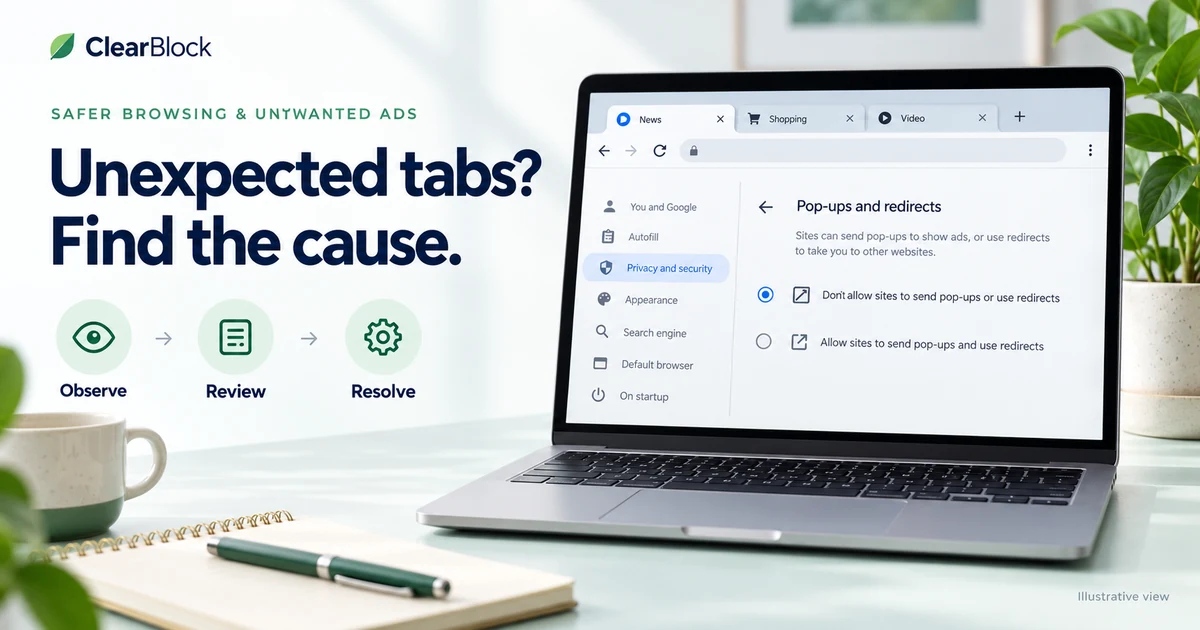
If your browser keeps opening new tabs, start by observing when it happens. A website may be opening a popup after a click, a saved startup setting may be restoring pages, or an extension may be involved. A notification that you click can also lead to a page you did not intend to visit.
The useful response depends on that pattern. This guide helps you distinguish the symptoms, review relevant browser controls and make a focused comparison. Unexpected tabs deserve attention, but their appearance alone is not proof that your computer has malware.
Identify the behaviour before changing settings
A new tab appears alongside the existing tab. A new window is a separate browser window. A redirect changes the page in the current tab. An overlay is a box drawn inside the page and may not create a new browsing context at all.
Those distinctions matter because a popup permission does not control every kind of page element. If a promotional box remains inside the article, changing the browser's popup setting may not remove it. Likewise, a restored startup page has a different cause from a window opened by a website.
Write a short description of what you see. Include whether you clicked something first, whether the original page remains open and whether the behaviour occurs on one site or several. This gives your investigation a clear starting point.
If the new tab appears after a click
Check what you intended the click to do. Some links deliberately open another tab for a document, payment service or external reference. That can be expected behaviour when the destination matches the task and you trust the source.
An unrelated destination is different. If selecting a player control or download link opens an unexpected promotion, do not keep clicking through to discover where it ends. Close the unwanted tab through the browser controls and reconsider whether to continue on that website.
Be especially cautious if the destination demands an installation, notification permission or urgent support call. Read spotting fake download buttons and recognising fake virus warnings before interacting further.
If tabs appear without a clear action
Notice whether a particular page is still open in the background. A background page or another component may be relevant even when you are viewing a different tab. Close the suspect page rather than repeatedly returning to it for tests.
Do not assume the site shown in the new tab is necessarily the original source. A navigation can pass through several locations. The useful evidence is the sequence you observed, not a guess based only on the final destination.
If the behaviour continues across unrelated sites or while no suspect page is open, broaden the review to extensions, browser settings and installed software. Start with the documented checks below instead of immediately resetting the entire computer.
Review popup and redirect settings in Chrome
Open Chrome Settings and search for Pop-ups and redirects. Review the general behaviour and the sites listed as allowed. Remove an allowance you no longer want, checking the hostname carefully before changing it.
Google's popup and redirect help explains Chrome's controls. It also distinguishes unwanted interruptions from legitimate popups a site may need. Use the current interface rather than copying an old screenshot blindly.
A browser popup blocker has limits; it is not a universal ban on every navigation or every item drawn inside a page. If the symptom remains, return to your description and check whether you are actually investigating a redirect, overlay or notification.
Review the equivalent setting in Edge
In Microsoft Edge, open Settings and search for Pop-ups and redirects. Inspect the blocking setting and existing site allowances. Names and navigation can change between versions, so the settings search is useful if your layout differs.
Microsoft's popup guidance describes the relevant control and exceptions. Follow the instructions for the actual browser and device you are using.
If a trusted service needs a popup for a particular task, prefer a deliberate site-specific allowance over disabling blocking for every website. Review that exception later if it was only needed temporarily.
Check startup and session restoration
If unwanted pages appear when you launch the browser, review its startup settings. A configured page or an option to continue the previous session can explain why tabs return without a new website click.
Inspect the listed pages and remove only entries you do not intend to open. Save work before closing windows. If the browser offers to restore a session containing a suspicious page, avoid reopening that page as part of the recovery.
A useful comparison is to start the browser with a known ordinary page and observe whether the problem returns. Do not treat a restored tab as proof of a fresh popup attempt. The timing points to a different part of the setup.
Review notification permissions separately
A website notification can arrive independently of the original page. Clicking it may open the browser or a new tab. In that case, the saved notification permission is a more relevant starting point than the popup exception list.
Open browser settings independently and inspect websites allowed to send notifications. Revoke permission for unwanted senders. Avoid clicking a suspicious notification simply to identify the site when sender information or the browser's permission list can help you check it.
Read how to stop notification prompts and unwanted alerts for the difference between blocking new requests and removing earlier permissions. A feature targeting new prompts does not automatically cancel a subscription already allowed.
Check recently added extensions
Open the browser's extension management page and review what is installed. Consider whether the behaviour began after adding or changing an extension. An unfamiliar name, unexplained permission or item you do not remember installing is worth investigating.
Read the publisher and purpose before deciding what to do. On a managed device, ask the administrator about managed extensions rather than attempting to remove controls you do not understand. Do not install another unknown extension that claims it can repair the first one.
If you make a temporary comparison, change one item and record the result. Disabling several tools at once may stop the symptom but leaves you unable to identify which change mattered. Restore useful settings after the test unless you deliberately decide otherwise.
When to investigate unwanted software
Repeated unexplained tabs, settings that change back without your agreement or unfamiliar software can justify a broader device check. Use your established security software and official browser troubleshooting guidance rather than a utility promoted by the unwanted page.
Google's unwanted ads and malware help covers recurring symptoms and relevant checks. Follow instructions suited to your operating system. If you are unsure what was installed, seek trusted assistance and describe what happened.
Do not conclude that every unexpected navigation is an infection, or that closing one tab proves everything is resolved. Base the response on the pattern and any actions you actually took, such as running an installer or granting access.
Keep useful popups working
A sign-in, payment workflow or document viewer may legitimately use a new window. If an expected feature does not open, check for a blocked-popup indication and verify the source before creating an exception.
Keep the exception narrow and test the intended action once. Do not submit payments repeatedly while comparing settings. If the destination is unfamiliar, verify the workflow through the genuine service's help rather than assuming that every window it attempts is required.
Once the task is complete, decide whether the allowance should remain. Exceptions are useful choices when intentional; forgotten allowances can also explain why later pages behave differently from your expectations.
Use ad-blocking controls for the right job
An ad blocker can reduce supported matching resources. Additional popup controls may address supported attempts to open windows. Neither should be assumed to handle every redirect, every browser startup entry or every notification permission.
For background, read how ad blockers work. If you use ClearBlock, its popup and distraction guide explains its optional tools and their limits.
Also inspect whether the current site is allowed or global blocking is paused. Those states are separate from the browser's own popup permissions. A comparison is clearer when you know which layer you changed.
A safe comparison routine
- Record when the unwanted tab appears and whether a click preceded it.
- Close suspicious pages without following their instructions.
- Review the most relevant setting: popup allowance, notification permission or startup page.
- Change one intentional item and check a familiar page.
- Review extensions or installed software if the pattern persists.
- Restore temporary changes and seek trusted support when the cause remains unclear.
Avoid repeatedly visiting a questionable site just to provoke the symptom. You do not need to click advertisements, approve permissions or run downloads to gather a useful description. Stop once you have enough information for a focused next step.
What to record for support
Include the browser version, operating system, relevant extension versions and a short timeline. Explain whether the event happens at startup, after a notification click, after a page interaction or without an obvious action.
If sharing a screenshot, crop unrelated tabs and private account information. A public hostname and description are often enough to start. Do not send passwords, payment details or full private browsing histories.
Describe what you tried and whether it changed the result. Saying that removing one popup allowance stopped the symptom is more useful than saying you changed many settings and it seems better now.
If you already interacted with a suspicious destination
Separate seeing the page from taking an action on it. If you only closed the tab, report that. If a file downloaded, avoid opening it and check the actual saved item. If you ran software or granted remote access, involve trusted technical support.
If credentials were entered, reach the genuine account service independently from a trusted device and follow its security guidance. If a payment or financial information was involved, contact the provider through an independently verified route. Do not use recovery links supplied by the suspicious page.
The relevant response depends on what was provided or executed. A browser setting can reduce future interruptions, but it does not reverse an action already completed through another service or application.
Frequently asked questions
Does a new tab always mean malware?
No. Links, legitimate workflows, restored sessions and site behaviour can open tabs. Investigate the pattern, especially if destinations are unrelated or settings change unexpectedly.
Why does a box still appear with popup blocking enabled?
It may be an overlay inside the current webpage rather than a new window. Browser popup controls do not automatically remove every page element.
Should I clear all cookies first?
Start with the symptom and relevant permissions. Clearing data can sign you out and remove preferences without addressing a startup entry or extension. Use targeted checks before broad resets.
Can private browsing guarantee no unwanted tabs?
No. Private browsing has a different purpose. Read what private browsing actually hides rather than treating it as a universal navigation blocker.
Where should I go next?
Browse Safer Browsing & Unwanted Ads guides for help recognising misleading pages and downloads, or Popups & Browser Distractions guides for ClearBlock-specific controls.