
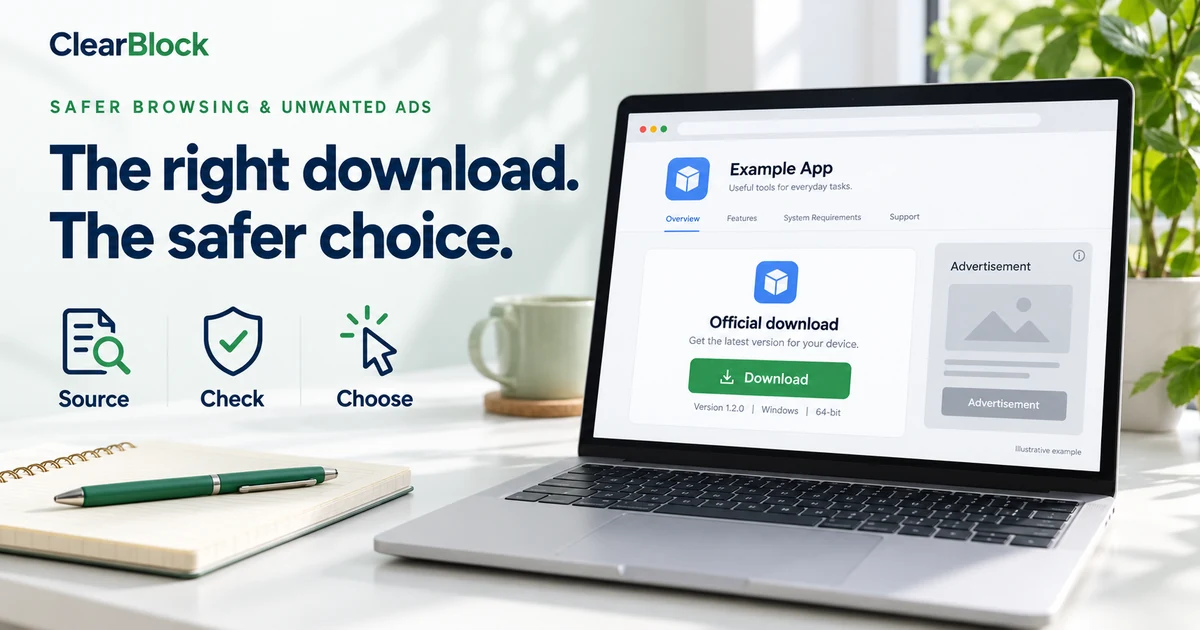
A download page can contain several buttons that appear to offer the same thing. One may belong to the software publisher, another may be an advertisement, and a third may lead to an unrelated installer. The largest or brightest button is not necessarily the one you intended to use.
This guide explains how to spot misleading download prompts, check a source and respond when a file or page does not match your expectations. It focuses on habits that help across browsers and websites, rather than promising that a particular colour, badge or security tool can identify every unsafe download.
Know what you meant to download
Before clicking, name the thing you actually want: a PDF manual, a photograph, a particular application or an exported document. That simple step gives you something concrete to compare with the page and the resulting file.
If you wanted a document but the page offers a browser extension, the task has changed. If you wanted one application but are asked to install a separate download manager, pause and verify whether that requirement is genuine. Do not assume every extra step belongs to the original service.
Write down the product name and publisher when downloading unfamiliar software. You do not need a complicated investigation for every file, but knowing your intended outcome helps you notice when a page redirects your attention towards something else.
Separate page content from advertisements
Look for labels such as Advertisement, Sponsored or Ad around a button. Read the surrounding text rather than judging the button alone. An advert can promote a legitimate but unrelated product, and it can still be the wrong choice for the task you came to complete.
A page's own download section usually has context: the product or file name, supported platform, version information or an explanation of what you will receive. Those details are useful clues, although a deceptive page can copy them too.
If you cannot distinguish the intended link from several competing offers, leave the page and find an independent route to the publisher. Clicking each button until one works is a poor way to discover which one was trustworthy.
Prefer the publisher or an appropriate official store
For software, start with the publisher's own website or the relevant official application store. Microsoft's malware prevention guidance recommends official publisher sources and warns about deceptive addresses.
An official route reduces avoidable uncertainty, but it is not a reason to ignore unexpected instructions or a browser warning. Check that you reached the genuine source and selected the product you meant to obtain.
When a project offers several documented mirrors or delivery providers, follow the links supplied by the genuine project rather than a random page claiming to host it. A different delivery address can be legitimate, but it should fit an explanation you can verify independently.
Read the actual website address
A familiar product name in a page headline does not establish who operates the site. Inspect the browser's address bar. Watch for misspellings, extra words and addresses that merely include a brand somewhere in a longer name.
Do not rely on a logo to settle the question. Brand artwork, screenshots and support wording can be copied. Microsoft has documented counterfeit software download campaigns using vendor look-alike pages.
If the address is hard to interpret, use a known bookmark or independently verified publisher link. Avoid treating a search result's position as proof of ownership. Read where a result leads, especially when it is presented as an advertisement.
HTTPS does not certify the download
An encrypted connection protects the connection to the site you reached. It does not by itself establish that the operator is the publisher you intended or that the offered file is appropriate. A misleading site can also use HTTPS.
Use connection information as one part of a broader check. Ask whether the domain is right, the product is right and the requested action makes sense. A claim such as verified or secure written inside the page is also only a claim until you know who is making it.
Do not replace these checks with a search for one reassuring symbol. The practical aim is to understand the source and the action, not to find a visual excuse to stop paying attention.
Check the link without treating it as a guarantee
On a desktop browser, hovering over a link may show its destination. That can help reveal an obviously unrelated address. It is a useful clue rather than proof of the final destination, because pages can redirect and click handling can alter what happens.
On a touch device, link details may be available through a long press, depending on the browser. Avoid an accidental tap while trying to inspect the link. If the interaction is unclear, navigate independently to the source instead.
You do not need to decode every tracking parameter. Focus on a simpler question: is there a trustworthy reason this button should deliver the file you want? If the answer remains uncertain, do not download merely because the button is convenient.
Beware of unexpected update requirements
A webpage may say you need a browser update, media component or security utility before proceeding. Treat an unexpected requirement as something to verify through the product's normal controls. Do not install the file simply because the page describes it as necessary.
For a browser update, open the browser's own update interface or consult its official help. For an application, use its genuine update process. Google advises avoiding suspicious update or download popups in its unwanted ads and malware guidance.
If a warning also claims your device is infected or demands a support call, read how to recognise a fake virus warning. The next step should come from a trusted control, not the message applying pressure.
Notice when the requested permission changes the task
A file download and permission to send website notifications are different actions. So are installing an extension, changing a search setting and granting remote access. A download page should not persuade you to approve unrelated access without a clear reason.
If a page says Allow is required to prove you are human, inspect what the actual browser prompt is requesting. A notification permission is a subscription decision, not evidence that the original file needs that permission.
If you already allowed unwanted notifications, review the saved permission in browser settings. The notification prompts guide explains how preventing new requests differs from removing an earlier allowance.
Check the resulting file before opening it
After a download, compare the filename and file type with what you expected. If you wanted a PDF and received an installer or script, do not open it to discover whether it contains the document. Return to the verified source and investigate the mismatch first.
A familiar-looking filename is not enough either. Be alert to hidden extensions and names that imitate another type of file. Use your operating system's file information controls when the type is unclear.
Where a genuine publisher provides documented signature or checksum verification, follow its instructions if appropriate. A matching hash supplied only by the same unverified page does not establish that you found the genuine publisher; the source of the expected value matters too.
Take browser download warnings seriously
If the browser flags or blocks a file, pause and read the message. Do not disable download protection as a routine step to obtain it. Verify the source and consult the browser's explanation before taking further action.
Google's download warning help explains how Chrome handles different concerns. Microsoft's unwanted software guidance also discusses warnings associated with software downloads.
A warning is not a technical verdict you should reinterpret based on a reassuring comment on the download page. If a trusted project believes its file was incorrectly flagged, use its official support route rather than instructions from an unrelated mirror.
If a download started unexpectedly
Do not open the file. Use the browser's download controls to cancel it if still running, then manage any downloaded file through your normal file and security controls. Closing the tab is not the same as checking whether a file was saved.
Record what happened if you need help: the page you intended to use, the button selected and the file received. Avoid revisiting a suspicious page just to reproduce the event when you already have enough information.
If you only downloaded a file and did not open it, describe that accurately. If you ran an installer, entered credentials or granted access, the response needs to account for those actions too. The difference matters more than whether the initial button looked convincing.
If you already ran the file
Stop following instructions from the unverified source. Use your established security software and trusted technical support to assess what was installed. On a managed device, tell the administrator what happened instead of trying to hide or independently undo every change.
If someone gained active remote access, interrupt the connection and seek trusted assistance. Use a separate trusted device for sensitive account checks if the affected device may be under someone else's control.
If you provided a password or payment information, reach the genuine service or provider independently and explain the situation. Do not use a recovery service promoted by the original page. Keep useful evidence private and follow the relevant official guidance for the actual action you took.
What an ad blocker contributes
An ad blocker can reduce matching advertising resources and supported page elements. That may make some pages less cluttered, but it does not certify the buttons that remain. A deceptive download can be part of the page itself rather than a separately matched advert.
Keep the browser's own security controls enabled and continue checking the source. Read how ad blockers work for the distinction between request filtering and cosmetic hiding.
If you use ClearBlock, its features page describes the available browsing controls. They support a more controlled browsing experience; they do not remove the need to make deliberate installation and permission choices.
A short pre-download checklist
- Confirm the file or product you intended to obtain.
- Reach the publisher or appropriate official store independently.
- Read the page context and distinguish adverts from the actual download section.
- Check the address and any unexpected requirements.
- Compare the resulting file with your expectation before opening it.
- Stop and investigate browser warnings rather than bypassing them automatically.
The checklist is a way to reduce avoidable mistakes, not a promise that every threat becomes obvious. Its value is giving you a repeatable pause when a page tries to rush a decision.
Frequently asked questions
Is the biggest Download button usually the right one?
Size is not evidence. Read its context, any advertising label and the actual source. If several offers conflict, find the publisher independently.
Does an HTTPS address mean the file is safe?
No. Connection encryption does not establish the operator's identity as the intended publisher or guarantee the offered file's safety.
Should I install an extension to download a document?
Do not accept an unexpected requirement without checking it. Confirm whether the genuine service documents that workflow and whether it is necessary for your task.
Will private browsing protect me from an unsafe installer?
No. Private browsing is not a guarantee against unsafe downloads. Read what private browsing actually hides to understand its separate purpose.
Explore more Safer Browsing & Unwanted Ads guides for practical ways to identify misleading messages and keep control of your browsing decisions.