4 Nov 2026
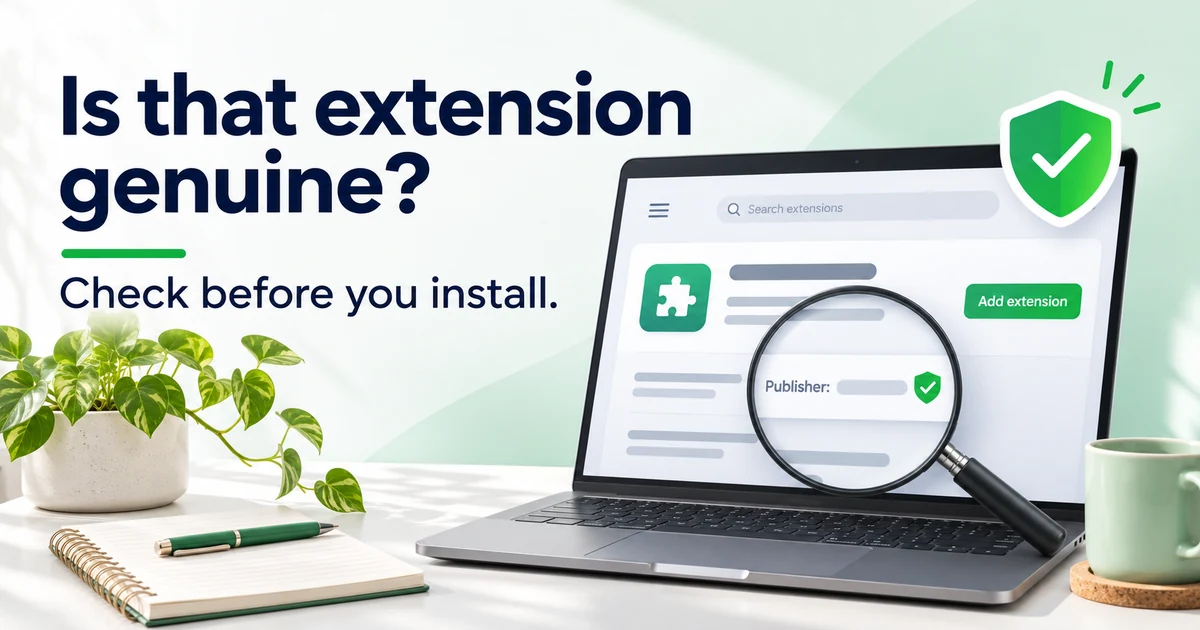
How to Spot Fake Browser Extensions Before You Install
Check extension listings, identify misleading installation prompts and respond if you installed an unwanted browser tool.
Read guide →
Recognise misleading adverts, fake warnings, unwanted redirects and notification spam, and learn practical steps to reduce interruptions.
Check extension listings, identify misleading installation prompts and respond if you installed an unwanted browser tool.
Read guide →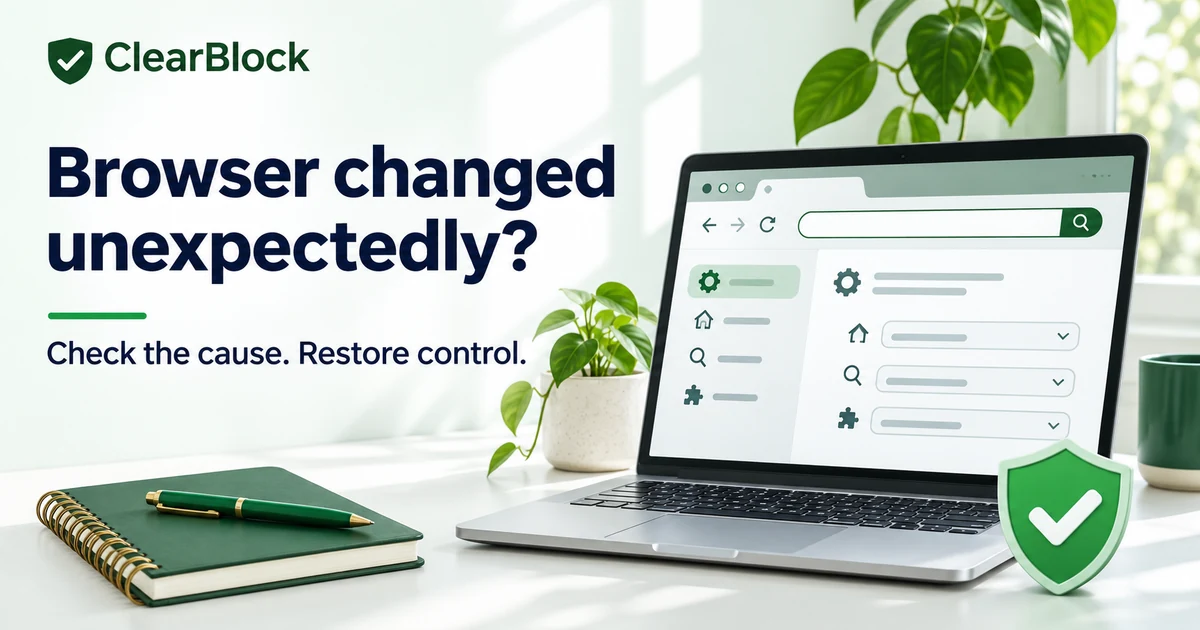
Investigate unexpected search engines, homepages and redirects, review extensions and restore intended browser settings in Chrome and Edge.
Read guide →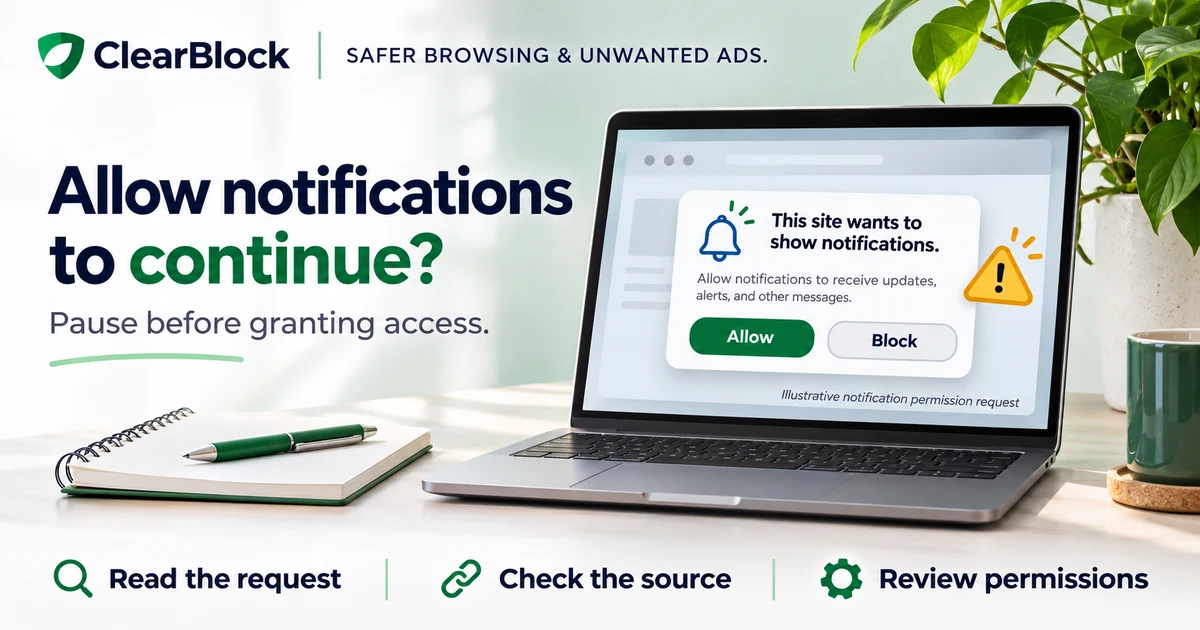
Recognise misleading notification requests, remove unwanted website permissions and respond to fake alerts in Chrome and Edge.
Read guide →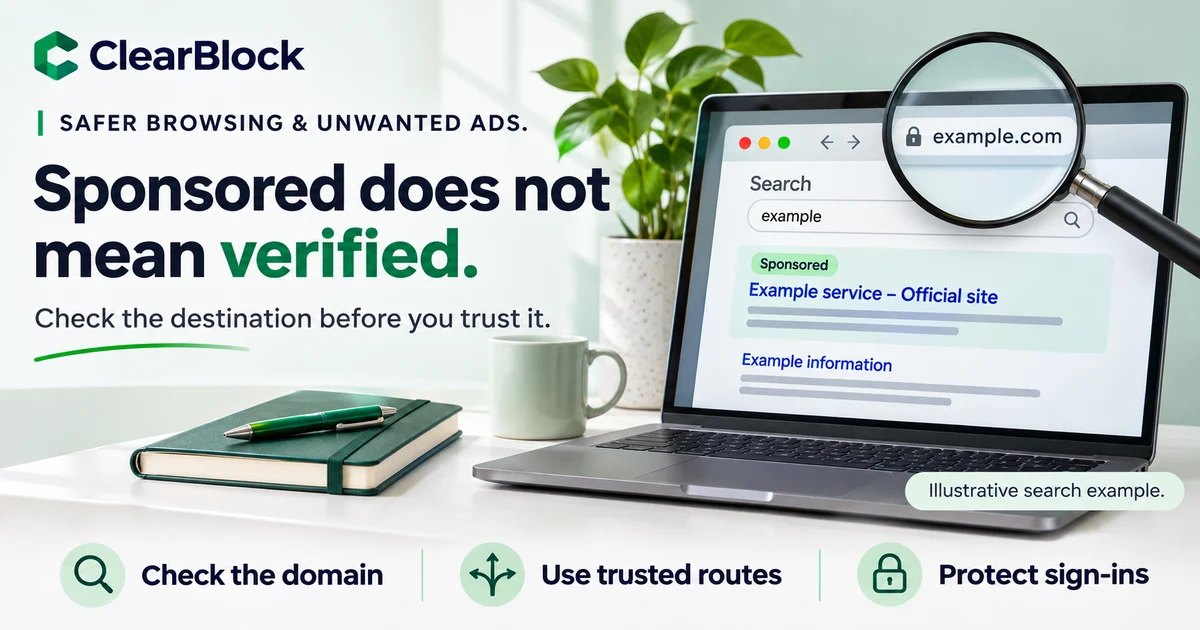
Check search-result destinations before signing in, downloading software or calling support, with practical next steps after a suspicious click.
Read guide →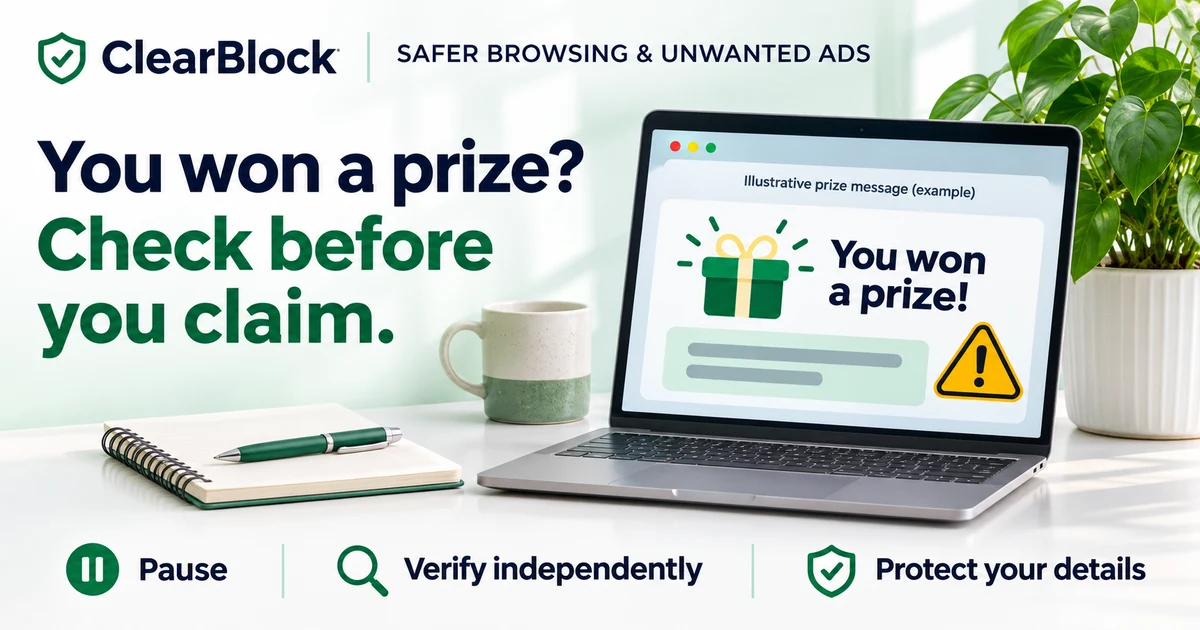
Spot fake prize popups, verify promotions independently and understand what to do after sharing contact details, credentials or payment information.
Read guide →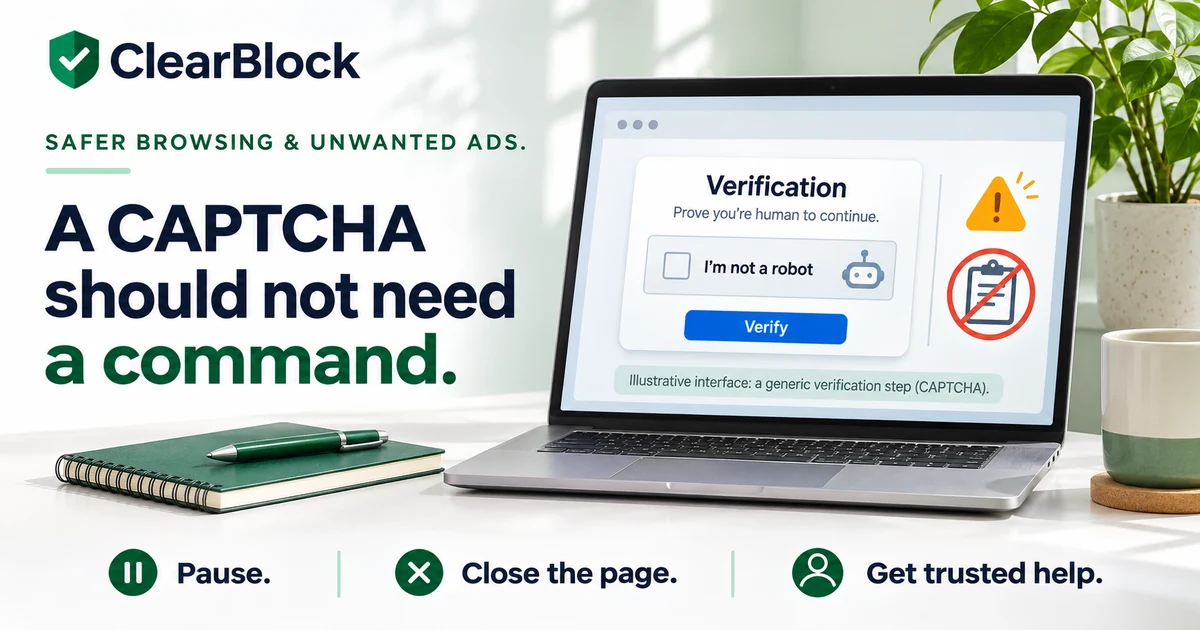
Recognise fake verification pages that ask you to execute copied text and understand the next steps after clicking, pasting or running instructions.
Read guide →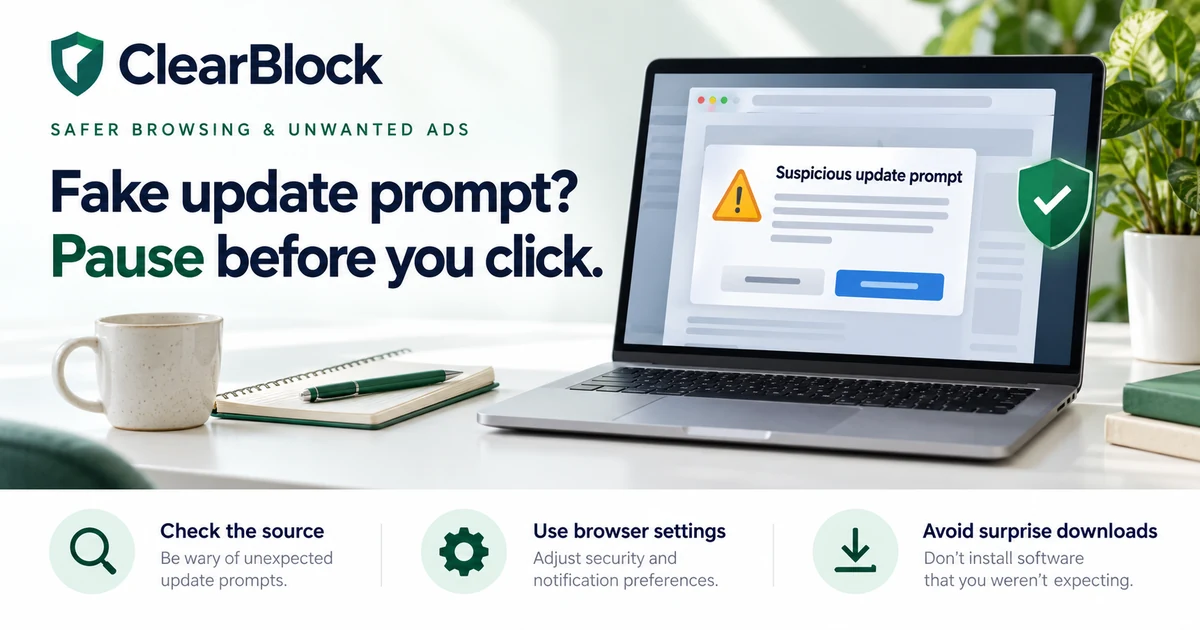
Recognise fake browser update prompts, verify genuine updates independently and choose the right next step after an unexpected download.
Read guide →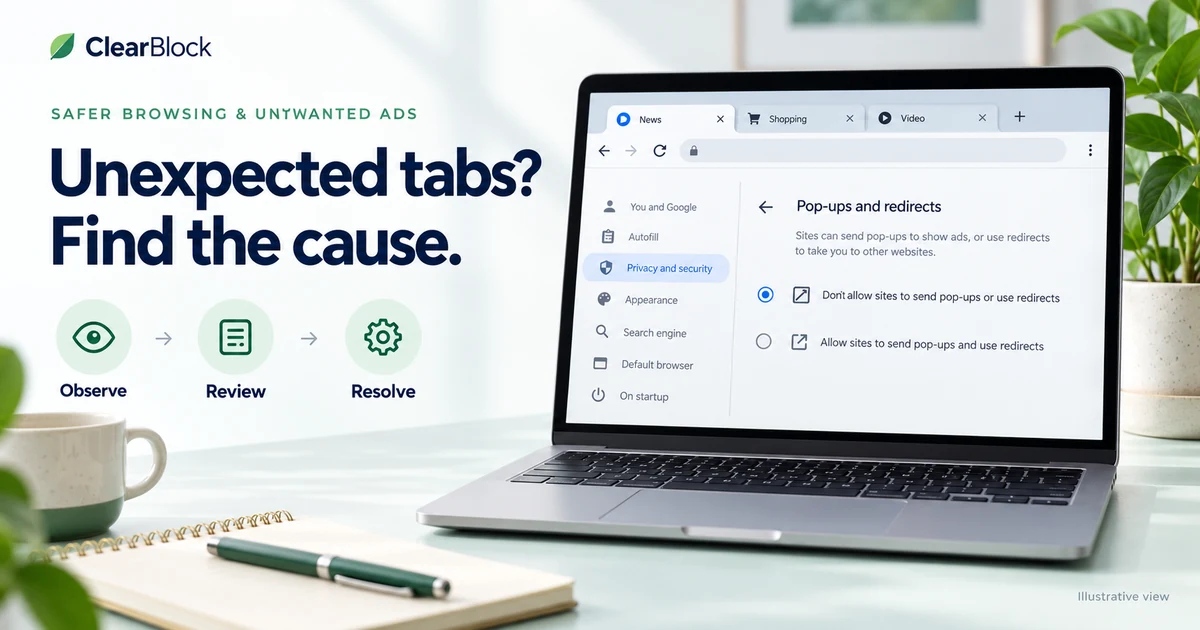
Find the cause of unwanted browser tabs with practical checks for popups, redirects, notifications, startup settings and extensions.
Read guide →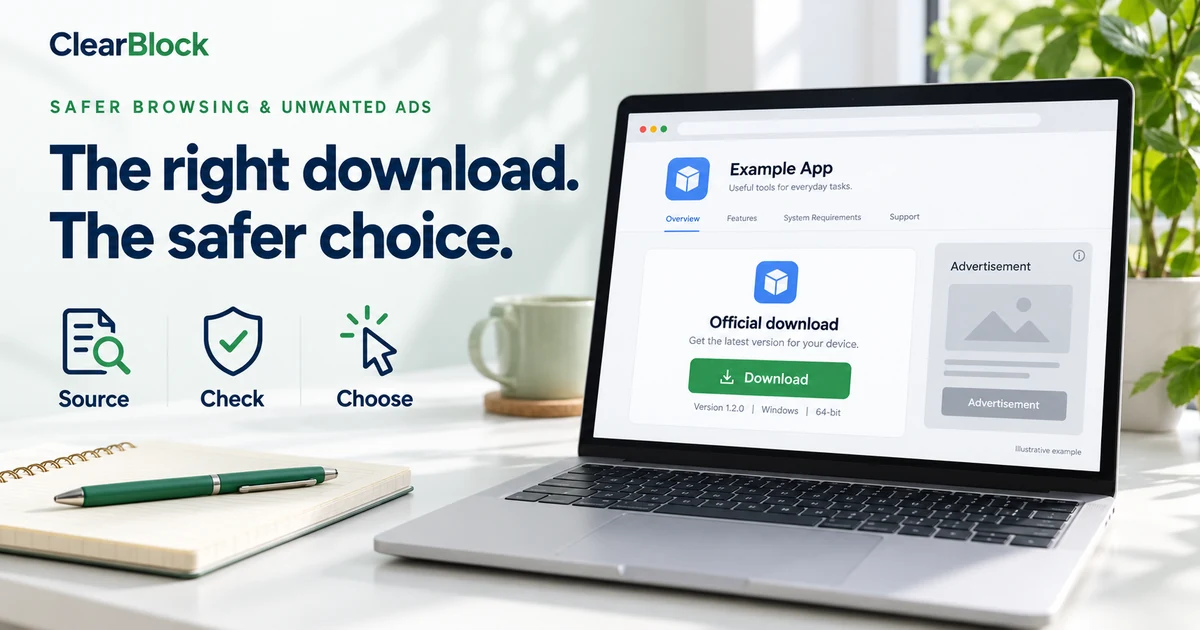
Learn to distinguish download links from adverts, verify the source and respond to unexpected files, permissions and browser warnings.
Read guide →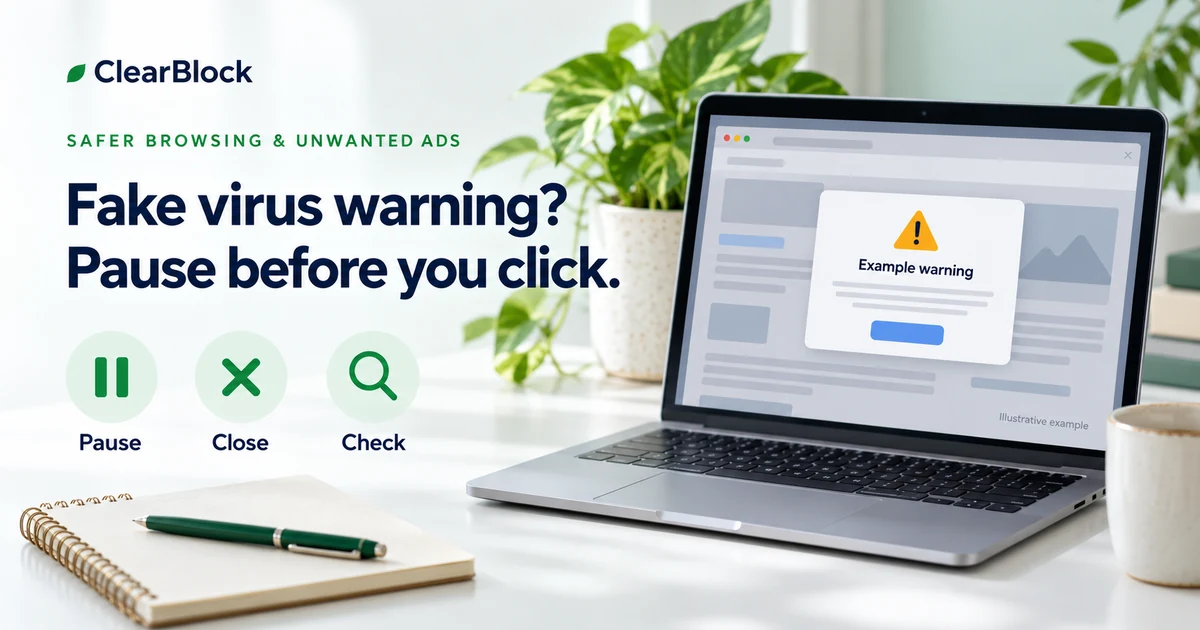
Recognise fake security popups, close suspicious pages and choose the right next step if you shared details, downloaded software or allowed remote access.
Read guide →Explore the features or visit support for help with a specific issue.
Explore ClearBlock features →