
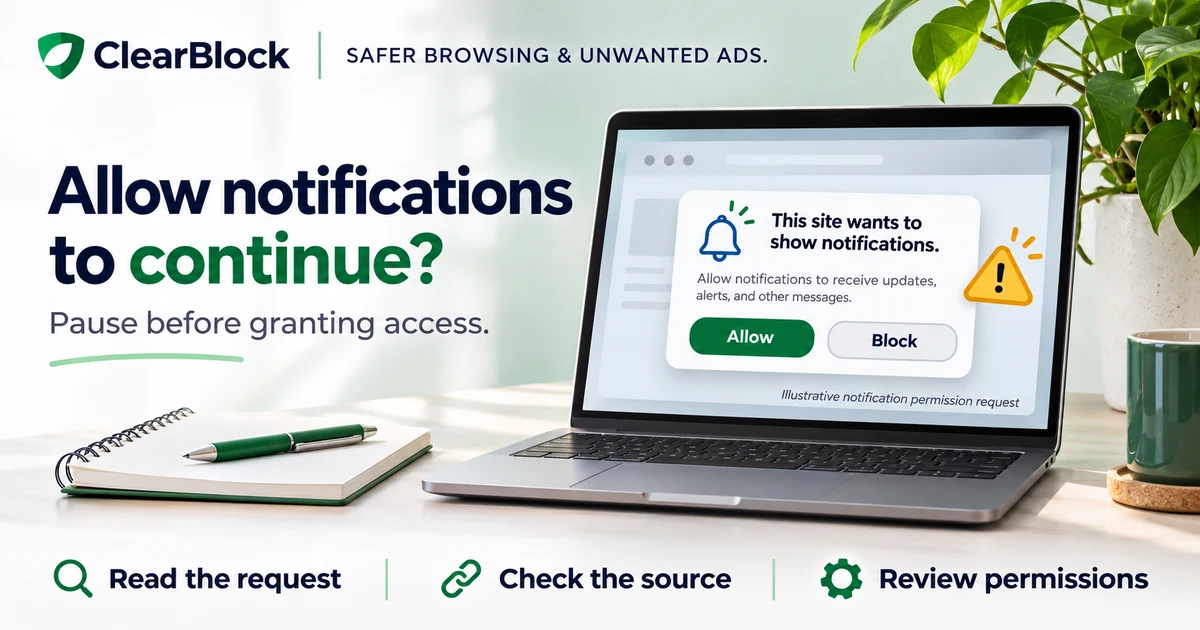
A website tells you to click Allow to watch a video, start a download or prove you are human. A small browser permission box appears nearby. It is tempting to treat the two as one instruction, especially when the page looks familiar. But allowing website notifications gives that website permission to send alerts. It does not simply confirm that you want to continue reading.
Some websites offer useful notifications that you deliberately request. Others use misleading instructions to obtain permission and send unwanted advertising or frightening messages later. This guide explains how to recognise the difference, what to do if you already clicked Allow, and how to check the actual permission rather than trusting the next message that appears.
What does “Allow notifications” actually mean?
Website notifications are alerts delivered through the browser and, depending on your device, displayed using the operating system’s notification interface. They can appear outside the original webpage. The permission is associated with the requesting website, not with every page on the internet.
A genuine browser permission prompt can therefore be part of a misleading experience. The browser may accurately ask whether a particular site can send notifications while the webpage gives a false reason for accepting. The permission box being real does not make the surrounding instruction trustworthy.
Ordinary articles, video playback and file downloads do not generally require notification permission. A service might offer alerts about future broadcasts or completed tasks, but those are separate choices. If a page presents notifications as a mandatory human verification step, pause and consider whether the request has anything to do with your intended activity.
Recognise the three layers of the interaction
The instruction on the webpage
The page can display arrows, fake loading indicators and messages such as “Click Allow to continue”. These are website content. Their appearance, wording and position are controlled by the site. A graphic pointing towards a browser button does not explain what that button authorises.
The browser’s permission request
The browser identifies the site requesting access and offers a permission choice. Read that request independently. Check the displayed hostname rather than relying on a logo in the page. If you did not intend to receive alerts from that site, dismiss or block the request.
The later notification
After permission is granted, the site may send messages that resemble security warnings, account notices or special offers. The notification can look prominent because it uses the device’s normal alert interface. That presentation does not mean the operating system verified the message or endorses its claims.
Common misleading notification gates
A fake video gate may show a play button and say notifications are required before playback. A download gate may claim that clicking Allow unlocks the file. A verification page may display a robot illustration and present permission as proof that you are human. The same underlying request can be dressed in many different designs.
The useful question is simple: did you come here to subscribe to alerts from this particular website? If you came to read an article or obtain a document, an unexplained notification subscription is a change of task. You can leave the page and find the material through a source you recognise.
Do not follow escalating instructions because the first action failed to reveal the promised content. Repeated redirects, new domains and requests to enable additional permissions are reasons to stop. A different scam may ask you to paste commands into your computer; read our separate guide to fake CAPTCHA and ClickFix scams for that situation.
When might a notification request be reasonable?
Notifications can be useful for a service you already use: a delivery update, a collaboration message or an alert you explicitly selected. A reasonable request should fit your purpose and come from the site you intended to visit. You should also understand what sort of messages you are subscribing to.
You do not need to grant permission simply because the service is legitimate. Declining alerts is a valid preference. Where available, use the website’s ordinary account page to choose your communications rather than accepting an unexpected prompt while trying to complete an unrelated task.
Be particularly careful with lookalike names. A familiar brand in a heading or image is not the same as the brand’s actual domain. If the relationship is unclear, open the service independently using a saved bookmark or an address you already know.
If you clicked Allow, revoke the permission directly
Granting permission alone is not proof that your device is infected. It does mean the site may have an alert channel you no longer want. The appropriate first step is to review the browser’s saved notification permissions and block the unwanted site.
- Open the browser yourself, without clicking a link in the suspicious alert.
- Open Settings and search for notifications or website permissions.
- Review the websites allowed to send notifications.
- Identify the unwanted source using its hostname. If there are several unfamiliar entries, inspect each separately.
- Change the permission to Block, or use the equivalent control offered by your browser.
Read the difference between removing an entry and explicitly blocking it. Removing a saved decision may return the site to its default asking behaviour. Blocking records a refusal. Browser versions use different labels, so check the resulting permission state rather than assuming every delete button has the same effect.
Chrome
Use Chrome’s notification settings to review sites with saved permissions. Google provides the current instructions in its website notification help. If you use multiple Chrome profiles, check the profile that received the request. A permission change in one profile may not explain alerts associated with another.
Microsoft Edge
Review Edge’s site notification permissions and block the unwanted website. Microsoft explains the available controls in its notification management guide. Follow the browser’s own settings rather than a supposed unsubscribe or repair link supplied by an alarming message.
Why closing the tab may not solve it
A saved notification permission is separate from an open tab. Closing the page stops you viewing that page, but it does not necessarily revoke the permission you granted. This explains why an alert may arrive later and seem disconnected from the original visit.
Likewise, muting browser notifications in your operating system can reduce interruptions without changing the website’s permission inside the browser. That may be useful temporarily, but review the saved site entry if your aim is to stop that particular source.
Popup windows and website notifications are also different mechanisms. Changing a popup setting is not a reliable substitute for removing an unwanted notification allowance. For a broader permissions review, see how to review website permissions.
Respond according to what actually happened
You only saw the request
Dismiss or block it and leave the page if its instructions are misleading. Seeing a prompt does not establish that permission was granted. There is no reason to install a cleaning tool merely because the page says one is necessary.
You allowed notifications but did nothing else
Revoke the permission through browser settings. Avoid interacting with subsequent messages from that source. Review other allowed sites if you have been accepting prompts without checking them, but do not assume unrelated settings must all be reset.
You clicked a notification
Close the destination if it is suspicious. Think through the next actions: did you enter information, download anything or grant another permission? A click and an executed download are different events. Base your response on the actions you can identify rather than on the warning’s dramatic language.
You entered an account password
Visit the actual service independently and change the exposed password. Review its account security and active sessions. If you reused that password elsewhere, update those accounts too. Use the service’s own recovery process when you cannot sign in; do not return to the notification’s support link.
You paid, installed software or granted remote access
Contact your payment provider through a trusted channel if payment details or money are involved. If you installed or ran an unexpected file, use your device’s trusted security tools and seek help from a support source you chose independently. Stop any unexpected remote support session and obtain assistance appropriate to your device.
Do not let a fake warning choose your security check
A notification claiming that several viruses were found is a claim from its sender. It is not equivalent to a result in your installed security application. The safest way to assess the claim is to open your security tools independently and review their actual status.
Do not call a telephone number, buy a subscription or install a suggested repair utility because an alert creates urgency. Microsoft’s tech support scam guidance explains this pattern. Our guide to fake virus warnings covers the distinction in more detail.
Where ClearBlock fits
ClearBlock provides free core ad blocking, with optional Premium controls for supported distractions. Its push notification control is intended to help with new notification requests. It should not be treated as a way to revoke permissions you previously granted in the browser.
If an unwanted site already has permission, review that allowance directly. Filtering and permission management work at different points in the experience. Neither an ad blocker nor a quiet browser prompt proves that every future message is trustworthy. Continue to check the source and purpose of unexpected requests.
For help reducing future interruptions, read how to stop website notification prompts. Keep this guide for the separate problem of misleading instructions and alerts that follow an accidental subscription.
A quick checklist before pressing Allow
- Did I intentionally ask this website to send alerts?
- Does the hostname match the service I meant to use?
- Is the permission relevant to my task?
- Can I continue without subscribing, or use another trusted source?
- Am I reacting to pressure instead of making a deliberate choice?
If the answers do not make sense, decline the request. You can reconsider a useful permission later through the browser. There is usually no benefit in granting access first and trying to understand the explanation afterwards.
Frequently asked questions
Does a real browser prompt mean the website is safe?
No. It means the browser is asking about a permission. A website can misuse an accurately displayed permission request by giving a misleading reason to accept it.
Will blocking notifications remove malware?
No. It changes the website’s ability to send alerts through that permission. If you also ran software or exposed an account, address those actions separately.
Should I click unsubscribe inside the suspicious notification?
Use your browser’s permission settings to stop an unfamiliar source. That avoids following another untrusted destination merely to remove the first subscription.
Can unwanted notifications return?
They may come from a different allowed site, another browser or another profile. Check the source displayed with the next alert and review the corresponding permissions. Do not assume the first change failed without comparing those details.
Browse more Safer Browsing & Unwanted Ads guides for practical ways to recognise misleading messages and make deliberate browsing choices.