
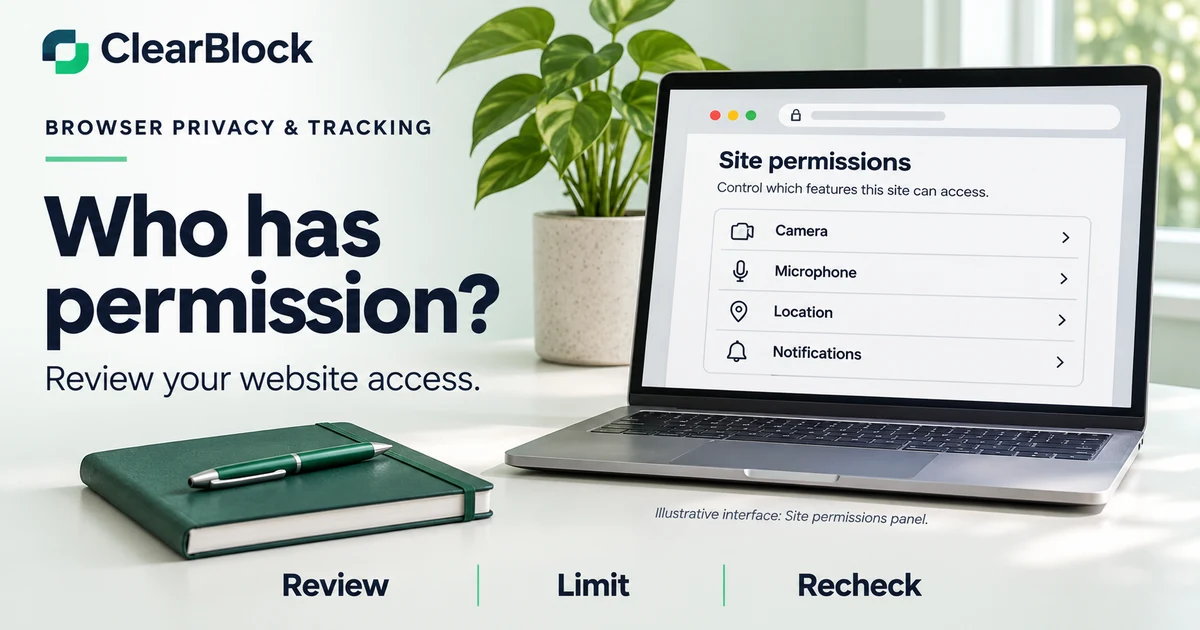
You can review a website's camera, microphone, location and notification permissions without deleting all your browsing history. Start in the browser's own site controls or permissions settings, identify the correct website and change only the access you no longer want it to have.
This guide explains how to make that review practical, why operating system permissions are a separate layer and what to check when a useful feature stops working. Permission controls are one part of privacy: they do not replace cookie choices, account settings or protections against every form of tracking.
What a website permission means
A permission is a browser-managed decision about whether a website can use a particular capability. A video meeting may request the camera and microphone; a mapping page may ask for location; a service may request permission to send notifications.
The decision belongs to a specific context, rather than being a general certificate that the website is trustworthy. Read the hostname and consider the task you initiated. A camera request during a meeting is different from an unexplained request while reading an article.
Some choices can be temporary, while others may be remembered. The options depend on the browser, feature and installed version. Read the actual prompt rather than assuming every Allow button gives the same duration of access.
Start with the website you are using
Open the intended site independently and inspect the controls beside the address bar. Browsers commonly provide a site information or settings panel there. Use those browser controls rather than a button drawn inside a webpage claiming to manage all your permissions.
Check the hostname before changing anything. An account service, a meeting provider and a publisher's main page can use different addresses. A change for one address should not be assumed to apply to a separate service merely because the pages share a brand.
Save unfinished work before reloading the page. Permission changes may require a new request or reload to take effect in the workflow, and refreshing can discard a draft or interrupt a call. Make the change at a sensible stopping point.
Review saved permissions in Chrome
In desktop Chrome, open Settings and find Site settings under Privacy and security. You can review a particular capability or locate a website's saved permissions. Google's current site-settings guide also describes using the controls beside the address to change a site's choices.
Look for the relevant website entry and check the current state of the permission you intend to change. Menu wording can evolve, so use the official instructions linked at the end if your version looks different. Do not reset every category simply because one permission needs attention.
After making a change, return to the website and test the specific task when safe. If you remove a remembered allowance, the site may need to ask again or may be blocked according to the new state. Read that result before making further changes.
Review saved permissions in Edge
In Edge, use Settings and its Site permissions area to review the website or capability. Microsoft's current Windows guidance points to Site permissions and All sites within the browser's privacy settings for reviewing individual websites.
Select the correct website and inspect only the permission you want to change. For camera and microphone access on Windows, remember that the operating system can separately control whether the browser may use the hardware. A site-level allowance is not the only requirement.
If the browser is managed by an organisation, some settings may be restricted. Ask the administrator about a necessary work feature rather than trying to bypass policy. Record the displayed restriction so the request is specific.
Camera access: connect permission to a task
A camera allowance is useful when you deliberately join a video call or capture an image through a trusted website. Review whether you still use the service and whether the saved access remains appropriate. An old meeting site does not need to stay in your allowed list merely because you used it once.
When a browser offers a temporary option that suits the task, consider its scope before selecting a persistent allowance. The best choice depends on how you use the service. You do not need to grant unrelated permissions to make the camera available.
If the camera fails after a review, check the website's selected device and the browser permission first, then the operating system control. Do not immediately weaken ad blocking or cookie settings for a hardware access problem.
Microphone access: separate permission from mute
A microphone can be allowed while a meeting is muted, and it can be blocked even when the page's microphone icon appears ready. Those are different controls. Read the browser's permission state alongside the website's own audio settings.
Review services you no longer use and remove unnecessary remembered access. For a service you use regularly, keep only the access needed for its intended function. A text-only task should not automatically require microphone access.
When troubleshooting, test with a harmless local check or the service's normal device preview rather than recording private conversations. If a headset or input device changed, inspect that selection separately from the permission decision.
Location access: choose the information you intend to share
Location permission can support a deliberate task such as finding nearby services. Decide whether that task needs the browser's location capability or whether entering a town or postcode manually is sufficient. Choose based on the service and your preference.
Blocking location permission does not make you invisible to the website. It may still infer an approximate area from other information, and an account may already contain an address you supplied. The permission addresses a specific capability, not every possible location signal.
Check both the browser and device settings if location is genuinely needed but unavailable. Microsoft's location guidance explains that operating system controls can affect Edge's access. Avoid changing several privacy layers together before identifying which one matters.
Notifications: review old allowances
A notification permission is separate from a page popup. If an unfamiliar website sends desktop alerts, review the browser's allowed notification sites rather than only closing the current tab. A previously saved allowance may be the relevant setting.
Keep notifications for services where the alerts are useful and remove unwanted allowances through browser settings. Do not click an alarming notification to reach its supposed security repair page. Open the browser controls independently and identify the source there.
ClearBlock's supported controls for new notification requests are not a substitute for revoking permissions already granted. See the notification prompts guide for that distinction and practical next steps.
Permissions are not cookie consent
Allowing the microphone does not express a general choice about advertising cookies. Rejecting optional cookies does not automatically revoke camera access. Treat each panel according to its purpose rather than assuming one privacy action updates every browser preference.
Likewise, blocking notifications does not delete an account or withdraw an email newsletter subscription. Use the service's account or unsubscribe process for those separate tasks. This avoids repeatedly changing a browser setting that cannot produce the intended result.
For an earlier website cookie decision, read how to change cookie consent after accepting. Keep the goal clear before deleting site data or resetting permissions.
Why clearing all browser data is usually too broad
If your only goal is to stop one website using a capability, start with that permission. A broad cleanup can sign you out, remove useful preferences or change several aspects of the browsing environment at once, depending on the options selected.
Read confirmation screens carefully. A button that resets permissions and a button that deletes stored data may have different effects. Do not infer the outcome from the word Reset alone; check what the current browser says it will change.
A focused change is also easier to reverse. If you intentionally need the feature again, you can review the specific permission rather than reconstructing an entire set of browser preferences after a broad reset.
A ten-minute permission review
- Open the browser profile you normally use.
- Review saved camera and microphone allowances for services you recognise.
- Check location access and remove entries you no longer need.
- Review the notification allow list for unwanted or unfamiliar sites.
- Change one relevant permission at a time and read the confirmation.
- Test important services afterwards, at a time when interruption is safe.
- Keep a short note of any exception required for a regular task.
You do not need to turn this into a recurring technical audit. A review after an unfamiliar prompt, a retired service or unwanted alerts can be enough to address the immediate concern. Choose a routine you can understand and maintain.
When a useful website stops working
Identify the failing task first. A video meeting without audio suggests different checks from an article menu that will not open. Read the exact browser message and confirm the site permission before changing unrelated controls.
If a permission is allowed but hardware remains unavailable, check operating system access, the selected device and any organisation policy. Microsoft documents these as separate layers in media access. A browser switch alone cannot resolve every device or driver issue.
If you suspect an extension interaction instead, make a focused comparison and restore the original state afterwards. Use the ClearBlock website troubleshooting guide without assuming that pausing filtering will grant a hardware permission.
What this review does not guarantee
Removing unnecessary permissions reduces specific access opportunities, but it is not a guarantee against every form of tracking. Cookies, account activity and browser characteristics are separate topics. Read the fingerprinting guide for one example.
It also does not erase information already sent to a service. If you want to manage retained account data, use the organisation's privacy controls or contact process. A local permission change concerns future capability access within its scope.
A VPN or an ad blocker does not automatically replace this review. See tracking protection versus a VPN for the difference between network and browser privacy layers.
Frequently asked questions
Can I revoke one permission without deleting the account?
Yes, browser permission controls and account deletion are separate tasks. The website may lose the relevant capability while the account remains.
Why does an allowed microphone still fail?
Check the website mute state, selected input, operating system permission and any managed policy. Browser allowance is only one part of the workflow.
Does blocking location stop all location inference?
No. It controls a particular permission, not every signal a website may use or information you supplied yourself.
Official instructions and related help
Consult Google's site permissions guide, Microsoft's camera and microphone guidance and Edge's location privacy explanation. Explore more Browser Privacy & Tracking guides for practical help.