
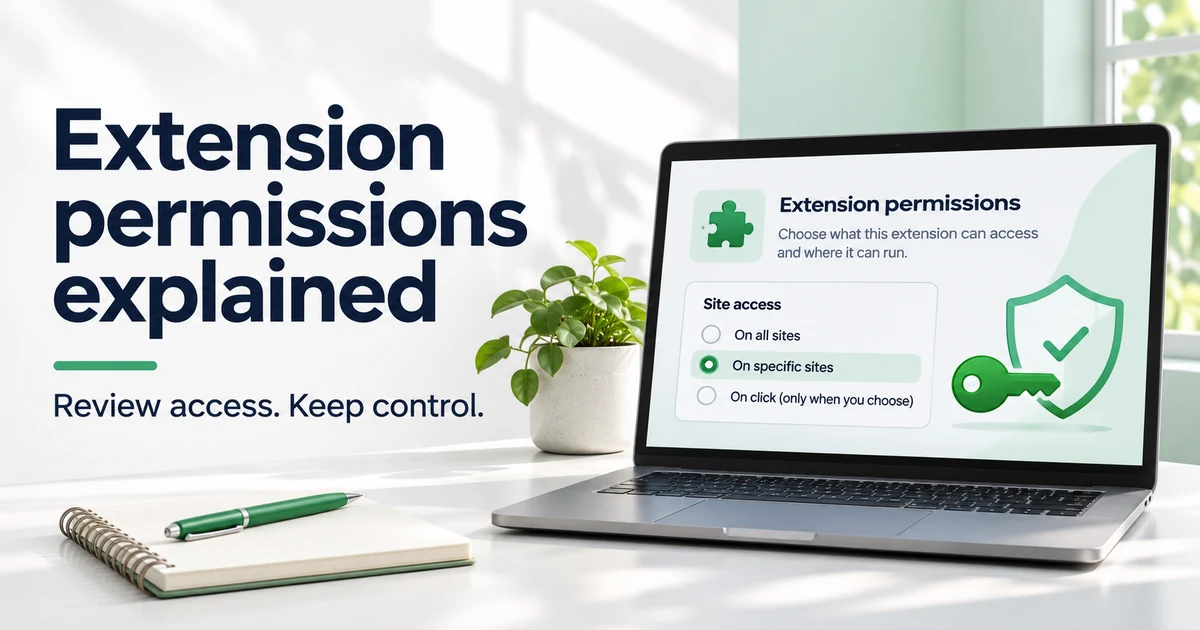
A browser extension asks to read and change data on websites you visit. The wording sounds broad, especially when the tool promises to improve privacy. Should you refuse it, approve it or limit it to certain sites? The answer starts with understanding what the extension is meant to do and whether its requested access fits that job.
This guide explains browser extension permissions in practical terms. It covers site access, optional permissions, private windows and the difference between disabling an extension and changing its access. The aim is to help you make an informed decision, without treating either a permission warning or a reassuring product description as a complete privacy assessment.
What is an extension permission?
A permission is an authorisation that enables an extension to use a browser capability or interact with specified sites. Different capabilities serve different purposes. A tool that modifies page appearance may need access to page content, while another feature may depend on browser functions that have separate permissions.
Permissions describe possible capabilities within browser rules. They do not, by themselves, prove exactly what an extension does with every piece of information. To assess that, you also need the product’s behaviour, documentation and privacy explanation.
Think about both scope and purpose. Which websites can the extension work on, and what is it allowed to do? A narrow-looking warning does not establish that a tool is trustworthy, and a broad warning does not automatically establish misuse.
What does “read and change your data” mean?
This kind of warning concerns access to content on matching websites. Depending on the extension’s implementation and permissions, it may enable features that inspect or alter the page. Examples include changing presentation, adding controls or identifying elements relevant to the tool’s purpose.
That capability deserves attention because webpages can contain sensitive information. Consider where you use the browser: email, account dashboards, private documents and shopping sessions may all appear in the same profile. Do not approve broad access casually just because installation takes only a few seconds.
Equally, do not assume that every extension with page access uploads the page to a server. Access and transmission are different questions. Look for an explanation of whether processing happens locally, what is sent elsewhere and which actions trigger that transmission.
Match the permission to the promised feature
Start with a plain description of the task. A tool that changes website colours has a reason to interact with webpage presentation. A capture tool may need access connected to the page you choose. A content blocker may need capabilities related to filtering or supported page changes.
Now ask whether the scope makes sense. A tool designed for one service should explain why it wants access elsewhere. A browser-wide tool should explain why its work needs to apply across sites. Marketing words such as secure or private are not substitutes for that explanation.
If the relationship is unclear, read the developer’s help and privacy pages before approving. You can decide not to install a tool whose access you do not understand. There is no need to invent a technical justification on the developer’s behalf.
Site access controls
Browsers can offer choices about when an extension may access matching sites. Depending on the extension and browser version, these may include access after a user action, access on selected sites or broader access. The available choices are not identical for every product.
Use the browser’s actual extension details page to inspect the current state. A toolbar icon being visible does not explain its permissions. Likewise, hiding that icon changes presentation rather than demonstrating that access has been removed.
A limited setting can reduce automatic page access, but it may also limit features that depend on running before you click anything. Test the intended task after making a change and read the product’s explanation of any resulting limitation.
Review permissions in Chrome
On desktop Chrome, open the extensions manager and choose the relevant extension’s details. Review the permissions and site access controls displayed there. Google provides current instructions in its extension management guidance.
Where supported, choose the access that fits your use. Read any prompt explaining when a fresh click is required or which sites are included. Do not assume that a choice affecting page access changes every other capability the extension holds.
After adjusting a setting, reload the page if appropriate and repeat the task. If a feature stops working, identify which permission it requires before restoring broader access. Avoid granting everything merely to dismiss a message.
Review permissions in Microsoft Edge
Open Edge’s Extensions menu, select Manage extensions and inspect the relevant item. Check the permissions and site access options offered for that extension. Labels and availability can change with browser versions and organisational policies.
Microsoft’s extension management instructions explain reviewing installation permissions and using the disable or remove controls. Read the confirmation rather than accepting an unfamiliar installation because a webpage told you it was necessary.
If settings are managed by a workplace or school, use its support process. A disabled control is not a reason to follow an unknown script that promises to remove browser management.
Browser site access and an extension’s own pause button differ
An extension may have a button to pause its feature on one website. That is a product setting. The browser’s site access controls concern the permissions the browser grants. The two controls can affect different parts of the experience.
For example, pausing a feature does not necessarily remove its underlying permission. Restricting browser access may prevent some supported page features, while a product exception may leave the extension active for other purposes. Read the documentation rather than assuming the labels are interchangeable.
For ClearBlock’s site controls, see allowing ads on one website. Use browser permission settings when your purpose is to review access, and the product’s own controls when your purpose is to adjust its supported behaviour.
Optional permissions and later requests
Some extensions request an additional capability only when you choose a particular feature. That can make the relationship between the action and permission easier to understand. Still read the request carefully: a prompt appearing after a click is not automatically appropriate.
Ask what happens if you decline. A well-explained feature should make its requirement understandable, even when declining means the feature cannot run. You may prefer to skip an optional function rather than broaden access for something you rarely use.
Review new permission requests after updates as well. Changes can reflect a legitimate new feature, but the decision remains yours. Check the release explanation and the identity of the installed product before proceeding.
Private windows need their own review
Extension availability in private or incognito windows is controlled separately in many browsers. Do not assume that your normal-window configuration applies unchanged. Inspect whether the extension is permitted there and decide whether you need its function during that session.
Private browsing does not make an enabled extension’s authorised activity irrelevant. Nor does disabling an extension in private windows make the session anonymous to websites. These are separate privacy considerations.
Our guide to what private browsing hides explains the session limits. Review extension access alongside those limits instead of treating the private-window label as a universal guarantee.
Check identity and data handling
Before installation, compare the store listing with the developer’s official website. Check the product name, publisher and support information. Similar names or familiar colours are not reliable identity checks.
Read the privacy explanation for concrete answers: what information is collected, why it is needed, where it is processed and how you can obtain support. A policy may describe more than one feature, so identify the parts relevant to the task you plan to use.
Reviews and installation counts can provide context, but they do not prove current behaviour. Avoid treating popularity as permission to ignore an unexplained request. Revisit tools you have kept installed for years, especially if you no longer use them.
Disable, remove or restrict?
Restricting site access is useful when you still want an extension for certain tasks. Disabling is useful when you want it inactive while keeping it installed. Removing is appropriate when you no longer want the tool in that browser profile.
These actions do not necessarily delete information already stored by an external service. If you created an account with the developer, review that account separately. Uninstalling browser software and requesting deletion of server-side information are different operations.
After changing access or removing a tool, reload relevant pages or restart the browser as appropriate before assessing the result. A page already modified during its earlier load can otherwise give a misleading impression.
What if something seems wrong?
If an extension behaves unexpectedly, stop using it while you investigate. Record its name, the affected feature and what happened without sharing sensitive page content. Use the browser’s controls to disable or remove an item you have identified as unwanted.
If you entered credentials into an unexpected destination or ran downloaded software, address those actions separately. Changing an extension permission is not a complete response to an exposed account or executed file.
See unexpected browser search and homepage changes if settings have been altered. Avoid installing a second repair extension merely because the first unfamiliar page recommends it.
Where ClearBlock fits
ClearBlock provides free core ad blocking and optional Premium controls for supported distractions. Browser permissions help determine which supported features can operate, but a permission label alone does not explain every implementation detail.
Use the current product documentation and browser settings when reviewing access. This general guide does not claim that every example permission is requested by ClearBlock or that every site access restriction affects all filtering methods equally.
Keep website permissions separate too. A website’s permission to send notifications is not the same as an extension’s permission to interact with webpages. Our website permissions guide covers that other review.
A practical extension review checklist
- List the extensions in the browser profile you actually use.
- Remove items you no longer need or cannot identify.
- Match each remaining tool’s permissions to its purpose.
- Choose appropriate site access where the browser offers it.
- Review private-window access and optional features separately.
- Check the intended task after changing a setting.
Frequently asked questions
Does broad page access mean an extension is spying?
No. It describes a capability that needs a clear purpose and a trustworthy implementation. Review behaviour and data handling rather than drawing a conclusion from the warning alone.
Does limited site access remove every permission?
No. Other capabilities may have separate controls. Read the browser’s description and the product’s documentation.
Is hiding the icon enough to disable an extension?
No. Check its active state in the browser’s extension manager. Toolbar visibility is not an access audit.
Explore more Browser Privacy & Tracking guides for practical ways to understand and manage browsing information.