
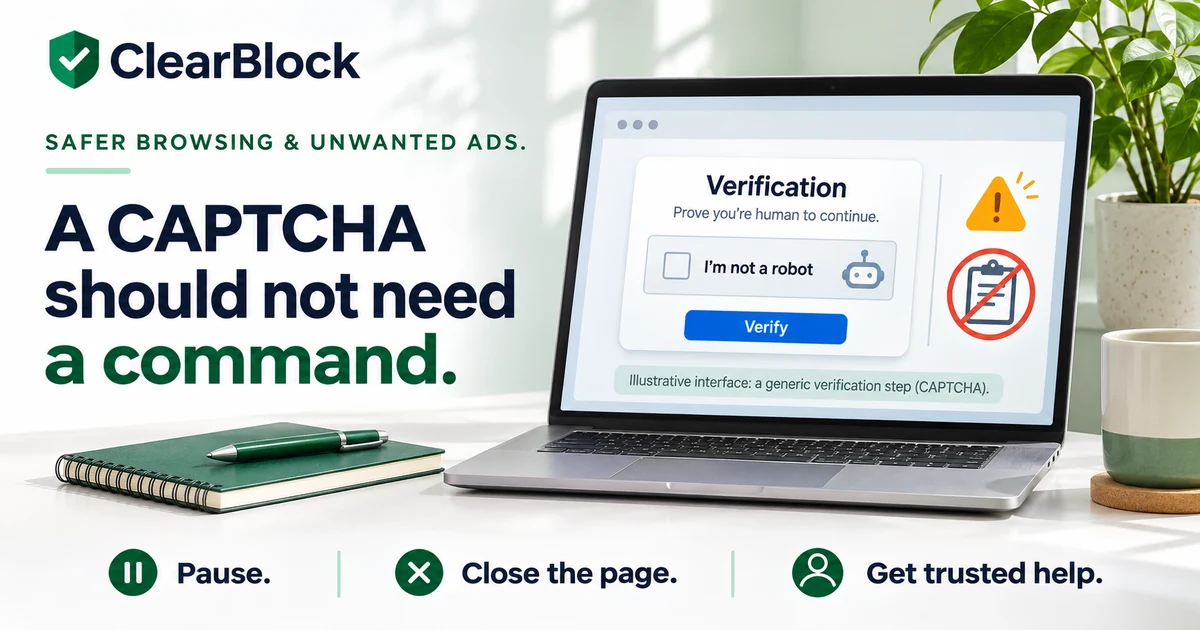
If a human verification page asks you to open a system tool and paste a command, stop. Do not run the text. Close the page using the browser's own controls and reach the service through a trusted route instead. A CAPTCHA should not require you to execute a command on your computer.
This kind of deception is commonly called ClickFix: an apparent verification or repair step persuades the visitor to perform a risky action themselves. This guide explains the warning signs, separates seeing a page from executing its instructions and outlines sensible next steps without reproducing malicious commands.
What is a fake CAPTCHA scam?
A fake CAPTCHA borrows the appearance of a familiar human verification check. The important difference is the action it requests. Instead of completing an ordinary browser interaction, it directs you outside the webpage to run copied text or install something.
Microsoft describes ClickFix as social engineering that exploits the urge to resolve a minor technical problem. The supposed problem may be verification, an error or access to content. The page presents its instructions as the routine fix, even though the requested action is unrelated to proving that you are human.
Focus on the behaviour rather than the label. A page does not become trustworthy because it says verification, security or repair. The point to stop is when an unexpected website asks you to execute something on the device to continue browsing.
The strongest warning signs
- Leaving the webpage: the instructions ask you to open a command runner, terminal or another system tool.
- Pasting unexplained text: you are told to insert content you did not deliberately write or understand.
- Executing a fix: completing the check supposedly requires running that text.
- Disabling protection: the page tells you to ignore warnings or turn off security features.
- Pressure to continue: a blocked document, video or account page is used to rush the decision.
These signs matter more than spelling or design quality. A convincing panel can copy familiar colours and icons. You do not need to identify the exact malicious software to decide that running an unexplained command is an inappropriate verification step.
How the clipboard becomes part of the trap
Some deceptive pages try to place text on the clipboard during an interaction, then direct the visitor to paste it elsewhere. A button that appears to advance verification may therefore be part of the setup for a later action. Do not assume the clipboard still contains what you copied earlier.
Close the suspicious page and avoid pasting unknown clipboard content into a command tool. You can replace the clipboard contents by deliberately copying a harmless piece of text. If your device has clipboard history, do not later reuse an unknown entry left from the incident.
Copying text and executing text are different events. Merely finding that clipboard contents changed does not establish that a command ran. Describe exactly what happened if you ask for help, including whether you pasted anything and whether you submitted or executed it.
A familiar website is not a complete guarantee
A suspicious verification can appear while visiting a familiar page. The route may involve a misleading link, advertising or compromised content. Government security advisories have documented compromised websites serving ClickFix pages, so previous familiarity is not enough to validate new instructions.
Check the current hostname, but do not treat a familiar address as permission to run unexpected text. The action requested still matters. If a regular service suddenly introduces a command-based verification step, leave that workflow and ask the service through its usual support route.
A browser warning is also not something to dismiss just because the page claims it is expected. A malicious instruction can describe a protective warning as an obstacle. Verify independently rather than accepting the page's explanation of why protection should be disabled.
What to do if you only saw the page
Close the tab using the browser's own controls. Do not use the page's suggested repair or download. If it is fullscreen, use the normal browser or operating system controls to leave that view before deciding what is happening.
Visit the intended service independently if you still need it. Use a known bookmark, its official app or an address you trust. Avoid repeating the same suspicious route simply to check whether the panel appears again.
Seeing a deceptive message alone is not proof that your device is infected. Keep the browser and operating system updated, and note any continuing symptoms. If the page returns repeatedly across unrelated browsing, investigate rather than assuming every recurrence is the same harmless encounter.
What if you clicked the verification button?
Stop before taking the next requested step. Close the page and do not paste its content into a system tool. Clicking a page button is not the same as deliberately executing a command, but it can lead to redirects, downloads or clipboard changes that deserve attention.
Check whether an unexpected file downloaded or a new permission was granted. Do not open a downloaded file to find out whether it is safe. Use the browser's own downloads and permissions controls, and follow your device vendor's security guidance if needed.
If you are unsure what you clicked, explain that uncertainty to trusted support. Do not fill the gap with an assumption that everything is clean or that everything is compromised. A clear description of the last action you remember is a useful starting point.
What if you pasted text but did not run it?
Do not submit the text. Close the system dialogue or terminal without executing it, and avoid following additional instructions from the page. If you are not certain whether the action ran, treat that as an uncertainty requiring help rather than testing it again.
Do not paste the same content into another tool, online decoder or public forum to investigate it casually. That can disclose information or create another opportunity for a mistake. A trusted security professional can tell you how to preserve relevant evidence appropriately.
On a work or school device, contact the IT team and describe the sequence. They may have monitoring or response procedures that can clarify what occurred. Avoid deleting evidence they specifically ask you to retain.
What if you executed the instruction?
Stop using the affected device for sensitive activity and seek trusted security assistance. If compromise is suspected, disconnect it from the network while arranging help. Tell the responder that the incident involved a webpage asking you to execute copied text.
Use the operating system's established security tools and official guidance rather than a cleanup program offered by the suspicious page. A single scan result is not an absolute guarantee, and an ad blocker cannot certify that a device is clean after an unknown command ran.
If credentials may have been exposed, use a separate device you trust to change affected passwords, review active sessions and enable available multifactor authentication. Tell your workplace security team promptly if work accounts or data are involved. Further response depends on what actually executed and what information was accessible.
Do not run the instructions a second time to reproduce the problem. Record what you remember, including the approximate time and any visible result. An accurate incident account is more useful than a repeat experiment on a potentially affected device.
Recognise related disguises
The same underlying persuasion can be presented as a document preview problem, a browser update or a missing component. A label change does not make the request to execute untrusted text appropriate. Ask why a simple browsing task supposedly needs a system-level action.
For update-themed messages, use the fake browser update guide. Genuine software maintenance should be verified through the software's own controls or official distribution route, not an unexpected page demanding a repair.
For alarming claims about an infected device, read how to recognise fake virus warnings. A webpage's claim to have diagnosed the computer is not enough to authenticate its proposed solution.
Where ad blocking helps—and where it stops
Filtering can reduce exposure to advertising resources and supported unwanted opening attempts. However, a deceptive page can arrive through a route that a particular filter does not stop. The absence of a warning or blocked page is not proof that a verification request is genuine.
ClearBlock provides ad blocking and optional controls for supported behaviours. It does not make arbitrary commands safe, authenticate every CAPTCHA or remove malware after execution. Treat it as one browsing layer alongside current software and careful handling of unexpected instructions.
Do not pause protection merely because a suspicious page says that is necessary to complete verification. If an ordinary website has a genuine compatibility issue, investigate through a known route and a focused comparison. A demand to run copied text is a reason to stop, not a normal troubleshooting requirement.
Share useful information without spreading the trap
A report can include the hostname, approximate time, browser and operating system, and the actions you took. Say whether you clicked, downloaded, pasted or executed. Keep those distinctions explicit because they lead to different questions during investigation.
Do not publish live malicious commands or active private links in a general support discussion. If you already have a screenshot, crop personal information. There is no need to revisit the page just to capture a better image.
For an issue with ClearBlock's own behaviour, use the support and diagnostics guide. For suspected device compromise, use an appropriate security response route; an extension settings export is not a complete incident investigation.
A short checklist to remember
- Pause when verification asks you to leave the browser and run text.
- Do not execute unexplained clipboard content.
- Close the page through trusted browser controls.
- Reach the intended service independently.
- Seek trusted help promptly if anything ran or you are unsure.
Frequently asked questions
Does every CAPTCHA mean danger?
No. Ordinary verification is common. The warning here is an unexpected requirement to execute commands or install software as proof that you are human.
Is this only a Windows issue?
Do not rely on the operating system as your safety test. The practical rule applies whenever a page asks you to run untrusted instructions outside the browser.
Will an ad blocker always stop it?
No universal coverage is promised. Evaluate the requested action even when filtering is active.
Official guidance and further reading
Read Microsoft's ClickFix explanation and New Zealand NCSC's compromised website advisory. Explore more Safer Browsing & Unwanted Ads guides for practical prevention advice.