
If ClearBlock appears not to work, start by checking the browser profile, the current website, global pause and any site exception. If one website behaves differently, save your work, make a single controlled change and reload before comparing the result. You do not need to begin by removing the extension, clearing all browsing data or changing every setting.
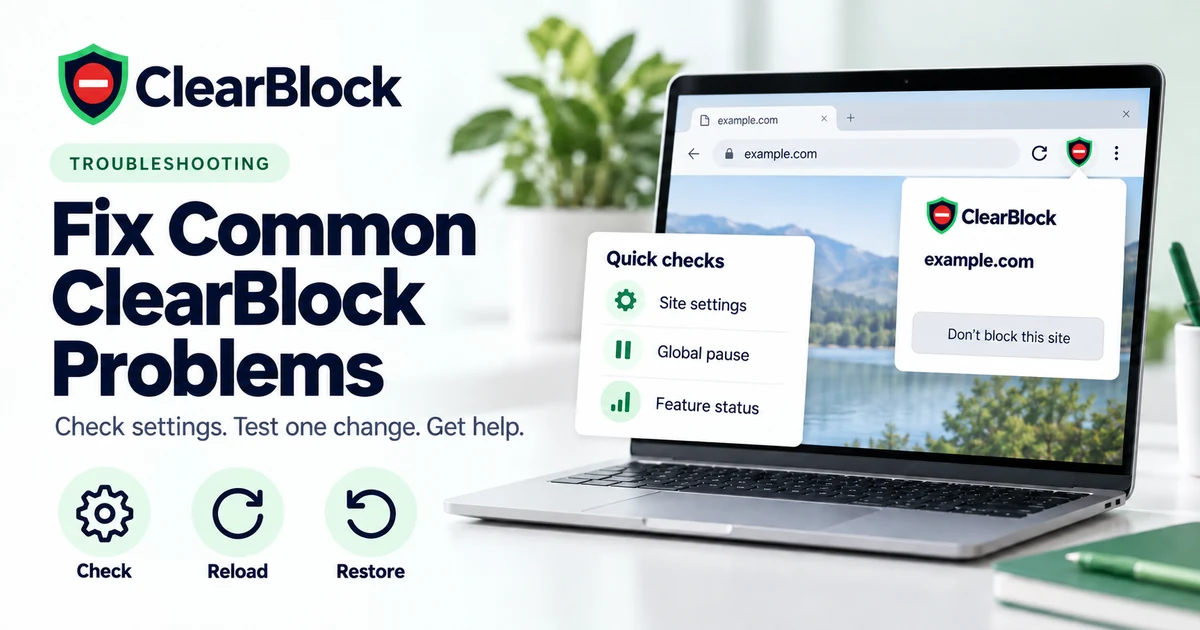
This guide covers missing toolbar controls, websites that stop working, unexpected advertisements, unavailable counters and optional Premium features. The aim is to find a useful next step and a clear explanation of what happened. The featured image is an illustrative mockup; actual browser and extension screens can differ. For a shorter checklist, visit the ClearBlock troubleshooting page.
Begin with five checks that explain many problems
- Browser profile: confirm that you are using the profile where ClearBlock is installed.
- Extension state: find ClearBlock in the browser’s extension manager and confirm it is enabled.
- Selected website: open its toolbar popup on an ordinary HTTP or HTTPS page and check the hostname.
- Global pause: if the control reads Resume on all sites, blocking is paused.
- Site allowance: if the control reads Stop allowing this site, a matching exception is active.
These checks distinguish an inactive setup from a feature-specific issue. A Premium switch that is selected does not override a site allowance or tell you that the current page supports every action. Read status messages as well as switch positions.
If you have just installed or updated ClearBlock, reload the affected webpage after saving unfinished work. A page that was already open may not reflect the same conditions as a fresh load. Record the browser and extension versions before reporting a problem so the result has a clear context.
Match the symptom to the next check
| Symptom | First check | Useful comparison |
|---|---|---|
| ClearBlock icon is missing | Extensions menu, profile and enabled state | Open the popup from the menu before changing toolbar visibility. |
| One website stops working | Current domain and recent setting changes | Allow that site temporarily, reload and repeat the same action. |
| Ads remain visible | Global pause, site exception and filter status | Check an ordinary webpage after a fresh reload. |
| The counter is unavailable | Popup status message and current tab | Open from the toolbar and allow the supported check to run. |
| A Premium control is unavailable | Premium access and feature state | Review the displayed activation status without changing unrelated filters. |
| Cookie banner stays visible | Cookie mode and supported handling | Review the panel manually; reject-only mode may leave it in place. |
A symptom is a starting point, not a diagnosis. For example, an advertisement remaining visible does not establish that no network requests were blocked. A working site after an exception is useful evidence, but it does not identify a particular rule by itself.
If the toolbar icon is missing
Open your browser’s Extensions menu and look for ClearBlock. It may be installed but not pinned. Use the available pin or show-in-toolbar control if you want a visible shortcut. Pinning changes access to the popup; it does not activate Premium or install a second copy.
If ClearBlock is absent, check whether you are in a different browser or profile from the one used during installation. Personal and work profiles can have different extensions. Consult the browser’s extension manager to distinguish missing installation from a hidden icon.
If the extension is disabled, review the browser’s explanation before enabling it. An organisation-managed browser may restrict installation or access. Follow your administrator’s guidance rather than repeatedly installing the same package. The ClearBlock installation guide provides the normal setup sequence.
If a website stops working after a change
Write down the exact action that fails: opening a menu, playing a video, submitting a form or loading a particular section. Save unfinished work before a reload. If you recently edited a blocked-domain entry or changed a feature, note that change rather than immediately resetting everything.
- Open ClearBlock on the affected website and confirm its hostname.
- If the site is not already allowed, select Don’t block this site.
- Let the tab reload and repeat the same action.
- Note whether the behaviour changed.
- If the allowance was only a test, use Stop allowing this site and let the page reload again.
The reviewed extension reloads the tab when the toolbar site control changes. An exception is saved, so closing the tab does not remove it. When restoring protection, also check whether global blocking remains paused. Removing an allowance and ending a global pause are separate actions.
If the website works only while allowed, report the comparison with the page URL and action involved. If the problem remains, the test has not shown that ClearBlock caused it. Continue with the website’s own help and your browser settings as appropriate.
Check domain scope before editing exceptions
A site exception is based on a hostname, not just one article path. In the reviewed version, a parent-domain allowance may also apply to its subdomains. Check the saved entries in Site exceptions and blocks if the popup state surprises you.
Removing an inherited allowance from a subdomain can remove the matching parent exception. That may affect other pages covered by the parent entry. Review the intended scope before making a change just to test one page.
Use the individual-site controls guide for the detailed allowance workflow. Do not add multiple contradictory-looking entries as a substitute for understanding which saved rule matches the current hostname.
If ads still appear
First check that global blocking is not paused and the website is not allowed. Open Options and read the bundled filter status. The reviewed package includes EasyList and EasyPrivacy network subsets, with unsupported filter types omitted. It does not promise to remove every advertisement on every website.
Reload the affected page and identify what remains. A first-party promotional block, a sponsored paragraph and a request to an external advertising domain are not necessarily handled in the same way. Do not use a single visible element as proof that the whole extension is inactive.
If you recently selected the legacy ad-image allowance or another relevant preference, review its explanation. Avoid adding speculative blocked domains merely to make the activity number increase. Blocking a shared service can also stop wanted images, scripts or page functions.
If empty spaces remain or the layout changes
Hide matched ad spaces (Free) is separate from network blocking. Review the setting and its status message. It handles supported matched spaces, not every blank region or every layout choice made by a website.
Site allowances, global pause and competing preferences can affect cosmetic hiding. The reviewed interface explains that selected ad-image allowances and Image Swap take priority. A checkbox can therefore remain selected while the feature is not applying in the way you expected on a particular page.
If a layout issue began after a change, reverse that one preference, reload and compare. Record which space changed and whether important controls remained usable. The filters and settings guide explains these controls in more detail.
If a counter shows zero, a dash or an old value
A zero value and an unavailable value are different. Zero can mean that no counted activity was recorded for that check. A dash or unavailable message can mean the extension could not obtain a verified figure. Read the accompanying message rather than treating every non-increasing number as the same failure.
Open ClearBlock using its toolbar icon on the page you want to inspect. The reviewed popup can report temporary conditions such as permission requirements, a changed page or query limits. Repeated rapid checks may not help when the browser is temporarily limiting queries.
The toolbar badge shows the last verified network snapshot and refreshes while the popup is open and visible. It is not a continuously live background counter. Hiding the badge is a display preference, not the same thing as pausing blocking.
Ads Blocked represents recorded blocked network requests, including custom blocked domains. It is not a count of individual visible advertisements removed. Cosmetic hiding, popup attempts and cookie outcomes are different measures and should not be combined to judge the same result.
If Popup Shield or autoplay controls seem ineffective
Confirm that Premium access is active and the relevant feature is enabled. Check the current site allowance and global pause, then reload after saving work. Test the same trigger that previously caused the interruption, such as loading the page or clicking a specific button.
Distinguish a separate browser window from an overlay inside the webpage. Popup Shield should not be assumed to remove every newsletter panel. Similarly, a video staying visible while paused can be consistent with an autoplay control doing its job.
If you deliberately start playback, do not compare that result with an earlier load where you made no interaction. Keep the action consistent. For a detailed explanation of supported interruption types, read the popups and distractions guide.
If notification messages continue
Block Push Notifications addresses website notification permission requests. Do not rely on it to revoke permission already granted to a website. Open your browser settings, search for notifications and review the relevant site’s existing permission.
Check whether the message is a website notification, an on-page subscription panel or a notification from another application. These are different sources. ClearBlock’s website control is not a replacement for the notification settings of your whole operating system.
Browser labels vary, so use the settings available in your installed version. Change only the permission you intend to change and verify the hostname carefully. Removing permission from one website is different from disabling all notifications.
If cookie handling does not match your expectation
Review both the Block Cookie Banners feature and the selected cookie mode. Reject only never automatically accepts simply to clear a banner; an unsupported rejection can leave a panel for you to handle manually. The reject-first acceptance-fallback mode is different and can allow tracking.
A website may already have a saved choice, so changing ClearBlock’s mode does not necessarily produce a new panel or undo an earlier acceptance. Use the website’s consent settings to review the stored decision. A disappearing panel alone is not proof of rejection.
Keep verified cookie outcomes separate from unverified attempts. Read any status about manual choices or reloading, and follow the cookie consent guide before repeatedly switching modes.
If Premium access or a feature is unavailable
Open Options and review the displayed activation state. Check that you are in the browser profile where you entered the licence and that any activation action completed successfully. Read the actual error message instead of assuming every unavailable control means the same problem.
If activation needs a connection, confirm that your normal internet connection is working before trying again. Do not repeatedly purchase another subscription as a troubleshooting step. Use support if your access does not match what you expect.
A Premium appearance change is also distinct from free core blocking. The reviewed extension uses its default appearance without active Premium while retaining saved theme preferences. Seeing the default theme does not by itself establish that all your settings have been erased.
Compare other browser settings without losing your baseline
More than one extension can affect advertisements, scripts, page appearance or playback. Browser settings can also influence these behaviours. If the earlier checks do not explain the issue, record which related extensions and browser features are active.
If you choose to test a related extension, make the comparison temporary and deliberate. Change one item, reload and repeat the same action, then restore the starting state. Do not disable unrelated protections across your whole setup simply because one webpage behaves differently.
Reinstallation and clearing all browser data should not be automatic first steps. They can remove useful settings or sign you out without identifying the cause. Preserve the information needed to explain the issue before considering a broader reset.
A worked example: a missing article player
Imagine a fictional news article with a player that does not load. You confirm ClearBlock is installed in the current profile, global blocking is active and the website has no saved allowance. You note the page URL and the exact point where the player fails.
After saving your work, you allow the site, let it reload and repeat the same action. If the player now works, you record that comparison. You then restore blocking if the exception was temporary and send a report describing both states.
If it still fails while allowed, you do not claim that a particular ClearBlock rule caused the issue. You check the website’s own instructions and other relevant settings. This process produces useful evidence without guessing at a technical cause or repeatedly changing unrelated preferences.
Prepare a useful support report
- The affected page URL, with private tokens or account details removed.
- Your browser name and version.
- Your installed ClearBlock version.
- The specific action that fails and what you expected instead.
- Relevant feature settings, global pause and site exception state.
- What happened after a fresh reload and after the one-site comparison.
- The exact visible error text, if any.
Options includes a redacted diagnostics download containing limited technical state. Review the file before sharing it, and avoid attaching screenshots that expose licence keys, passwords, payment details or private account information. A short reproduction sequence is usually more helpful than a long collection of unrelated screenshots.
Frequently asked questions
Should I reinstall ClearBlock first?
Start with the profile, enabled state, current website, pause and allowance checks. Reinstallation can remove useful context without showing which condition caused the problem.
Why does one website behave differently while others work?
Websites use different content, services and page controls. Use a focused site comparison and report the affected action rather than assuming every website should behave identically.
Does an unchanged badge prove blocking stopped?
No. The badge is a verified snapshot, not a live background count. Open the popup and read its current state and messages.
Will closing a tab remove a site allowance?
No. The allowance is saved. Remove it through the site control or saved exceptions when you want blocking restored.
Do I need Premium for the basic checks?
No. Free core ad blocking and site controls can be checked separately. Premium is relevant when investigating optional Premium tools.
What should I restore after a temporary test?
Remove temporary allowances, end a global pause if you started one and restore any switches or other extensions you changed. Confirm the intended state on the page afterwards.
Finish with the setup you intended
After troubleshooting, check that you have not left a global pause, broad exception or experimental domain rule active by accident. Keep the result of each useful comparison and send a focused report if further help is needed. Return to Troubleshooting guides or the ClearBlock guide library for the next relevant topic.