
To create a YouTube playlist on desktop, open a video, choose More → Save → Create new playlist, enter a name, select its privacy and choose Create. Then open the playlist from the You area to confirm the video is there.
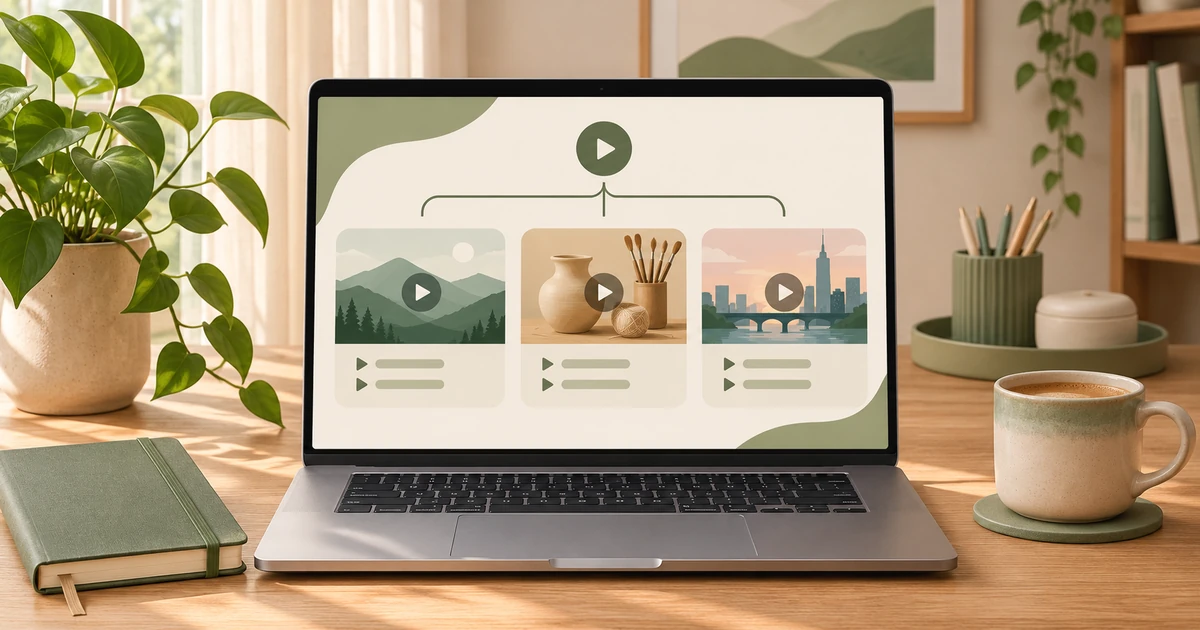
A named playlist is useful when you want an ongoing collection for a project, course or interest. This guide covers creating and organising your own lists in Chrome and Microsoft Edge, with privacy checks and practical examples. The images are conceptual illustrations rather than screenshots of YouTube’s current interface.
Create your first playlist from a video
- Sign in to the YouTube account where you want the collection.
- Open the watch page of a video you want to include.
- Open More, choose Save, then Create new playlist.
- Give the collection a clear name and choose its privacy.
- Select Create and inspect the new list before adding more.
YouTube describes this process in its playlist creation guide. Button placement and wording can vary, so follow the options shown in your current interface.
Start with a few relevant videos rather than moving a whole backlog at once. A small list is easier to check, rename and arrange while you establish a useful structure.
Name the collection for its purpose
Choose a title that tells your future self what the list contains. “Spreadsheet charts — beginner practice” is more useful than “Interesting videos” when you return several weeks later. A project name, topic or intended task gives you a simple rule for deciding what belongs.
Avoid creating several nearly identical titles. If you cannot tell two lists apart without opening them, rename one or reconsider whether they need to be separate. The goal is finding useful material, not building a complicated filing system.
For a changing software topic, consider including the version in the title or description when it matters. Keep your own notes about which instructions you tested, rather than treating every video in a collection as equally current or reliable.
Choose privacy before building the list
YouTube offers Public, Unlisted and Private playlist visibility. Public lists can be found and shared; unlisted lists can be viewed and shared by anyone who has the link. Private is the option to choose for a personal collection you do not intend to share.
You can review visibility by opening You → Playlists, selecting View full playlist and checking the privacy menu below its title. YouTube’s playlist privacy instructions explain the available settings.
Unlisted does not mean restricted to the first person you send it to. Consider that before using it for a collection about a sensitive project or personal interest. Review the list’s title, description and contents together before changing visibility.
Playlist visibility and the videos’ own access settings are separate. Adding someone else’s private video does not give your viewers permission to watch it. Likewise, keeping your collection private does not make the creator’s public upload private. See YouTube’s video visibility guide for those distinctions.
Add videos to the correct existing playlist
On another video’s watch page, open More → Save and select the collection you created. Check the confirmation, then open the collection to verify the entry. Read the title carefully if you have similarly named lists.
Use the collection’s purpose as a quick filter. Ask whether the new video answers a question relevant to that project. If it is merely something you may watch someday, Watch Later may be a better temporary destination.
Do not assume the browser profile proves which YouTube account is active. Inspect the account shown on the page when a collection seems to be missing. This is particularly useful on a computer where you use both personal and work accounts.
Arrange the list into a useful order
Open a playlist you own and use the drag control near a video thumbnail to move the entry. YouTube documents reordering, titles, descriptions and removal in its playlist editing guide. Some controls differ for particular content types or account setups.
For a learning collection, place an overview before demonstrations that assume prior knowledge. For a reference collection, put the items you use most often where you can find them easily. There is no need to force every list into a viewing sequence if you use it mainly for occasional lookup.
Check the saved order on the full playlist page after making a change. YouTube distinguishes reordering the collection from temporarily rearranging a watch-page playlist panel, so do not assume a session-only adjustment has changed the main list.
| Collection | Suggested organisation |
|---|---|
| Beginner lessons | Overview, basic practice, then more advanced examples. |
| Project references | Group around the decisions or tasks you need to revisit. |
| Product demonstrations | Separate setup, routine use and troubleshooting in your notes. |
| Casual interests | Keep the most relevant entries easy to find without over-organising. |
A worked example for a short course
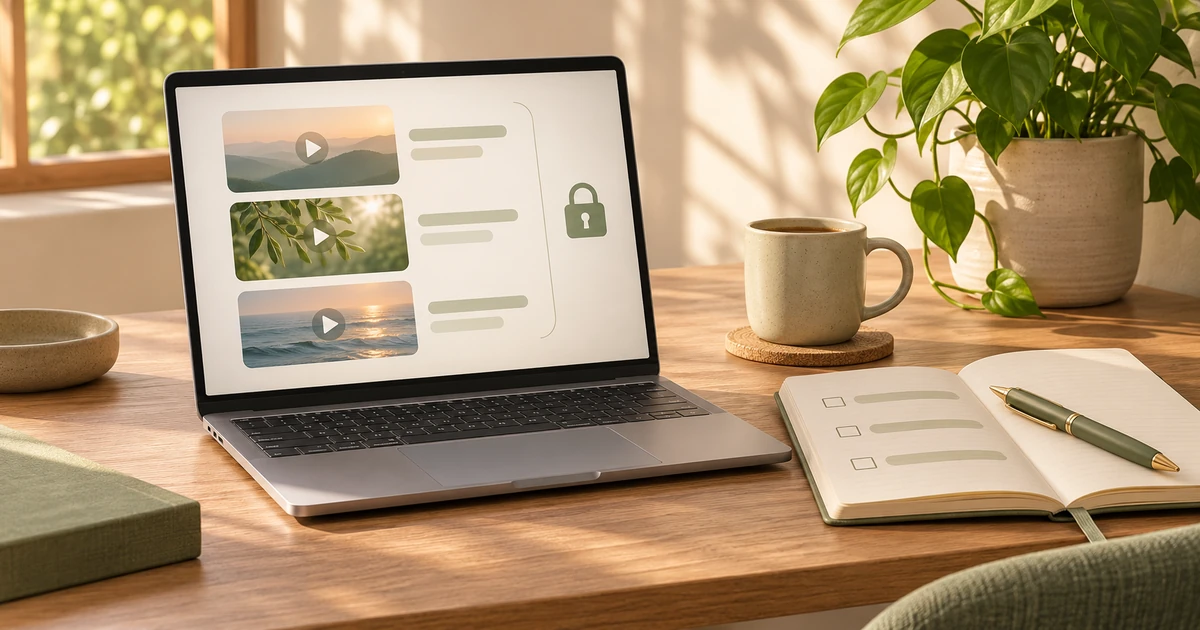
Suppose you want to practise making better presentation slides. Begin with a private collection named for that task. Add one overview, one practical demonstration and one relevant example, rather than every related recommendation you see.
Place the overview first, then watch enough of each later entry to confirm that it adds something different. If two recordings explain the same basic feature, keep the clearer one or note why both are useful.
Write one practice task beside each entry in your own notes. For example, after the layout demonstration, rebuild a slide in a copy of your presentation. This turns the collection into a set of references for work you intend to do, not an obligation to watch endlessly.
After a session, record what you completed and the next question. You can leave the collection intact while your notes track progress. A video list alone does not explain which advice you tried or whether it worked for your project.
Remove an entry without deleting the collection
Open the list, choose the menu beside the relevant video and select Remove from [playlist name]. Check that you are acting on the intended entry. Removing a reference from your list is different from deleting the creator’s video.
When cleaning up, distinguish that entry-level action from Delete playlist, which acts on the whole collection. Read the confirmation rather than clicking through because the wording looks familiar.
Keep useful project notes separately before making broad changes. If you rely on a collection for ongoing work, record important titles and links so you can understand your references even if the list later changes.
If saving or editing does not work
First check that you own the playlist and are using the expected account. A collection you can watch is not necessarily one you can edit. Compare a simple action on a list you created yourself before treating the whole feature as broken.
YouTube notes that some editing features may not be available with supervised accounts. Available actions can also differ with the content and interface. Read any message the site displays instead of repeatedly repeating a failed click.
Record the action and result: did Save fail to open, did no confirmation appear, or did the video seem absent after confirmation? Save unfinished text before reloading, then repeat one clear test. If you suspect an extension interaction, use our site troubleshooting checklist and restore the previous protection state after the comparison.
Keep playback and ClearBlock controls separate
Playlists are YouTube account features. ClearBlock does not create the collection, store its entries or determine its privacy. You do not need ClearBlock Premium to organise a YouTube playlist.
ClearBlock’s free protection helps block YouTube video ads and includes website ad and tracker blocking. YouTube coverage varies, and playback can sometimes take longer to start. Reload a tab that was already open when ClearBlock was installed or enabled before checking protection.
Use the ClearBlock YouTube guide for those checks. A save problem, an unavailable video and an advertisement appearing are different symptoms; keep them separate when testing.
Review a collection when its purpose changes
At the end of a project, ask whether the list is still useful. Keep a small reference collection if you expect to return to the subject. Remove unrelated entries and update the description if your reason for keeping it has changed.
Do not treat playlists as downloads or permanent archives. A creator can change or remove an upload, and its access conditions may change. Preserve your own conclusions and essential written references independently.
Frequently asked questions
How is this different from Watch Later?
A named playlist lets you organise around a topic or purpose. Watch Later is useful as a general place to save things you may return to. Choose the simpler option for the task.
Does an unlisted playlist keep the link confidential?
No. Anyone who receives the link can share it further. Choose visibility deliberately and avoid including information you do not intend to distribute.
Does removing an entry erase the uploaded video?
No. You are changing your collection of references, not deleting another creator’s upload.
Should I create a list for every small subject?
Start with a few clear purposes. Add another list only when it makes finding and using the material easier.