
YouTube Watch Later gives you a place to save videos you want to return to, instead of leaving every interesting video open in a browser tab. While watching a video, open More, choose Save and select Watch Later. Confirm the save before closing the page.
This guide covers a practical desktop routine for Chrome and Microsoft Edge: save a video, find it again, choose what to watch and remove entries you no longer need. Menu positions can vary, so use the controls shown in your current YouTube interface. The illustrations are conceptual artwork, not screenshots.
Save a video to Watch Later
- Open YouTube and check that you are signed in to the account you intend to use.
- Find a video you want to keep for a future session.
- On its watch page, open More and then Save.
- Select Watch Later and check the confirmation or selected state.
- Open your saved list to verify the entry before closing an important tab.
YouTube also offers a Watch Later control when you hover over a video thumbnail while browsing. Its official Watch Later instructions describe the available save and remove actions.
Use one ordinary video as a first test. Once you know how the save confirmation appears in your version, you can work through other tabs. Do not click repeatedly while waiting for a response; first inspect whether the entry has already been selected.
Find your saved videos again
Open YouTube’s navigation menu, choose You and look for Watch Later. Check that the video you just saved appears there. If you use more than one account, confirm the active account before treating a missing entry as a failed save.
For the first few sessions, keep the routine explicit: save, inspect the list, then close the original tab. This is a better test than assuming a brief click worked. When a video matters to a current task, you can also keep a separate note of its title and URL.
Finding the saved entry establishes where to return; it does not mean you have completed the material. Before starting a lesson, decide what you want to learn from it. That gives the list a useful purpose beyond collecting more things to watch.
Watch Later, a queue and an open tab are different
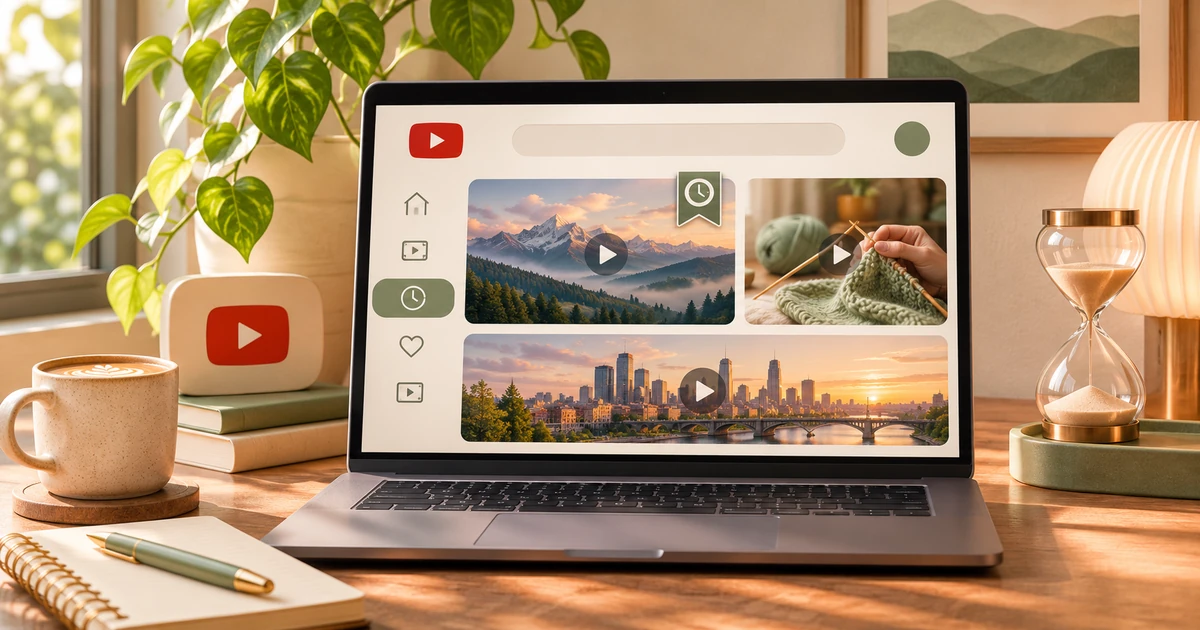
An open tab keeps a page available in your current browser window. A queue arranges what to play during a viewing session. Watch Later is a saved list to revisit. Choosing deliberately between them helps avoid relying on a temporary session for something you need next week.
YouTube says a desktop queue is not saved after you close the browser. Its queue help page recommends Watch Later for returning another time and explains how to save a queue to a playlist.
| What you want | Practical choice |
|---|---|
| Keep the current video handy while working | Use the current tab and record your place if needed. |
| Choose several videos for this session | Use a queue, then save anything you still need before leaving. |
| Return to an interesting video another day | Save it to Watch Later and verify the entry. |
| Organise an ongoing project by topic | Consider a clearly named playlist alongside your own notes. |
A saved entry is not a downloaded copy of the video. Do not use Watch Later as an archive of material that must remain available. If a creator changes access or removes a video, keeping its entry cannot guarantee future playback.
Turn a group of open tabs into a useful list
Start with a small batch of tabs rather than trying to clear everything at once. For each video, ask whether you still have a reason to watch it. Save the ones that support a current interest or task and close the ones you no longer need.
Next, open Watch Later and compare the entries with the tabs you plan to close. Check the title and creator rather than relying on a similar-looking thumbnail. Once you have confirmed the important entries, close those original pages.
Leave a tab open if it contains unfinished work, such as a comment you have not submitted or text you still need to copy into your notes. Saving the video does not save a draft elsewhere on the page. Finish or safely record that work separately.
If you have a partly watched lesson, write down a timestamp and a short description of the next step. A note such as “12:40, compare the two settings” is more useful than expecting the saved list alone to explain where you stopped.
Choose a realistic viewing session
Before you start watching, pick one question you want to answer. For example, you might need one demonstration of a spreadsheet feature, rather than a whole evening of related tutorials. Select the most relevant saved video and leave the rest for another session.
Check the duration and leave time to practise or take notes. A twenty-minute tutorial may need a longer session if you are following it in another application. Do not treat the length of the saved list as an obligation to finish everything.
After the first video, pause and decide whether another is necessary. If it answered your question, return to the task. If it did not, identify what is missing before choosing the next item. This keeps the list useful without turning every viewing session into an endless backlog.
Remove entries you no longer need
Inside Watch Later, open the menu beside the relevant video and choose Remove from Watch Later. Check the title before confirming the action, especially when several entries cover the same subject.
Review the list periodically with three questions: have I finished with this, is it still relevant, and do I know why I saved it? Remove an entry when you no longer need the reminder. Keep a separate reference note if the video supported work you may need to revisit.
There is no need to empty the list on a schedule. The useful outcome is being able to find the next relevant item. A few deliberate removals can help more than spending an entire session reorganising videos you do not intend to watch.
If a video will not save or seems to be missing
First confirm the account shown in YouTube itself. A browser profile and a YouTube sign-in are related parts of your setup, but checking one does not establish the other. Inspect the account menu on the actual page before repeating the save.
Then test an ordinary video and inspect Watch Later directly. YouTube states that videos marked Made for Kids cannot be added to playlists or Watch Later. A missing save option on that content is not evidence that ClearBlock has broken the page.
If the save control does not respond on several ordinary videos, record what happens: no menu, no confirmation, or a confirmation followed by a missing entry. Save any unfinished text before reloading. Repeat one clear test instead of changing several browser settings at once.
If you suspect an extension interaction, compare the same action with one setting changed, then restore the previous state. Use the ClearBlock website troubleshooting checklist for a controlled site test. Avoid removing the extension or resetting your browser as the first response to one missing entry.
Keep ClearBlock protection separate from saving
Watch Later is a YouTube account feature. ClearBlock does not create the list, save your entries or provide offline copies. You do not need ClearBlock Premium to use YouTube’s save controls.
ClearBlock’s free protection helps block YouTube video ads and includes website ad and tracker blocking. Coverage on YouTube varies, and playback can sometimes take longer to start. If YouTube was already open when ClearBlock was installed or enabled, reload the tab before checking protection.
Use the ClearBlock YouTube setup guide to check the extension’s status. Keep a save problem separate from an ad-blocking or playback problem so the next test answers a specific question.
A worked example: planning a short learning session
Suppose you have three tabs open about improving a presentation: one explains the software, one discusses slide structure and one demonstrates a feature you already know. Save the first two if they answer different questions, and close the third if it adds nothing useful.
In your notes, write which question each saved video should answer. When you return, start with the one relevant to the presentation you are editing. Watch the necessary section, apply the idea, then decide whether the second video is still needed.
This is a suggested workflow rather than an automatic YouTube function. You choose the priorities and keep the notes. Watch Later simply provides a place to return to the videos without keeping all their pages open.
Frequently asked questions
Does Watch Later download videos?
No. Saving an entry helps you find its YouTube page again. It is not the same as obtaining an offline copy, and it does not guarantee that the video will remain available.
Can I close a tab after saving?
First confirm the entry in Watch Later and safely record any unfinished work or timestamp you need. Then close the original tab when you no longer need that page open.
Why is a saved video missing on another computer?
Check the YouTube account first, then open Watch Later directly. Confirm that the original save completed. If the entry exists but playback fails, investigate that availability problem separately.
Will saving fewer tabs automatically make the browser fast?
Closing unnecessary pages can reduce what you keep open, but it does not identify every cause of slow browsing. Treat tab cleanup as one manageable habit rather than a guaranteed performance fix.
What should I keep outside the list?
Keep your own conclusions, task notes and important references separately. A saved video tells you where material is located; your notes explain what you learned and what you plan to do next.