
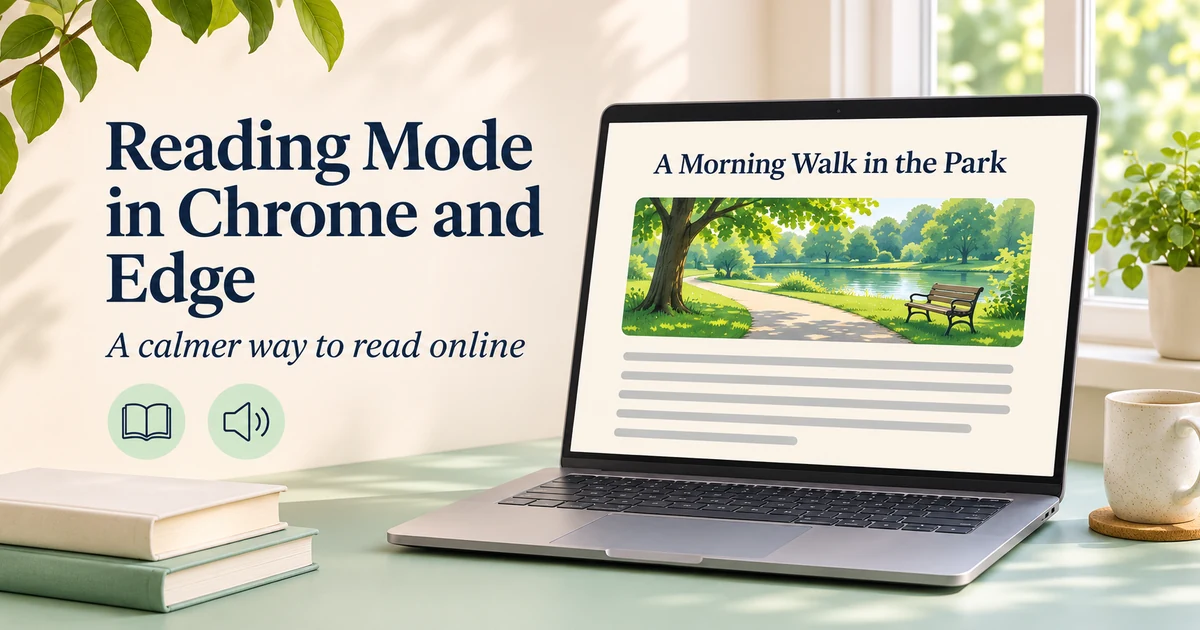
To simplify an article in Chrome, right-click the page and choose Open in reading mode. In Microsoft Edge, look for Enter Immersive Reader in the address bar on a supported page, or try F9. Both tools can make text easier to read and can read it aloud.
Start with an ordinary article you can already open. A reading view can bring the main text into focus and offer larger type or different colours. Keep the original page handy if you need a diagram, table or interactive element. The illustrations below use a fictional sample article to show the two reading layouts.
How to open Reading Mode in Chrome
- Open the article in desktop Chrome.
- Right-click a plain part of the page and choose Open in reading mode. If you don’t see the command, try More → More tools → Reading mode or look for the Reading mode icon in the address bar.
- To read beside the original page, open Settings in the reading view and look for View → Side panel. Choose the full-screen view if you want more room for the text.
- If you’re using the side panel, drag its divider to give the text more room. Keep the original article beside it if you want to refer to an image or link.
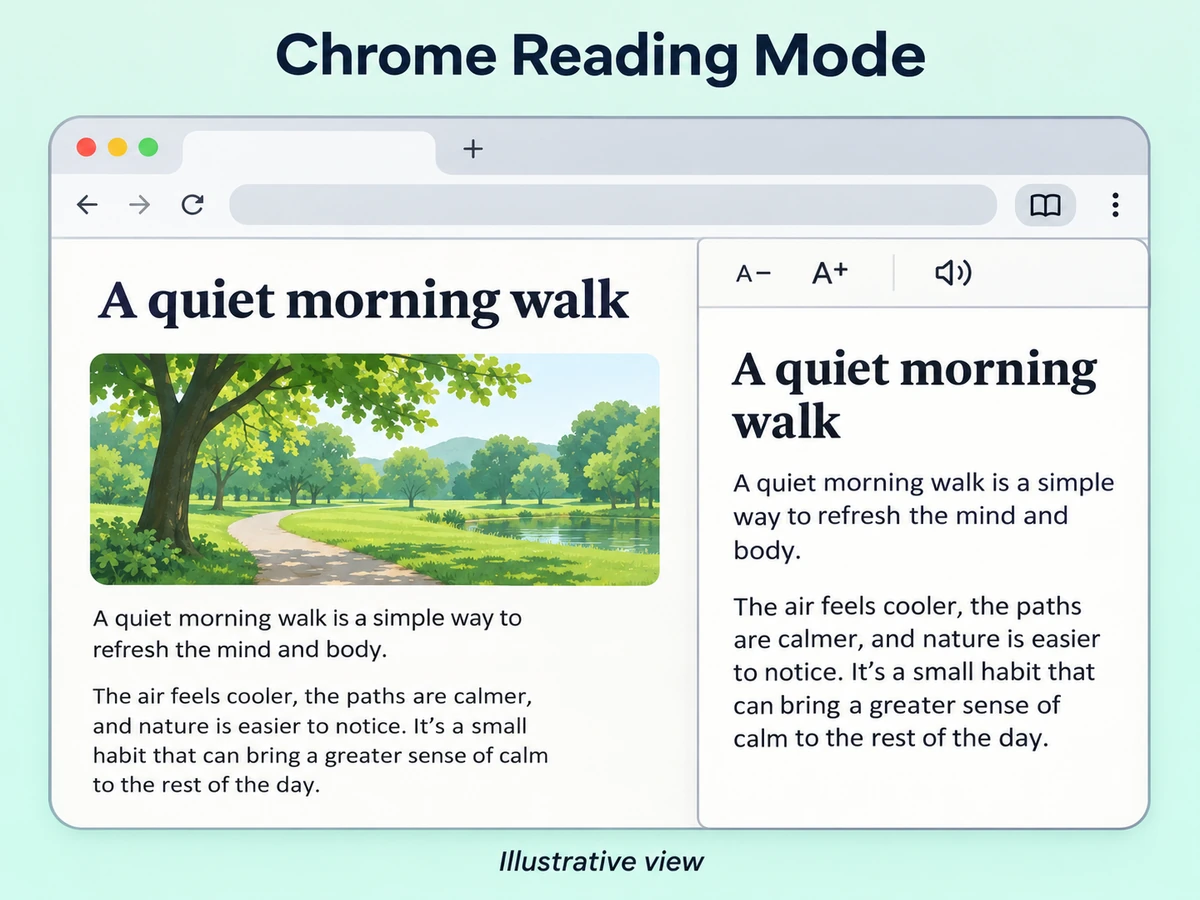
Google lists Command + Option + R on Mac and Alt + Shift + R on Windows, Linux and ChromeOS. If another app uses the same shortcut, open Reading Mode from Chrome’s menu. Google also documents a pin option in the reading settings for toolbar access. Google Chrome Help on Reading Mode.
Adjust Chrome’s text and audio
Use the font-size controls in the reading view to enlarge the text. Open its settings to try a different font, colour theme, line height or letter spacing. Where available, the Links and Images options let you choose whether those items appear in the reading view. These preferences apply to that view. To enlarge the original webpage too, use the browser’s page zoom separately.
Choose Play in Reading Mode to hear the text. Try a slower playback speed if you want time to follow the text on screen. Use the previous and next controls to move between sentences. Where available, you can preview voices or adjust how the current text is highlighted in the reading settings. Chrome’s reading and audio controls.
How to open Immersive Reader in Microsoft Edge
- Open the article in desktop Edge.
- Choose Enter Immersive Reader in the address bar if the icon is available, or press F9 on a supported page.
- Use the toolbar above the article to open Text preferences or start Read aloud.
- To return to the original page, use the exit control in the address bar or press F9 again.
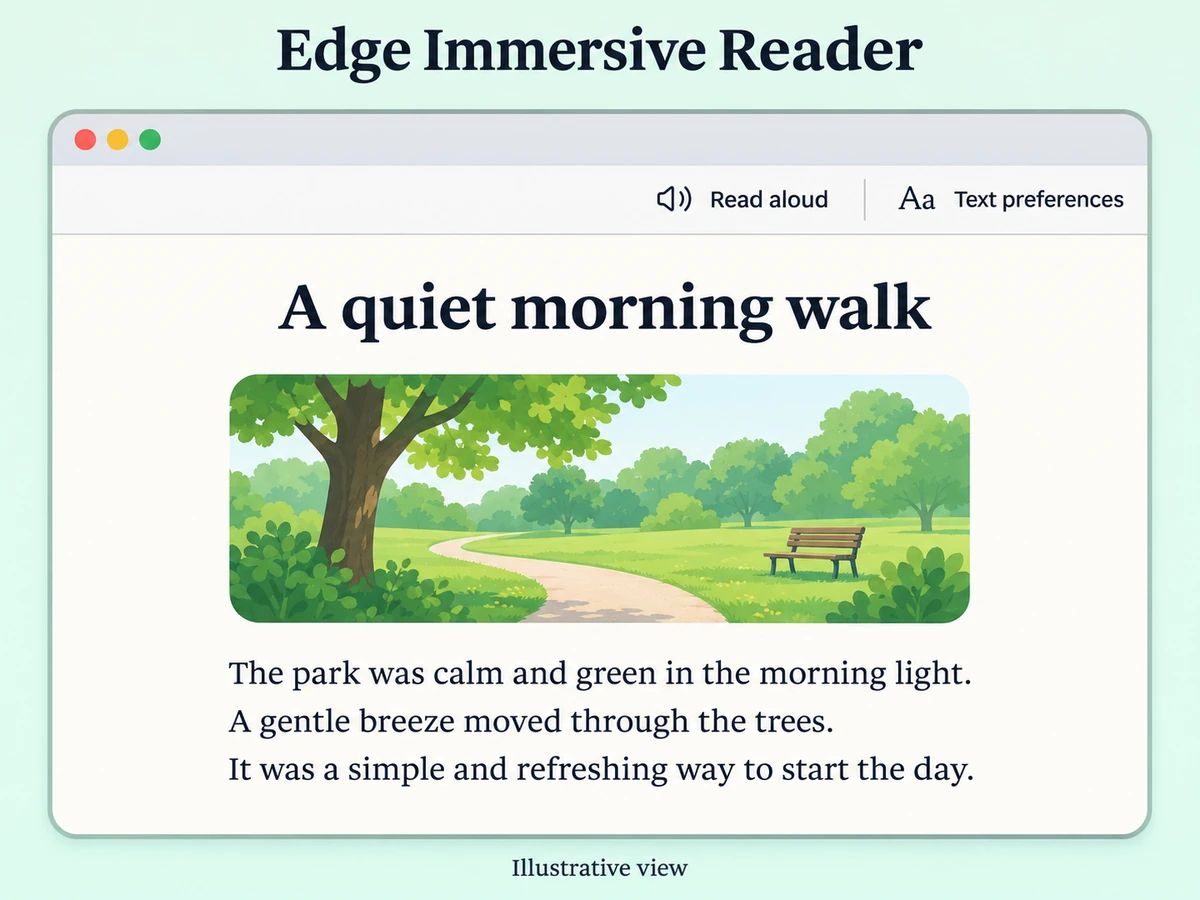
If the address-bar icon is missing, select the passage you want, right-click it and look for Open in Immersive Reader. This is useful when you want to concentrate on a few paragraphs. If that command isn’t offered either, try the original page with browser zoom or check another article. Microsoft Support on opening Immersive Reader.
Adjust Edge’s text and audio
Open Text preferences to try a larger text size, more spacing or a different page theme. Look under Reading preferences for Line focus, which can help you follow one line or a few lines at a time. Check a full paragraph before settling on a combination. Very large text can make lines short on a narrow window, so try a wider window or different text width if you’re losing your place.
Choose Read aloud to listen. Use Voice options to adjust the voice and speed, and use the playback controls to pause or move between paragraphs. If you want to keep the original page layout, Microsoft also documents a Read Aloud command in the browser menu. Microsoft’s text preferences and Read Aloud instructions.
Choose a layout for the task
If you’re reading a long news story, try a full-screen view and adjust the text until a paragraph fits comfortably. If you’re following instructions, keep the original page nearby so you can check a screenshot or select a link. For a study session, try listening to a short passage while reading along. Pause before switching pages so you can find your place again when you return.
What to check when a page doesn’t work in reading view
Try a page with a clear article title and several paragraphs. A page built around a form, an interactive chart or a video can be a poor fit for a simplified view. If the reading view shows only part of what you need, return to the original page to read captions, follow references or use controls. In Chrome, the side panel lets you keep the original available while you read the simplified text.
If you can see the article but can’t hear it, check that you started playback, that the correct speaker or headphones are selected, and that your system volume is up. Test a short passage before changing other settings. When an audio shortcut conflicts with another app, use the reading toolbar to start or pause playback.
Reading views are most helpful once you can open the article itself. If the publisher asks you to sign in or subscribe, use its normal access options. For popups and overlays you encounter while navigating the original site, see how to reduce popups and browser distractions.
Find related walkthroughs in Browser Accessibility & Reading.