
Turn on CC in the YouTube player to read along while a video plays. To find a particular moment, expand the video description, choose Show transcript, and click a line in the transcript to jump to that part. Both options depend on the video having a caption track. These instructions are for the desktop YouTube watch page in a browser such as Chrome or Edge.
The two tools solve different problems. Captions help when you want to follow a conversation in a noisy room, watch with the sound off, or make out a phrase you missed. The transcript is better when you know roughly what someone said and want to find that bit in a long video. You can use the transcript to get to the right moment, then switch on captions to follow the surrounding explanation.
How to turn on YouTube captions on a computer
- Open the video on its regular YouTube watch page and move the pointer over the player to reveal the controls.
- Look for the CC button towards the lower right of the player. Click it to show captions. Click it again to hide them.
- To see the available languages, open the player’s Settings gear and select Subtitles/CC. Choose a track from the list.
- Play a section with speech to confirm you can see the words and have selected the right language.
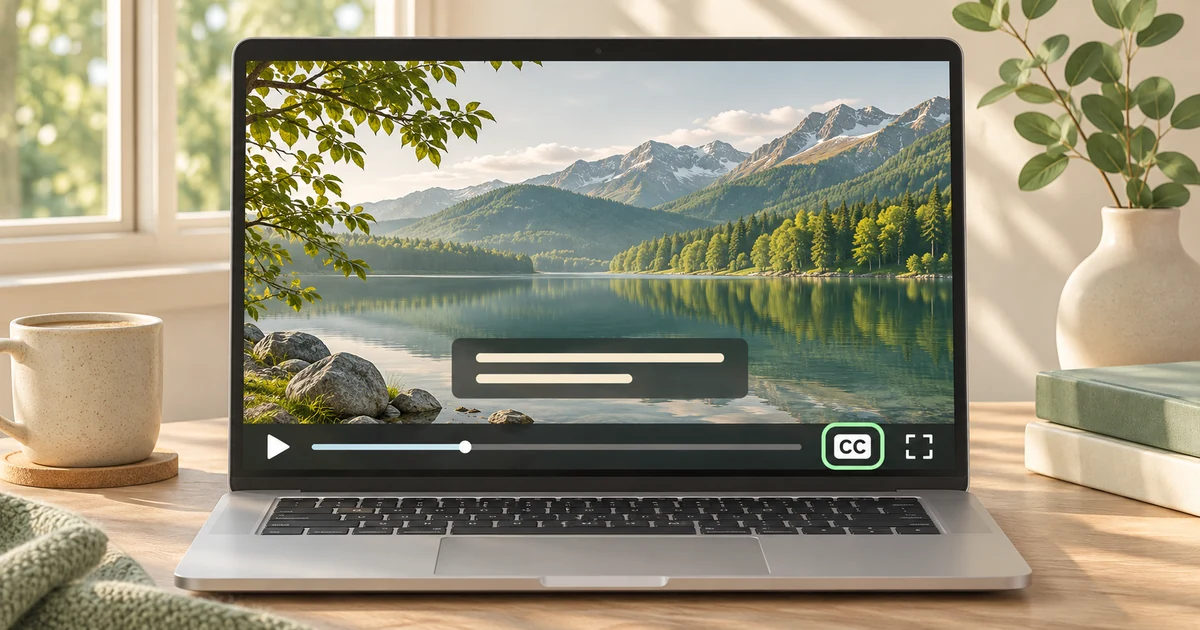
If you cannot see the controls, move the pointer over the video again or leave full screen and check the regular player. If there is still no CC option, try another video that you know has captions. YouTube’s desktop caption settings guide explains how to find the control and adjust its appearance.
Make captions easier to read
On a captioned video, go to the player’s Settings, open Subtitles/CC, and choose Options. YouTube lets you change the font, size, colour and opacity. You can also adjust the background behind the text and the character edge. These formatting choices become your caption defaults until you change or reset them.
Change one thing at a time. If captions disappear against snow, white slides or a bright outdoor scene, increase the opacity of the background behind the words before you make the font larger. If you are reading from farther away, try a larger size. Then watch a few seconds of both a light and a dark scene to check that the text stays readable.
In a software tutorial, larger captions can cover controls or labels near the bottom of the recording. Try a slightly smaller font with a stronger background. If the text still gets in the way, pause at the relevant step and read the transcript beside the video, then return to captions once the controls you need are clear.
How to open the transcript and jump to a line
- Leave full screen so you can see the information under the video.
- Open the video description. If the page shows only a short preview, expand it.
- Choose Show transcript if it appears. YouTube opens a panel with the caption text.
- Scroll to the line you want and select it. The player jumps to that point. As the video plays, the panel can follow the current caption.
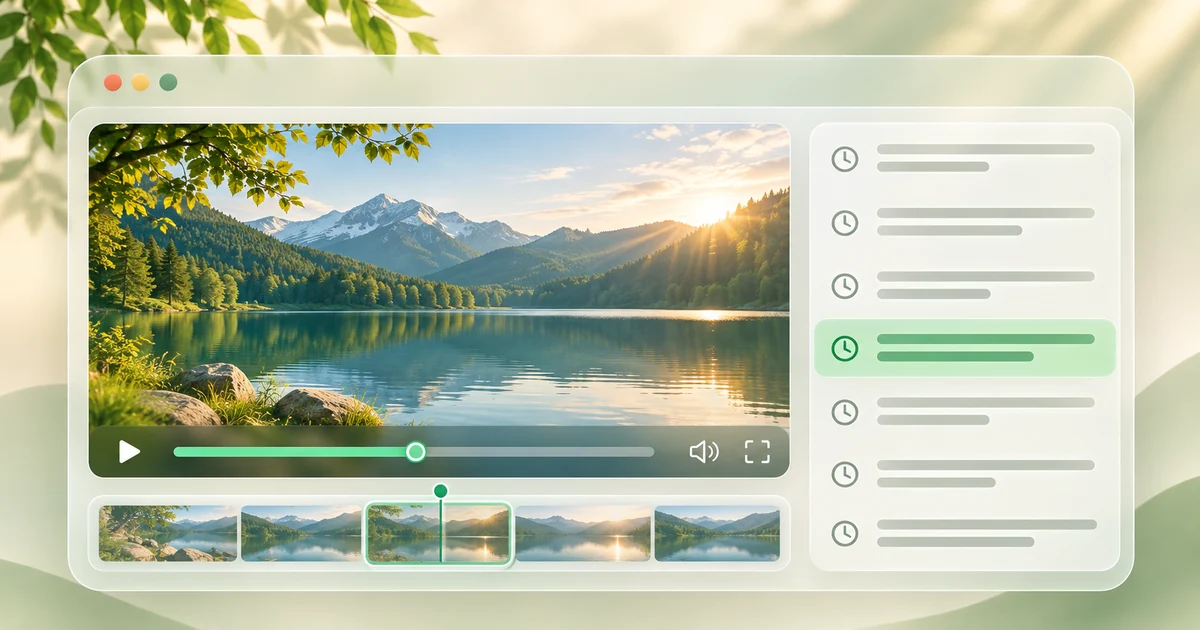
If you are watching an embedded video on another website, open the original watch page on YouTube to look for the full description and transcript controls. The panel’s position can vary with the page layout. The YouTube transcript guide shows the route through the description and how to jump from a line to the video.
Find a specific moment in a long YouTube video
Start with a word that someone was likely to say out loud. In a forty-minute camera review, search for battery before trying a full phrase like how long the battery lasts in cold weather. A short keyword is easier to match. If your transcript panel offers search, use that box. Otherwise, scan for likely phrases or use chapter headings to narrow the section.
When you find a promising line, click it and listen to the sentences immediately before and after it. A speaker might say “battery” once while listing specifications and then spend two minutes on it later. If the first match gives you only a number, look for another mention or play a little earlier to see which camera setting the number applies to.
If a precise term returns nothing, try a shorter version, a synonym, or the word that would come before it. An automatic caption track might split a product name into two words or mishear an unfamiliar name. YouTube chapters, when available, are a useful second route because they organise the recording by subject. Start with a chapter that sounds relevant and use the transcript to narrow it down from there.
Choose between supplied, automatic and translated captions
Open Subtitles/CC and check which tracks the video offers. A creator may supply a track in the spoken language or publish translations in additional languages. A track labelled auto-generated comes from speech recognition. The wording can be useful for following the gist, especially when the recording is clear, but the system can mishear names, numbers or overlapping voices.
If the language you want is missing, look for Auto-translate in the caption menu. Choose your language if that option is available. If the translation seems odd, switch back to the source language and listen again. Errors in a source track can carry through to the translation. If the transcript has its own language selector, check it too so you know which track you are reading.
Pay particular attention to words that can reverse the meaning of a sentence, such as “can” and “can’t”, and to units or decimal points. Replay the original segment or check a slide or link supplied by the creator before relying on an exact quotation. YouTube explains how recognition quality can vary in its automatic captioning guide.
What to try when captions or a transcript are missing
- No CC button on one video. Reveal the controls and check the regular watch page. Then try a known captioned video. If CC works there, the original video may lack a usable track.
- Captions work but you cannot find the transcript. Exit full screen, expand the full description and look for Show transcript. If you started on another site, open the video directly on YouTube.
- The video was just uploaded or is still live. Automatic captions can take time to appear, and live caption availability can differ from a completed upload. Check again when the archived video is available.
- The captions are in the wrong language. Check the player’s caption track menu. On a video with multiple audio tracks, confirm the spoken audio and the caption language separately.
- Several captioned videos are affected. Reload the page and compare the same video in another desktop browser or a clean browser profile. Test one change at a time so you can tell whether the issue follows the video, the browser profile or a particular setting.
If the video itself is freezing or failing to start, check playback before diagnosing captions. A transcript line can take you to a new timestamp, but the player still needs to load that part. Try the steps in why YouTube keeps buffering if the player stalls.
Use captions and transcripts with ClearBlock
Caption tracks and the transcript panel are YouTube features. ClearBlock helps block YouTube video ads, with coverage that can vary by video. You can check for caption tracks and change how they look directly in the player. If something is missing on just one video, compare it with a video that you know is captioned before changing any extension settings.
When a player issue seems tied to your browser setup, keep the comparison narrow. Try the same video in a separate browser profile and check whether CC and Show transcript appear there. If you want to compare playback with ClearBlock enabled and with YouTube allowed, follow the site-specific steps in how to use ClearBlock on YouTube. Compare the same video and restore your preferred setting after the test.
Follow a tutorial without losing your place
Keep the transcript open while you work through a tutorial in another tab. When the presenter gives an instruction, pause the video and note the timestamp before you switch away. If you come back after a break, select the previous transcript line so you hear the setup before the step you stopped on. This works especially well when a presenter completes several clicks quickly and the steps look similar on screen.
For a recording with more than one speaker, use the transcript to find the topic, then watch the exchange to see who said what. Short caption lines can run together, and a generated track may have trouble separating voices that overlap.
Frequently asked questions
Can I read the transcript without leaving captions across the picture? Open the transcript from the description and use the player’s CC button to control the on-video text separately. This is handy when watching a demonstration where the bottom of the picture contains controls or measurements.
Why is the transcript hard to read as prose? It follows timed caption segments, so a sentence can run across several short lines. Read a few lines together and replay the relevant section for tone or emphasis.
How do I share a moment I found? Jump to the line, confirm the exact point in the player, then use YouTube’s share control with the start time if it is offered. If you need to refer back to the moment yourself, keep the video link with a short note and the timestamp.
Which tool should I use first? Turn on CC when you plan to watch from start to finish. Open the transcript when you want to find an answer, revisit a step or check a phrase. For a long tutorial, start with a chapter or a transcript line, then use captions while you watch that section.