Blocking matching requests
Network filtering stops requests that match enabled blocking rules. This can prevent matching advertising or tracking resources from loading on a page.

Setup, settings and activity
Install ClearBlock for Chrome or Edge to help block YouTube video ads, website ads and trackers for free.
Use the toolbar to control protection and the Options dashboard to review your activity. The steps below also show how to allow individual websites and set up optional Premium tools.
Requires Chrome 120 or later. Check the relevant store listing for current Chrome and Edge compatibility requirements.
YouTube ad blocking is included in ClearBlock Free. It helps block video ads on YouTube. Coverage can vary by video and as YouTube changes its player and advertising.
ClearBlock applies filter rules as you browse. Its bundled rules include EasyList and EasyPrivacy, which identify matching advertising and tracking requests.
Network filtering stops requests that match enabled blocking rules. This can prevent matching advertising or tracking resources from loading on a page.
The free Hide matched ad spaces setting also hides supported advertising elements in the page. This is separate from blocking network requests and has its own setting in the popup and Options.
Filtering takes place in your browser. ClearBlock requests access to HTTP and HTTPS websites to apply its rules and page controls. Explore the free and Premium features or read the privacy policy.
You can adjust blocking when you want to support a website or check a page that is not working as expected. Open the ClearBlock toolbar popup first.
Choose Don’t block this site. When the website is already allowed, choose Stop allowing this site to restore blocking for it. Reload the page after changing the setting.
Choose Pause on all sites to pause blocking everywhere. Choose Resume on all sites to turn it back on. This global control is separate from allowing one website.
Open the toolbar popup and use its Options control. The sidebar groups settings so you can find the area you need.
| Options section | What you can do |
|---|---|
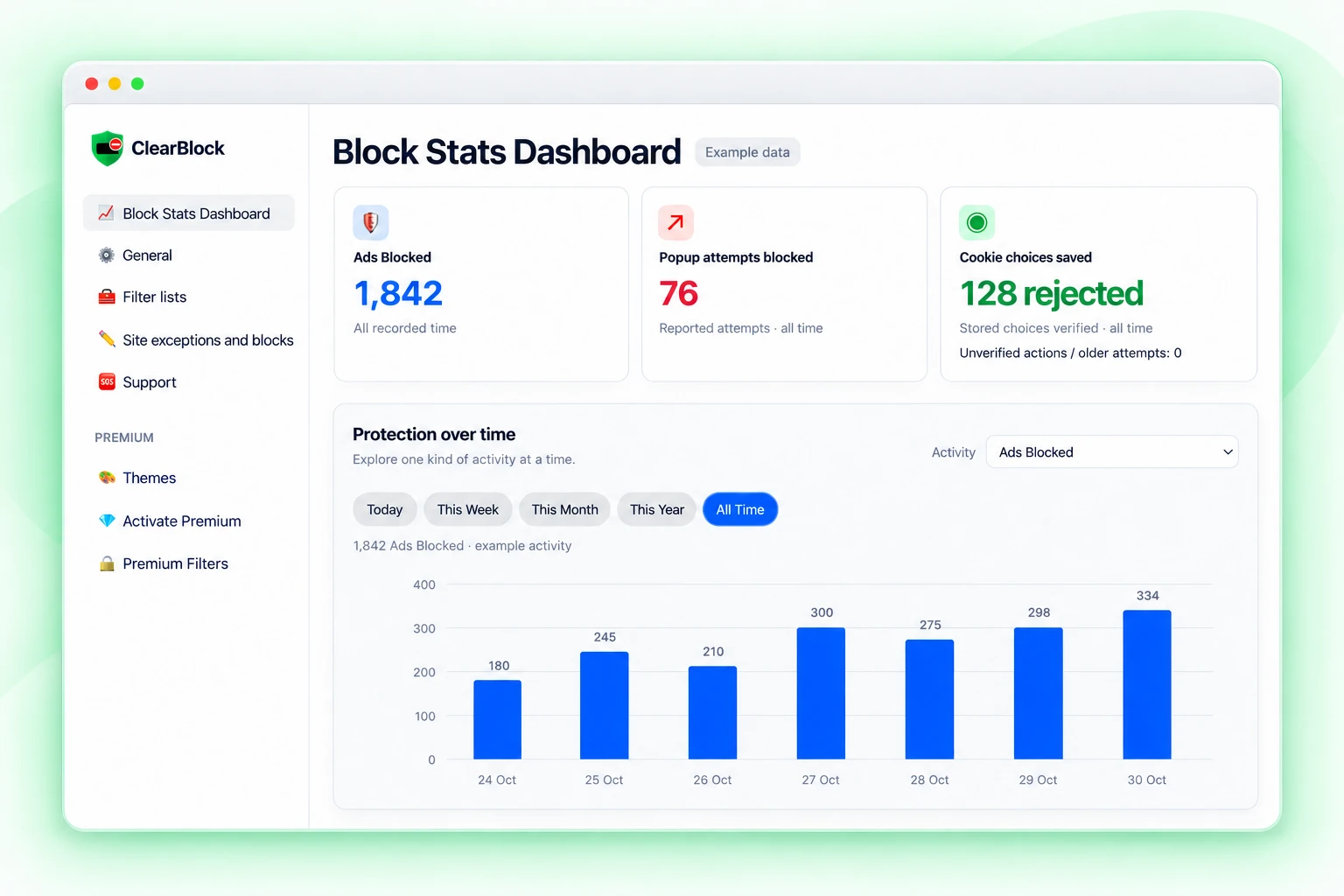
| Block Stats Dashboard | Review recorded activity and choose a time period. |
| General | Manage settings such as matched ad-space hiding and the Premium cookie-banner mode. |
| Filter lists | Review and manage the available filter lists. |
| Site exceptions and blocks | Manage websites you allow and domains you block. |
| Support | Find help when installation, settings or a website needs attention. |
| Premium sections | Access themes, licence activation and additional filter controls. |
In the dashboard, choose an activity type and a period such as Today, This Week, This Month, This Year or All Time.
This total counts recorded blocked network requests, including requests to custom blocked domains. Hidden ad spaces do not increase the total. A single visible ad can involve several requests, so use this figure as a measure of blocking activity rather than a tally of YouTube video ads.
Popup activity refers to intercepted attempts to open windows through supported page scripts. An intercepted attempt is different from a visible window being removed.
Verified saved cookie choices are shown separately from unverified actions or older attempts. A hidden banner alone does not prove that tracking was rejected.
After purchasing Premium, follow the activation instructions. If automatic activation does not complete, open Options and use the activation section to enter the licence key from your receipt email.
Once Premium is active, use the popup toggles for Popup Shield, Stop Auto-Playing Videos, Hide Page Distractions and other available tools. Adjust settings to suit the websites you visit.
Under General → Block Cookie Banners, choose how supported consent notices are handled:
For new users: When you first enable Block Cookie Banners, the mode can start with acceptance fallback. Choose Reject only if you want to avoid automatic acceptance. ClearBlock leaves unknown preference panels available for you to review.
View Premium plans and activation details. Core ad blocking does not require Premium.
If a YouTube ad still plays or playback stalls, check that protection is on and YouTube is not on your allowed-sites list, then reload the video. If it keeps happening, send Support the video URL and tell us whether it happened when you first opened the video or after switching to another one.
Get ClearBlock support. For billing changes, use Manage Subscription.
No. YouTube ad blocking, website ad and tracker filtering, and site controls are included in ClearBlock Free. Premium adds optional browsing tools.
Activity depends on the websites you visit, your settings and the events recorded by your extension. The image uses illustrative sample data, so its totals are not a benchmark.
ClearBlock uses browser storage for settings, with some preferences using browser sync. Premium activation and licence checks contact ClearBlock’s server. See the privacy policy for details.
Manage a paid subscription separately through Manage Subscription. Removing an extension and cancelling a subscription are separate actions.
Install the free extension for Chrome or Edge and manage your browsing from its toolbar and Options page.