
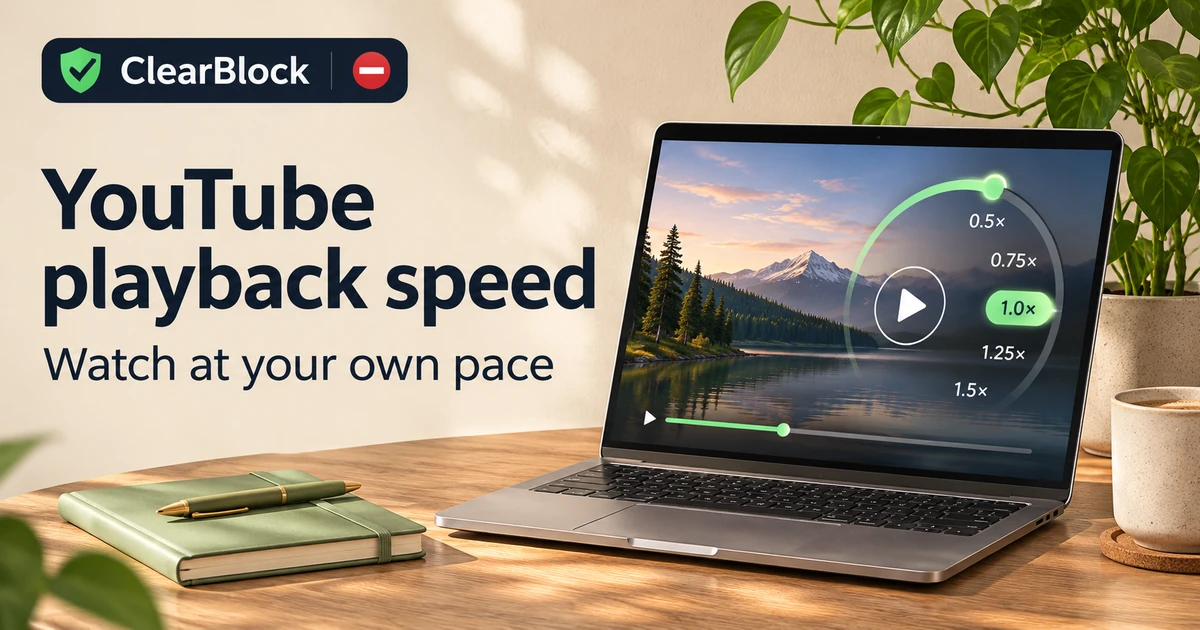
To change YouTube playback speed on desktop, open a video, select the player’s settings control, choose Speed or Playback speed, and select an available rate. Return to Normal or 1× when you want the original pace. Use a small adjustment first so you can judge whether it helps.
This guide is for watching recorded YouTube videos in desktop Chrome and Microsoft Edge. It explains how to choose a comfortable pace, follow a tutorial and separate a speed preference from a playback fault. The artwork illustrates the ideas rather than reproducing YouTube’s current interface.
Change playback speed in the YouTube player
- Open a recorded video at youtube.com and start playback.
- Move the pointer over the player to reveal its controls.
- Select the settings control, usually shown as a cog.
- Open the speed option and choose a rate offered by your player.
- Listen to a short passage, then adjust again only if necessary.
YouTube documents this route in its official playback-speed instructions. Wording and available controls can change, so use the choices actually shown on your video. Do not assume that a setting visible on a phone, television or another account will appear identically on desktop.
Keep the same passage available while comparing rates. If you move to a completely different section at the same time, the material itself may be easier or harder to understand. A short, repeatable comparison is more useful than changing several controls during continuous playback.
Choose a pace for the task
There is no single best speed for every video. A familiar introduction, a dense explanation and a close-up demonstration place different demands on your attention. Treat playback speed as a preference you can revise throughout the session.
| Viewing task | A practical approach |
|---|---|
| Following an unfamiliar demonstration | Start at normal speed; slow a difficult passage and pause before acting. |
| Reviewing material you already know | Try a modest increase, then check that you can still explain the main point. |
| Listening for a name or technical term | Replay a short section and compare any captions or written reference. |
| Assessing music or natural movement | Return to normal speed before judging timing or performance. |
For example, if your player offers 0.75× and 1.25×, these provide a slower and faster comparison with 1×. They are examples, not required targets. Choose another available setting if it suits you better, and return to normal whenever the adjustment makes the material less useful.
Slow down a tutorial without losing the sequence
Imagine a presenter demonstrating a spreadsheet formula. First watch the whole step at its original pace so you understand the intended result. Then replay the relevant passage more slowly if the cursor movement or spoken explanation was difficult to follow.
Pause before entering the formula yourself. Check the cell, file or account you are working in, complete the action, and compare your result with the demonstration. Do not leave the video running while trying to catch up with a step you have not understood.
Keep a timestamp beside the name of the task in your notes. If you need another attempt, return to that point rather than restarting the entire video. A slower rate is most useful when it answers a specific question, such as which menu opened or which value the presenter entered.
For a physical demonstration, slowing playback can make a movement easier to inspect, but it does not establish the correct real-world timing. Watch the section again at normal speed before judging how quickly an action should happen.
Speed up familiar sections thoughtfully
A faster rate can be convenient when revisiting an introduction or reviewing a topic you already understand. Start with a small increase and listen to a complete explanation before increasing it further. The useful test is whether you still follow the content, not whether the timer finishes sooner.
After a short section, pause and summarise the point in your own words. If you cannot identify the instruction or reasoning, reduce the rate and replay it. For a dense passage, normal speed with a pause may be more practical than fast playback followed by several rewinds.
Do not carry a faster setting into an unfamiliar demonstration without checking it. When the presenter reaches a warning, calculation or important instruction, choose a pace that lets you examine the detail. You can use different rates for different parts of the same viewing session.
Estimate viewing time realistically
For uninterrupted playback, divide the remaining video duration by the selected rate. At 1.5×, a 30-minute section would take about 20 minutes to play; at 0.75×, it would take about 40 minutes. These are arithmetic estimates, not promises about how long your session will last.
Allow additional time for notes, pauses and replaying difficult passages. If you are planning a study session, leave room to practise rather than allocating only the calculated playback time. Finishing the recording is different from completing the task it demonstrates.
Do not choose a rate solely to fit a deadline. If the remaining section introduces unfamiliar material, you may get more value from watching one useful part carefully and returning later than rushing through the whole recording.
Return to normal speed before comparing problems
If speech sounds unusually hurried or movements feel wrong, reopen the speed menu and check the selected value. Restore Normal or 1× before changing audio, browser or extension settings. This gives you a familiar starting point for the next comparison.
Check again when you start another video rather than relying on a remembered preference. If you share a computer, someone else may have used a different viewing setup. Establish the current setting from the player instead of assuming what the last session left behind.
YouTube also documents a temporary fast-forward action: clicking and holding the video plays at twice the pace until you release the click. If you are using that action, release the pointer before judging the selected menu rate. A temporary interaction and a chosen speed are different things.
If the speed control is missing or unresponsive
Start with an ordinary recorded video on YouTube’s own watch page. Note whether you were previously using an embedded player, a live stream or another viewing format. Those are different test conditions, so do not assume their controls must match.
Try another recorded video and check whether the visible settings button responds. If the whole player is unresponsive, record that broader symptom. If only the speed option fails, note the selected rate and what happens when you choose another.
Save any unfinished comment or other work before reloading. If necessary, update the browser through its own settings and retest. Avoid installing a separate speed extension simply because a control failed once; first establish whether the issue is repeatable.
If playback stalls, restore normal speed and use the YouTube buffering checklist. Changing playback pace is not a general fix for a connection problem, an unavailable video or a page that will not load.
Combine speed controls with captions and navigation
Captions and a short replay can help when a spoken phrase remains unclear. Compare names, numbers and technical terms with a reliable written source when accuracy matters. Slower speech does not make an incorrect caption or an unsupported claim reliable.
Use our captions and transcripts guide for text options. If you want to pause or revisit passages without repeatedly reaching for the mouse, see YouTube keyboard shortcuts on desktop. Keep those tools simple enough that they support the lesson rather than interrupt it.
How ClearBlock fits into this setup
Playback speed belongs to YouTube’s player. ClearBlock does not supply this menu, and you do not need ClearBlock Premium to change the pace. Keep speed preferences separate from extension settings when you troubleshoot.
ClearBlock’s free protection helps block YouTube video ads and includes website ad and tracker blocking. YouTube coverage varies, and playback can sometimes take longer to start. If the tab was open before installation or enabling protection, reload it, then check ClearBlock’s status on that page.
For protection checks, use the ClearBlock YouTube guide. Changing playback speed is not an ad-skipping guarantee, and an advertisement appearing does not establish that your speed setting caused it.
A short comparison you can repeat
Choose a two-minute passage from a video you know. Before starting, write one question you want that passage to answer. Watch at normal speed and note the answer, then replay with one modest adjustment. Keep the video, audio volume and viewing window the same.
After each attempt, ask whether you needed more pauses, whether an important detail became clearer and whether the pace felt comfortable. If both attempts worked equally well, choose the one you prefer. If the altered pace created more work, restore normal rather than treating a faster or slower rate as an improvement by itself.
Keep any notes about this comparison brief. The goal is to find a setting that suits the material today, not to establish one permanent speed for everything you watch. You can repeat the same small test when you move from a familiar topic to a new one.
Frequently asked questions
Which speed is best for learning?
Use a pace that lets you understand and apply the material. Begin normally, adjust a short passage and check your understanding. A difficult step may need a pause rather than a different rate.
Does slower playback improve picture quality?
Speed and picture quality are separate controls. If small text is unclear, inspect the quality setting and the original recording rather than expecting a pace change to add missing detail.
Do I need another extension?
Start with the built-in player controls. Consider extra software only for a specific requirement that those controls do not meet, after reviewing its permissions and source.
What should I include in a problem report?
Record the browser version, video type, selected rate, expected result and actual behaviour. Say whether normal-speed playback and a second recorded video work. That gives someone a repeatable comparison instead of a vague report that playback feels wrong.