
Use the YouTube Miniplayer to keep a video playing while you browse YouTube. If you want to watch while you read another website, use Chrome’s picture-in-picture controls. Both put the video in a smaller window, but where that window can follow you determines which option to choose.
This guide uses the desktop YouTube watch page. Start with a regular uploaded video so you can check which controls appear before trying a live stream, playlist or embedded player.
Open the YouTube Miniplayer on a computer
- Open a regular video on YouTube and start playback.
- Right-click the video and choose Miniplayer from YouTube’s menu. If you are using the keyboard, give the video player focus and press I.
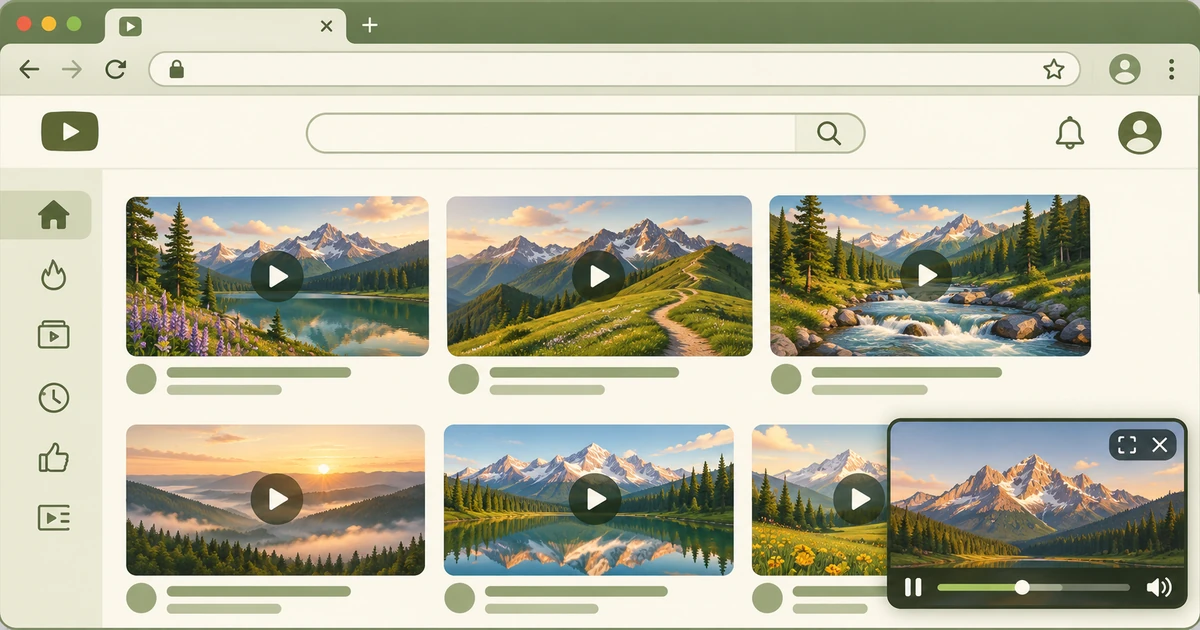
- Continue browsing YouTube in the same tab. The video stays visible in the smaller player as you navigate around the site.
- Use the smaller player’s controls to pause or resume. Choose Expand to return to the watch page, or use the close control to dismiss the player.
If right-click opens your browser’s menu, dismiss it and try the keyboard shortcut with the video focused. If you recently typed in Search or in a comment box, click back into the player area first. Check YouTube’s help for the current desktop controls. YouTube Miniplayer help · YouTube keyboard shortcuts
Move, resize or close the Miniplayer
On desktop, YouTube documents dragging the Miniplayer to another corner and dragging a corner of the player to resize it. Move it if it covers a thumbnail you want to see, or shrink it when you mainly want to listen. Expand the player when the video contains small captions, diagrams or demonstrations that are hard to read in the smaller window.
If you select another video from YouTube Home while the Miniplayer is open, YouTube can load that video in the Miniplayer. Open the next video in another tab if you want to leave the first one playing in its current tab. If you accidentally dismiss the small player, return to the original video page or look for the video in your watch history if it was recorded there.
Watch YouTube in a floating window across Chrome tabs
Use Chrome’s picture-in-picture mode when your next task is on another website, such as reading documentation or taking notes in a browser-based editor. The smaller video window can stay visible when you switch tabs.
- Play the YouTube video in Chrome.
- In the browser toolbar, open Media control near the top right.
- Select the picture-in-picture control for the video.
- Switch to the tab you want to use. Drag the video window out of the way if it covers a control or part of your document.
- Use the floating player’s close or return control when you want to continue on the main watch page.
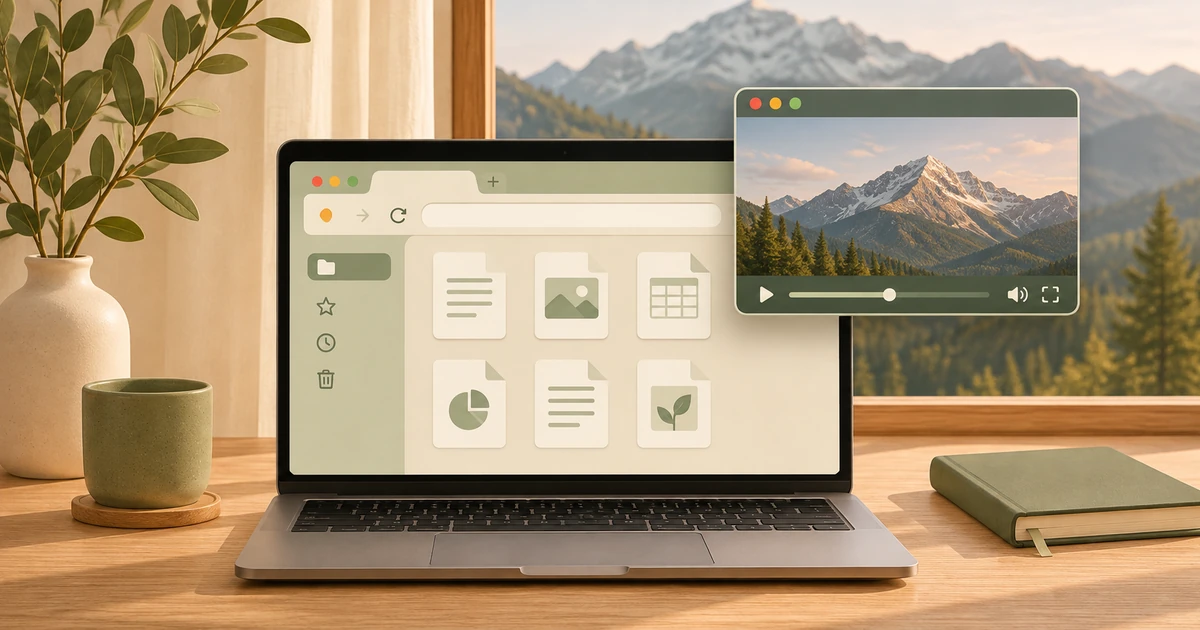
Keep the original YouTube tab open while you use the floating window. If several tabs are playing media, pause the others briefly so you can find the correct video in Chrome’s controls. The floating window gives you basic playback controls. Go back to the watch page for the full YouTube controls and description. Chrome media controls and picture-in-picture
Choose the mode that fits what you are doing
- Browsing for the next video on YouTube. Open the Miniplayer and search within the same tab. You can glance at results while the current video continues.
- Following a demonstration in another tab. Use Chrome picture-in-picture, then switch to your browser-based editor or reference page. Place the window where it leaves enough room for your work.
- Reviewing a difficult section. Return to the full watch page and use captions, the transcript or the speed controls. Those tools are easier to reach when the full player is visible.
For a tutorial, try starting in the full player to see the setup, then switch to the floating window while you practise. If you miss a detail, return to the main page and use the transcript to jump back to the relevant line. How to use YouTube captions and transcripts
What to check if the Miniplayer is missing
YouTube says the Miniplayer is unavailable for Shorts and videos marked as made for kids. Try a regular uploaded video to see whether the option appears there. If you are watching a YouTube embed on another site, open the original YouTube watch page and compare the controls.
When the keyboard shortcut fails but the menu works, check which part of the page has focus. Pressing I while the search field is active enters a letter. Click the player before trying the shortcut again. If the Miniplayer vanishes when you switch to a different website, use the browser’s picture-in-picture controls for that task.
If Chrome’s toolbar controls do not show the video, start playback on the watch page and check the toolbar again. Compare another regular video in the same browser. When you get the same issue across several videos, compare a separate browser profile to see whether the problem follows your setup. If the main player is already stalling or failing to load, start there before diagnosing the smaller window. Why YouTube keeps buffering
What if ClearBlock hides a floating video?
ClearBlock Premium’s Hide Page Distractions can help hide supported floating video players on websites. If a small player behaves unexpectedly, first check whether you are using YouTube’s in-page Miniplayer or Chrome’s floating picture-in-picture window. They use different controls, so test the same video and the same mode each time.
If you suspect an extension setting, change one setting at a time, reload the watch page and repeat the test. Restore your preferred setting after comparing. ClearBlock’s free ad blocking helps block YouTube video ads, with coverage that can vary by video. Use YouTube or your browser to choose how the video window appears. How to use ClearBlock on YouTube