
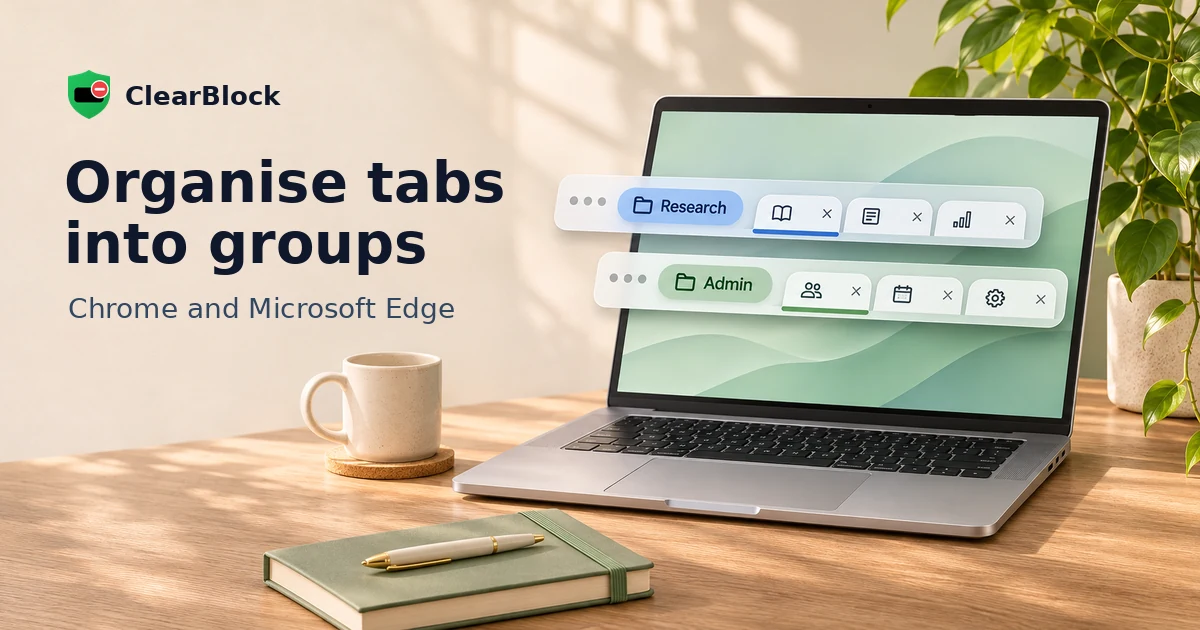
Tab groups give related pages a name and a colour so you can find them again without scanning the whole tab strip. Start with one project, put its tabs together, and collapse the group when you switch tasks. Chrome and Microsoft Edge both offer tab groups on desktop. Their menus and options for bringing a group back differ.
How to create a tab group in Chrome
- Open the pages you want to group in one Chrome window.
- Right-click the first tab and select Add tab to group. Choose New group, or select the option to create a new group if Chrome shows it directly.
- Give the group a short name such as Research and choose a colour. To change either later, right-click the coloured label beside the tabs.
- Drag the remaining tabs into the group. You can also right-click a tab, open the group submenu and choose your existing group.
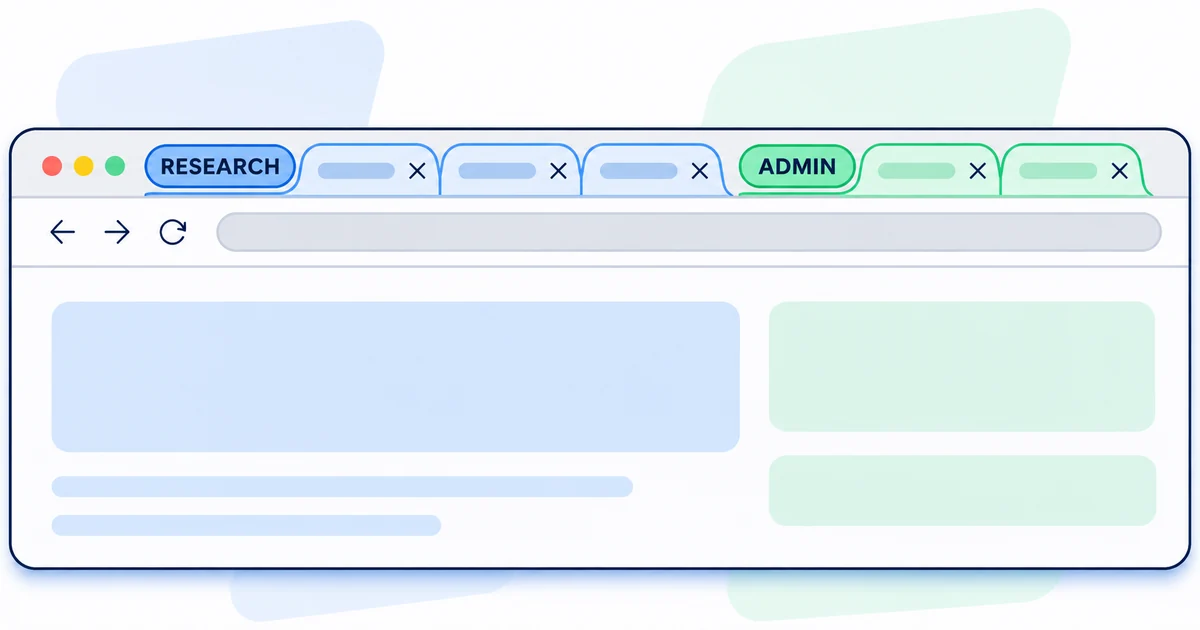
Click a group label to collapse it. The label stays visible and the tabs remain open behind it. Click it again to expand it. To take just one tab out, right-click the tab and choose Remove from group. To keep all the tabs open but dissolve the group, use Ungroup on the group label. Google notes that ungrouping removes the group on devices where it is synced. See Google’s guide to managing tabs in Chrome.
How to close and reopen a Chrome tab group
If you have finished for the day, right-click the group label and choose Close group. Google’s current desktop instructions say the closed group stays available from the Tab groups section in Chrome’s main menu or through the bookmarks bar if tab groups are shown there. To reopen it, select the group by name. If you use Chrome on several devices, Google says groups sync when browsing history and tabs are synced with your Google Account.
Delete group removes the saved group and can remove it from other devices using the same Google Account. If you only want the tabs out of sight, collapse the group. If you want to close the pages and bring the group back later, look for Close group and confirm where it appears after closing. Save work in any open forms or editors before closing the group.
How to create a tab group in Microsoft Edge
- Open the pages for your task in one Edge window.
- Right-click one of the tabs and choose the option to add the tab to a group. Start a new group and type a name.
- Choose a colour. To rename the group or change the colour later, right-click its label to open the group controls.
- Add the other tabs to the same group. You can select related tabs together before using the grouping option.
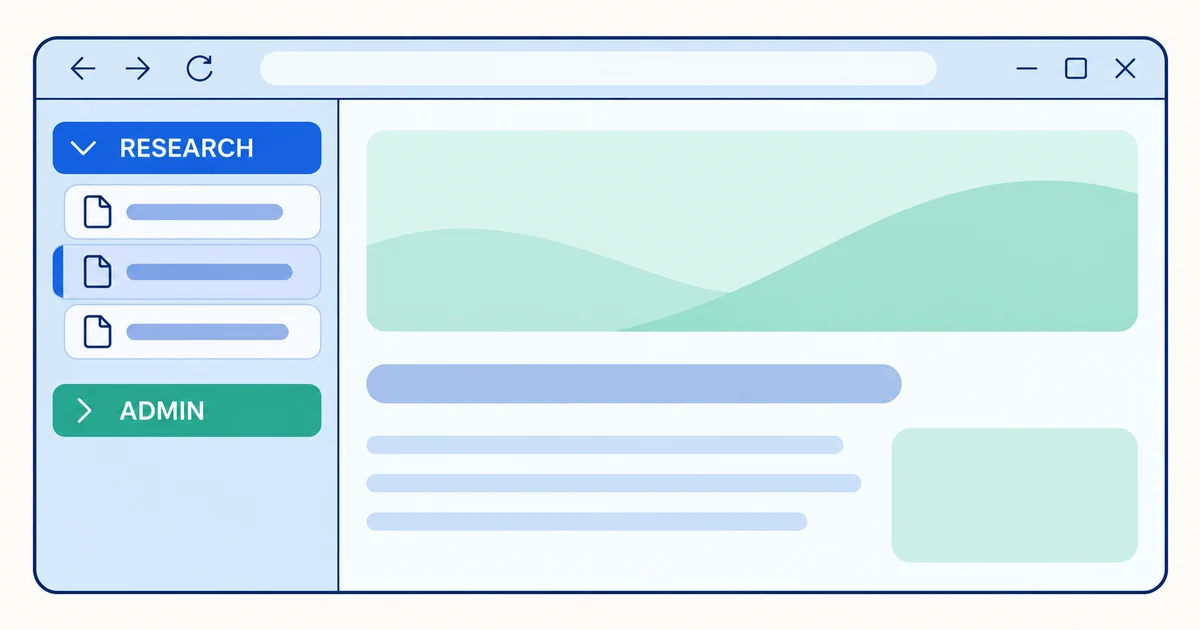
Click the group name to collapse or expand it. Microsoft supports groups in both the horizontal tab strip and the vertical tabs sidebar. Vertical tabs give page titles more room when a group contains several similarly named pages.
What happens to groups when you close Edge?
Microsoft says Edge pins tab groups by default so they can be available when you reopen the browser. It also says availability can vary by version and device. Test this with a small group of ordinary pages before relying on it. Close the browser window while the group is still in the tab list, reopen Edge in the same profile and check that the group returns.
Closing the browser window with a group in it and deliberately closing the group from its menu are separate actions. If you have closed a group and it disappears, check recently closed items in History. For pages you need long term, also keep their links in a favourites folder. See Microsoft’s overview of Edge tab groups.
Collapse, close or bookmark?
- Collapse a group when you are switching tasks and want to keep the pages open.
- Close a group when you are done with those open pages. Check how your browser handles reopening the group first.
- Bookmark the pages when you need a reference list you can return to weeks later or move to another browser. See how to back up and transfer Chrome bookmarks and Edge favourites.
Keep groups easy to scan
Start with two or three groups named after things you do, such as Client review, Research and Admin. Keep names short and use a consistent colour for recurring tasks. When you finish a project, bookmark the pages you want to keep and close the ones you are done with.
If you need different website sign-ins for work and home, use separate browser profiles and create groups inside each one. Tabs in a group still use the active profile’s accounts and settings. Collapsing a group also leaves the tabs open. If you are trying to work out which tabs are using resources, open the browser task manager.
What to check if you cannot find a group
Check the profile icon and any other windows for that profile. A collapsed group looks like a short name or coloured marker, so scan the strip or vertical sidebar before creating it again. In Chrome, also look in the main menu under Tab groups. In Edge, check the window where you created the group and look at recently closed items if the tabs were closed.