
To keep work and personal browsing separate, create two browser profiles and give them clear names. In Chrome or Edge, open the profile menu near the toolbar and look for the option to add a profile. Use one window for work services and the other for personal browsing. Check the profile name before signing in to a website or installing an extension.
Profiles give each setup its own bookmarks or favourites, website sessions and browser settings. They’re useful if you regularly open the same service with two accounts, or want different extensions at work and at home. A profile is still part of the same browser installation on the same device. Anyone who can use your unlocked computer may be able to switch profiles.
Decide what belongs in each profile
Keep your existing profile for the accounts and bookmarks you already use most. Create a fresh profile for the other purpose. For example, leave your personal mail and bookmarks where they are, then create Work for your company mail, shared documents and work favourites. This avoids having to move everything before you can start.
Choose distinct names and, if your browser offers them, different icons or colours. These cues help when you have both windows open. If your employer manages the browser or requires a particular account, use the work setup it provides. A personal profile on a managed device doesn’t override the organisation’s device or browser policies.
Create work and personal profiles in Chrome
- Open desktop Chrome and select the profile icon near the top right.
- Choose the option to add a profile. It may be labelled Add new profile or appear in the profile picker.
- Follow the setup prompts. If you want a local setup and Chrome offers the option, continue without signing in to the browser. If you sign in to Chrome, use the Google Account you intend to associate with that profile and review the options shown.
- Name the profile Work or Personal where you can edit the name, then open the sites you want in that window.
- To switch later, open the profile menu and select the other profile. Check its name or icon once the window opens.
If a service signs you in to an account you didn’t expect, check the profile first, then check the account shown by the service. You can sign in to a website from that window without treating it as the account you want to use for Chrome’s browser data. Google Chrome Help on profiles.
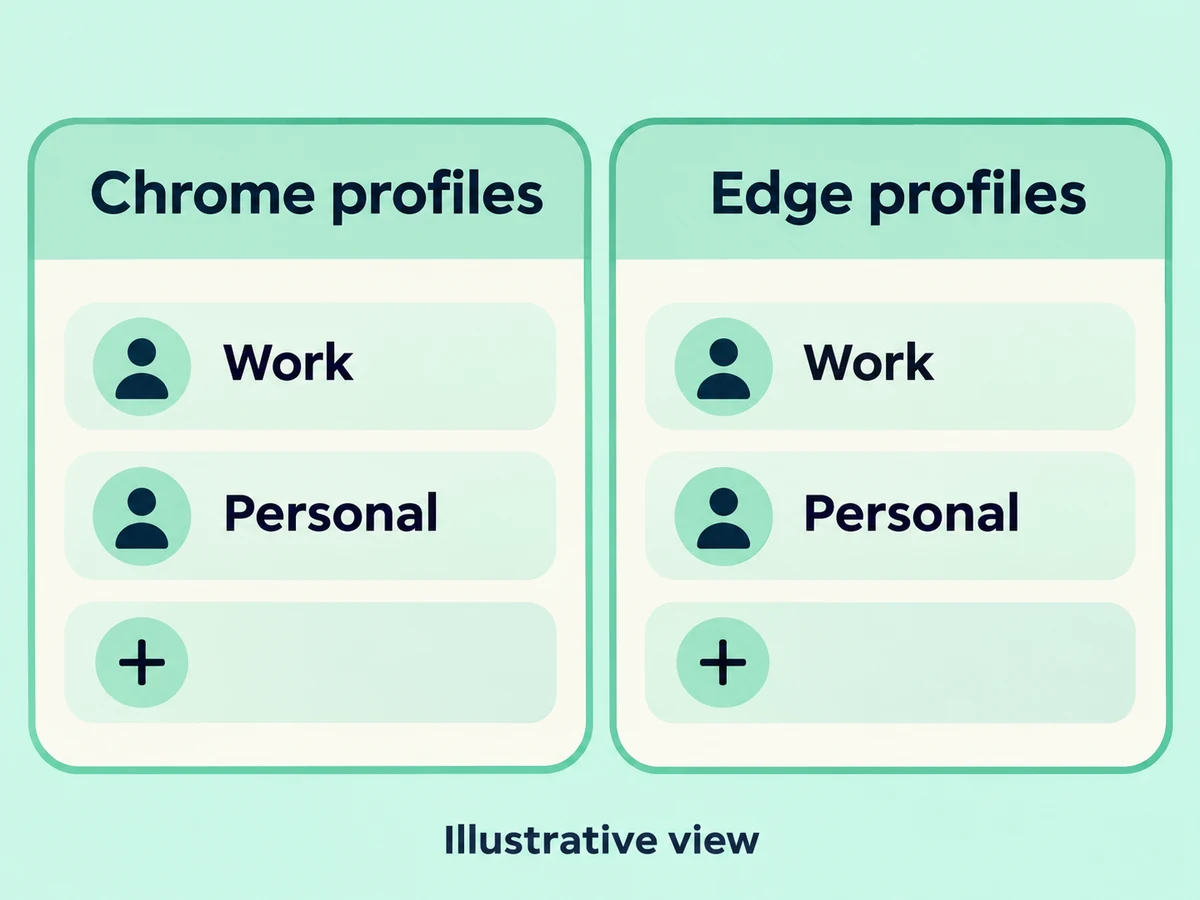
Create work and personal profiles in Microsoft Edge
- Open desktop Edge and select the profile icon.
- Choose Set up a new profile. Depending on your version, you may see an add-profile option instead.
- Choose Personal or Work or school if Edge offers those choices.
- Choose whether to sign in to sync data or start without your data, where offered. Confirm the setup to open the new profile’s window.
- To switch profiles, reopen the profile menu and choose the other profile.
Use the profile menu before opening a saved work link if both windows are on screen. A link clicked from another app can open in a profile you didn’t intend to use. If that happens, open the correct profile first, then use your saved bookmark or open the link there. Microsoft Support on creating and switching Edge profiles.
Check which account you’re using
The browser profile and a website’s account picker answer different questions. The profile tells you which browser setup you’re in. The website tells you which account can send a message, edit a document or view a calendar. A window named Work can still open a personal account if you sign in to it there.
Try this with a service you use for both purposes. Open it from the Work window and check the account name. Switch to Personal, open the same service and confirm that you’re using the intended account there too. Save the links you use frequently inside each profile, and check the website account before sending or sharing anything.
Sync is a separate choice. Review which account and data types are associated with each profile if you want bookmarks, passwords or settings on another device. Signing both profiles into the same sync account can defeat the separation you intended for synced data. What browser sync shares across devices.
Check ClearBlock in each profile
Open Extensions in the profile you’re using and look for ClearBlock. If the shield is missing from the toolbar, the extension may be installed but unpinned. Check the extensions list before installing anything. If ClearBlock isn’t available in that profile, install or enable it there only if your browser and workplace allow it.
When both profiles have ClearBlock, open its popup on the same public site in each window. Check the site shown and the protection status before assuming an exception, pause or other setting applies in both. If you just enabled ClearBlock, save your work and reload the test tab. How to pin ClearBlock and find its controls.
Fix common profile mix-ups
- A bookmark is missing. Switch to the profile where you saved it. In Edge, check its Favourites list.
- A website opens under the wrong account. Check the browser profile, then the account inside the website. Open the same address in the correct window if needed.
- The browser won’t let you create or edit a profile. Check whether the browser or device is managed. Ask your organisation about the approved setup.
- You want to remove an old profile. Check for bookmarks or other local data you still need before removing it. Closing a profile window is enough when you just want to put that session away.
If other people use the computer and you need to keep your sessions private from them, use separate operating-system user accounts and lock your session when you step away. For more practical walkthroughs, see Browser Profiles & Organisation.