
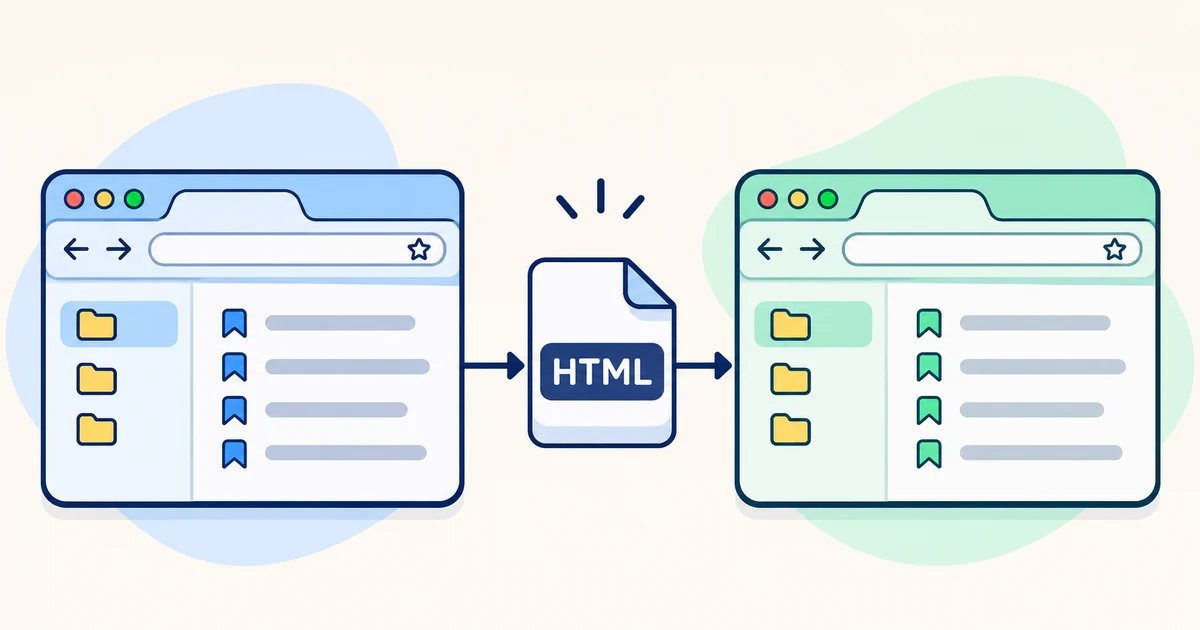
Moving to a new computer, switching from Chrome to Microsoft Edge, or setting up a separate work profile? Export your bookmarks from the old browser as an HTML file, then import that file into the profile you want to use. Edge calls bookmarks favourites. The same type of file works in both browsers.
Keep the export even after the transfer succeeds. It gives you a dated copy of your saved links and folders that you can restore later. These steps are for the desktop versions of Chrome and Edge.
Check which browser profile holds your bookmarks
Click the profile icon in the browser where your links currently live. Select the profile that contains the bookmarks you want, then open its bookmark or favourites manager. Look for a folder or link you recognise before exporting. Do the same check in the destination window before importing.
If the receiving profile already has important bookmarks, export those too and give the two files different names. For example, chrome-personal-before-transfer.html and edge-work-backup.html are easier to tell apart than two files called bookmarks.html. If you still need to set up your profiles, see how to separate work and personal browsing in Chrome and Edge.
How to export bookmarks from Chrome
- Open Chrome in the profile that contains the bookmarks you want to back up.
- Open Chrome’s three-dot menu, then choose Bookmarks and lists and Bookmark manager. You can also type
chrome://bookmarks/into the address bar. - Open the three-dot menu inside Bookmark Manager and choose Export bookmarks.
- Name the HTML file so you can identify its browser and profile, then save it somewhere you can find it.
The export copies your saved links. You can keep using Chrome while the backup sits in a separate file. For the original menu paths, see Google’s Chrome bookmark import and export instructions.
How to export favourites from Microsoft Edge
- Open Edge in the profile that contains your favourites.
- Choose Favourites from the browser’s three-dot menu. In US English, the menu reads Favorites.
- In the Favourites panel, open its own three-dot menu and select Export favourites.
- Save the HTML file with a name that identifies the source profile.
Open your file manager and check that the HTML file is where you expect it. If you are changing computers, copy the file to the new device before you start the import. For a backup against a failed or lost device, keep a separate copy somewhere you can access without that device.
How to import an HTML bookmark file into Chrome
- Open Chrome and switch to the receiving profile.
- Open the three-dot menu and choose Bookmarks and lists, then Import bookmarks and settings.
- If Chrome asks what to import from, choose the bookmarks HTML file option.
- Click Choose file, select your export, then click Open and finish the import.
- Open Bookmark Manager and search for a saved link you recognise. Check the bookmarks bar and Other bookmarks if the imported links are not immediately visible.
Use these same steps to restore a previous Chrome export, move Chrome bookmarks between profiles, or bring Edge favourites into Chrome. Choose the file from the source profile each time.
How to import an HTML bookmark file into Microsoft Edge
- Open Edge and switch to the receiving profile.
- Open Settings, then go to Profiles and Import browser data.
- Look under Other import locations and choose Import next to Import browser data now. The wording may vary with the Edge version.
- In the Import from list, choose the HTML file option for favourites or bookmarks.
- Choose the file, open it and complete the import.
Check the Favourites bar or the Favourites manager for the incoming links. Edge may put them in a folder named Imported. See Microsoft’s Edge import instructions for its menu paths and other import options.
How to copy just one folder
A browser export normally includes the whole bookmark collection. If you only need one project folder and both Chrome profiles are on the same computer, try opening Bookmark Manager in both profile windows. Select the folder in the source manager, copy it, then paste into the intended parent folder in the receiving manager. Check the destination for the folder and its subfolders. Use Copy so the original stays in place while you check it.
For a few links, a method that also works across browsers is to create the destination folder, open each source link and bookmark it in the destination profile. You can paste the original URL into the destination window if opening it in the source profile would use the wrong account.
For a large folder going to another browser or computer, you can import the full HTML file into a separate local profile first. Use that profile to create a smaller export by keeping just the folder you want. Confirm the temporary profile is the active one and has no account sync enabled before removing any links from it. Keep the original export as your full backup.
Check the transfer before removing the original profile
- Search for several familiar links. Pick one from the toolbar and one from a nested folder. Open a few and check that they lead to the expected pages.
- Check the receiving profile. The right bookmark can still open under the wrong website account if you imported into the wrong profile.
- Review duplicates before importing again. Search for a title you recognise and look for an imported folder before retrying. A second import can add extra copies.
- Keep the backup. Save a dated copy before a browser reset, device change or major reorganisation. The file reflects the saved links at the time of export.
What a bookmark backup includes
The HTML file stores saved URLs, link names and folder organisation. Saved passwords, open tabs, history, extensions and website sign-ins are separate. If a work link leads to a sign-in page after the move, use the appropriate work account in the destination profile. If you want ClearBlock in that profile, check its Extensions menu and install ClearBlock there if needed.
A bookmark export can contain private link titles, internal company addresses or URLs with parameters. Treat it like a file containing those links and keep work exports in a location approved for that data. For ongoing access across devices, see how browser sync handles bookmarks and other browsing data.
What to check if the import appears empty
First, confirm you chose the correct HTML file and receiving profile. Open the bookmark manager and search for an exact title from the source. If it is missing, look in the old profile and check that the link was saved there. You can open a trusted export you created yourself as a local file to see whether it contains the expected links. If the export came from the wrong profile, create a fresh one before trying the import again.