

YouTube chapters divide a video into named sections so you can find a topic without repeatedly dragging through the whole recording. On desktop, inspect the progress bar for section boundaries, check the video description for timestamps, or select the chapter title in the player when it is available.
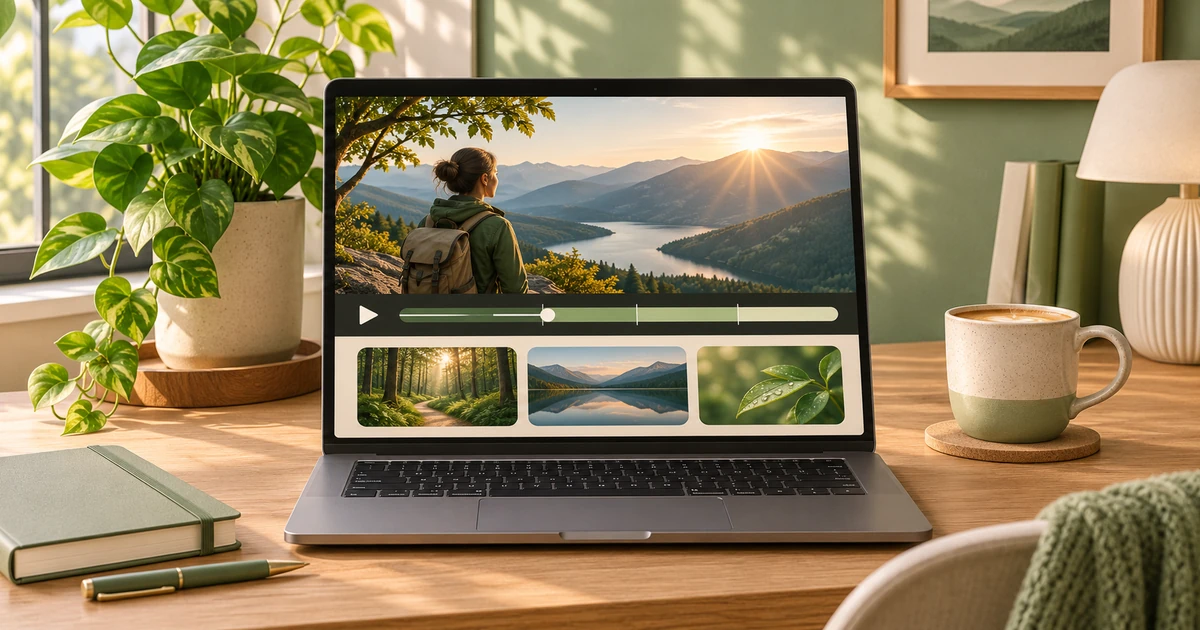
This guide covers finding and revisiting passages in recorded YouTube videos in Chrome and Microsoft Edge. It includes practical timestamp notes and checks for missing chapters. The images are conceptual illustrations, not screenshots of the current player.
Find chapters in a desktop video
- Open the video on its ordinary YouTube watch page.
- Reveal the playback controls and inspect the progress bar for section boundaries.
- Move along the bar to check the chapter titles and choose the relevant section.
- Start playback and confirm that the passage matches what you wanted.
You can also look for timestamps in the expanded description or select an available chapter title above the progress bar. YouTube describes these routes in its chapter-navigation instructions. Exact positions can vary as the interface changes.
Start with one familiar video so you can tell whether the selected section is correct. A chapter title is a useful clue, but listen to the opening explanation before assuming you have found the exact instruction you need.
Understand chapters and timestamps
A timestamp identifies a position in a recording. A chapter adds a section name and a boundary that can help you understand how a longer video is organised. The two are related, but a timestamp you write in your own notebook does not change the video’s chapter structure.
Creators can supply chapters themselves or use automatic chapters. Automatic chapters are not available on every video, and creators can choose not to use them. YouTube’s chapter documentation explains those distinctions.
As a viewer, use the organisation the video provides and supplement it with your own notes. If you need a smaller passage inside a broad chapter, record that position separately. You do not need to become a creator or open YouTube Studio to navigate someone else’s recording.
Choose the right section without losing context
Before jumping, decide what you are looking for. “Find where the presenter compares the two settings” is easier to act on than “find the useful bit”. Read the available section titles with that question in mind.
If this is your first viewing, inspect the beginning of the recording for preparation steps. A later demonstration may depend on a file, setting or definition introduced earlier. Jumping straight to the final result can make the instructions difficult to reproduce.
When a passage seems incomplete, move back to the preceding section rather than repeatedly replaying a sentence with missing context. Check what the presenter has already done and what starting state their example assumes.
For entertainment or a familiar recording, selective navigation may be all you need. For a tutorial, the useful result is understanding the task well enough to perform it. Chapter navigation should support that goal rather than replace the explanation.
Keep timestamp notes you can understand later
A useful reference contains the video title or URL, a timestamp and a reason to return. For example, “08:20 — comparison of export settings; check the second option” tells you more than a time alone. This is a suggested note format, not a built-in YouTube feature.
| What to record | Why it helps |
|---|---|
| Video title and URL | Distinguishes similar recordings and different versions of a tutorial. |
| Timestamp | Gives you a starting point within the recording. |
| Topic or question | Explains why the passage matters to your task. |
| Your conclusion | Separates what you learned from what you still need to verify. |
Keep the note in a place you already use for the project. A separate collection of unexplained video links can become another backlog. If the recording teaches a changing software interface, note the relevant version or publication date when it affects the instructions.
Use a transcript when chapter names are too broad
For a video with captions, expand the description and look for Show transcript. A transcript can help locate a spoken phrase; selecting a caption line moves playback to that passage. YouTube explains this in its transcript help page.
Once you find the phrase, watch enough of the surrounding section to understand it. A match for a word does not establish that it is the demonstration, conclusion or recommendation you wanted. The speaker might be describing an approach they later reject.
Compare names, numbers and technical terms with the visible demonstration or a reliable written reference. Captions can contain mistakes. For a fuller walkthrough of the text controls, read our captions and transcripts guide.
A worked example for a software lesson
Suppose a long tutorial covers creating, formatting and exporting a document. You already know the first two tasks and want to check one export option. Inspect the chapter titles and choose the section that appears relevant.
Listen from that section’s beginning. If the presenter refers to an earlier setting, return to the previous section and check it before continuing. Pause when the export menu opens and compare it with the version on your own computer.
Record the point where the relevant option is explained and write down what it changes. Then perform a small test on a copy of your document. This gives the timestamp a practical purpose: it supports a decision you can check rather than merely marking an interesting moment.
If the video does not answer your question, note that too. Reopening the same passage several days later without remembering its limitation wastes time. Keep the reference only if it still supports your task.
If chapter markers are missing
Do not assume that missing chapters mean the browser or an extension has failed. Some videos have no chapters. Check the description for useful timestamps, then consider the transcript or ordinary seeking controls.
Compare another recorded video that you already know contains chapters. Keep the same browser and account for the first comparison. If that video displays its sections, you have evidence that the difference may belong to the recording rather than every page in your setup.
If chapter controls appear but do not respond, record the exact symptom. Can you move the playback position normally? Does the video play? Is the issue limited to one recording or an embedded view? These observations help distinguish a navigation problem from a wider playback fault.
Save any unfinished comment before reloading the page. Avoid resetting the browser or reinstalling an extension simply because one video has no section markers. For a stalled player, use the buffering checklist instead.
Combine chapters with other viewing controls
Use a chapter to reach the general topic, then pause or replay a short passage for the detail. Our keyboard-shortcuts guide covers those smaller playback movements.
If a demonstration is hard to follow, try a modest pace adjustment and check whether it helps. Return to normal before judging the timing of real-world movements. See how to change YouTube playback speed for that separate control.
When you need to stop for the day, record the timestamp and task, then save the video if you intend to return. Watch Later keeps the video reference, while your note explains the passage you still need. Neither should be treated as a guaranteed archive of content that its creator may later change or remove.
Where ClearBlock fits into chapter navigation
Chapters, timestamps and transcripts belong to YouTube’s player and content. ClearBlock does not generate chapter titles or supply the transcript. You do not need ClearBlock Premium to use those navigation controls.
ClearBlock’s free protection helps block YouTube video ads and includes website ad and tracker blocking. YouTube coverage varies, and playback can sometimes take longer to start. Reload a tab that was already open when the extension was installed or enabled.
Use the ClearBlock YouTube setup guide for protection checks. A chapter jump is not an ad-skipping guarantee. Keep a missing-chapter report separate from a report about advertisements or playback so each comparison tests one symptom.
Check a reference before relying on it
When you return to an old timestamp, first confirm that you have opened the same video. Similar titles, revised tutorials and different uploads can make a familiar time point misleading. Compare the creator, title and the surrounding content rather than relying on the number alone.
Keep time notation clear. A note of 12:30 means twelve minutes and thirty seconds in an ordinary short recording; for longer material, include the hours when needed. If you are copying a reference into a document, label it as a video position so nobody mistakes it for a time of day.
Before passing the reference to someone else, replay the passage and check that your description is fair. Include the question it answers and any relevant limitation. A precise location is useful, but the surrounding explanation is still part of the evidence. For important work, preserve your own conclusions and supporting written sources separately.
Frequently asked questions
Can I add chapters to another creator’s video?
You can record your own timestamps and notes, but that does not edit the creator’s chapter structure. Keep your references with the project where you need them.
Why does a chapter begin before the exact instruction?
A chapter may cover a whole topic. Watch its opening for context, then record a more precise timestamp for your own use.
Does a missing chapter mean something is blocked?
No. Check whether the video actually provides chapters before changing protection settings. Compare a known chaptered recording if you need a clearer test.
What should I include when reporting a navigation problem?
Include the public video URL, browser version, selected section and actual result. Say whether ordinary seeking works and whether a second video behaves the same way. Remove private account details from screenshots.